My Subscriptions
Purpose
View and manage your event subscriptions, including upcoming and past events you've accepted or subscribed to, with complete event details and actual hours worked.
Access
Navigate to: /member/mySubscriptions or Member → My Subscriptions
Screenshot
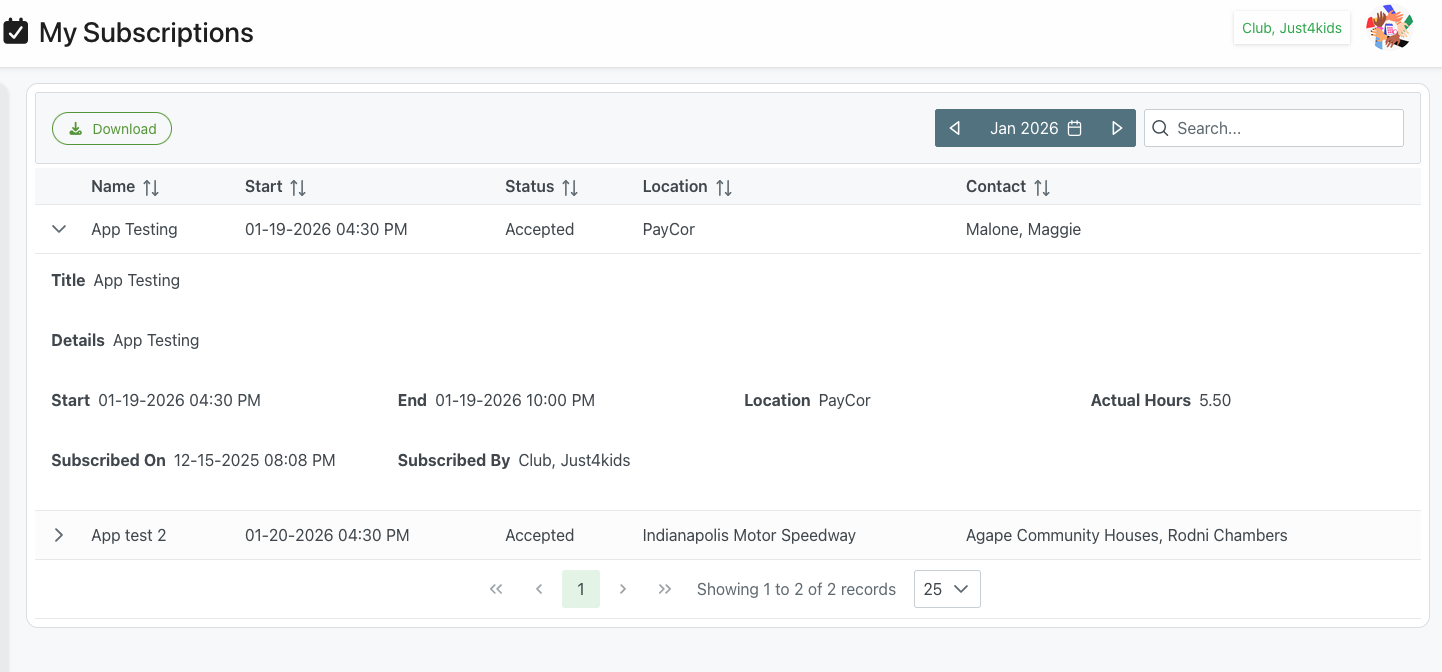
Description
The My Subscriptions page provides members with a comprehensive view of all their event subscriptions. Members can see upcoming events they've accepted, review event details, track hours worked, and manage their commitments. The interface offers filtering, searching, and detailed information about each subscribed event.
Key Features
Event Overview
- All subscribed events in one place
- Date and time information
- Event status tracking
- Location details
- Contact information
Detailed Information
- Expandable rows with full event details
- Start and end times
- Actual hours worked
- Subscription timestamp
- Who subscribed you (self or administrator)
Management Tools
- Month navigation for viewing different periods
- Search functionality to find specific events
- Download/export capabilities
- Status filtering
Page Structure
Header
- Icon: ✓ Checkmark icon
- Title: "My Subscriptions"
- Club Info: Current club/organization name (e.g., "Club, Just4kids")
- User Avatar: Profile picture in top-right
Action Toolbar
📥 Download Button
- Position: Top-left
- Icon: Download arrow icon
- Label: "Download"
- Color: Green outlined button
- Action: Export subscriptions list
- Format: Typically PDF or CSV
- Purpose: Download record of subscriptions for personal records
Date Navigation
Month Selector
- Display: "Jan 2026" with calendar icon
- Format: MMM YYYY
- Background: Dark gray/blue
◀ Previous Month
- Position: Left of month display
- Action: View previous month's subscriptions
- Navigation: Moves backward one month
📅 Calendar Picker
- Icon: Calendar icon in month display
- Action: Opens date picker (if implemented)
- Quick Navigation: Jump to specific month
▶ Next Month
- Position: Right of month display
- Action: View next month's subscriptions
- Navigation: Moves forward one month
🔍 Search Box
- Position: Top-right
- Icon: Magnifying glass
- Placeholder: "Search..."
- Function: Filter events by name, location, or contact
- Real-time: Updates table as you type
Subscriptions Table
Column Headers
Name
- Header: "Name"
- Sort Icon: ↕️ Up/down arrows
- Content: Event name/title
- Example: "App Testing", "App test 2"
- Sortable: Click to sort alphabetically
- Expandable: Click row to see details
Start
- Header: "Start"
- Sort Icon: ↕️ Up/down arrows
- Format: MM-DD-YYYY HH:MM AM/PM
- Example: "01-19-2026 04:30 PM"
- Sortable: Click to sort chronologically
- Purpose: Event start date and time
Status
- Header: "Status"
- Sort Icon: ↕️ Up/down arrows
- Values:
- Accepted: Subscription confirmed
- Pending: Awaiting confirmation
- Declined: Not accepted
- Cancelled: Event cancelled
- Completed: Past event, finished
- Example: "Accepted"
- Sortable: Sort by status type
- Visual: May include color coding
Location
- Header: "Location"
- Sort Icon: ↕️ Up/down arrows
- Content: Venue name
- Examples:
- "PayCor"
- "Indianapolis Motor Speedway"
- Sortable: Sort by location
- Purpose: Where event takes place
Contact
- Header: "Contact"
- Sort Icon: ↕️ Up/down arrows
- Format: "LastName, FirstName" or full name
- Examples:
- "Malone, Maggie"
- "Agape Community Houses, Rodni Chambers"
- Sortable: Sort by contact name
- Purpose: Event coordinator or point of contact
Row Details
Collapsed Row View
- Expand Icon: ▼ or > arrow on left
- Summary: Name, Start, Status, Location, Contact
- Hover: Row highlights on hover
- Click: Anywhere on row to expand
Expanded Row View
When row is expanded, detailed information displays:
Title
- Label: "Title"
- Content: Event name
- Example: "App Testing"
Details
- Label: "Details"
- Content: Event description or notes
- Example: "App Testing"
- Purpose: Additional event information
Start
- Label: "Start"
- Format: MM-DD-YYYY HH:MM AM/PM
- Example: "01-19-2026 04:30 PM"
- Purpose: Event start date and time
End
- Label: "End"
- Format: MM-DD-YYYY HH:MM AM/PM
- Example: "01-19-2026 10:00 PM"
- Purpose: Event end date and time
Location
- Label: "Location"
- Content: Venue name
- Example: "PayCor"
- Purpose: Event venue
Actual Hours
- Label: "Actual Hours"
- Content: Hours worked
- Example: "5.50"
- Format: Decimal hours
- Purpose: Track time commitment
- Note: May show "0" if event not yet completed
Subscribed On
- Label: "Subscribed On"
- Format: MM-DD-YYYY HH:MM AM/PM
- Example: "12-15-2025 08:08 PM"
- Purpose: When subscription was created
- Tracking: Audit trail of commitment
Subscribed By
- Label: "Subscribed By"
- Content: Name of person who subscribed you
- Example: "Club, Just4kids"
- Values:
- Your name (self-subscribed)
- Administrator name (assigned by admin)
- Club/organization name (bulk assignment)
- Purpose: Who created the subscription
Table Navigation
Pagination Controls
- ⏮ First Page: Jump to first page
- ◀ Previous: Previous page
- Page Number: Current page (e.g., "1")
- ▶ Next: Next page
- ⏭ Last Page: Jump to last page
Record Info
- Display: "Showing 1 to 2 of 2 records"
- Format: "Showing X to Y of Z records"
- Purpose: Shows current view range
Page Size Selector
- Display: Dropdown showing "25"
- Options: Typically 10, 25, 50, 100
- Purpose: Change number of records per page
- Action: Adjusts table display
Event Status Types
Accepted
- Meaning: Subscription confirmed
- Action: You're scheduled for this event
- Next Steps: Attend event at scheduled time
- Color: May be green or default
Pending
- Meaning: Awaiting confirmation
- Action: Waiting for approval or system processing
- Next Steps: Wait for status update
- Color: May be yellow or orange
Declined
- Meaning: Subscription not accepted
- Action: Not scheduled for event
- Reason: May have been over-subscribed or rejected
- Color: May be red or gray
Cancelled
- Meaning: Event was cancelled
- Action: Event no longer happening
- Next Steps: No action required
- Color: May be red or strikethrough
Completed
- Meaning: Past event, finished
- Action: Event already occurred
- Hours: Actual hours should be recorded
- Color: May be gray or default
Using My Subscriptions
Viewing Current Month
- Page loads with current month (January 2026 in screenshot)
- See all subscriptions for displayed month
- Expanded or collapsed rows based on preference
- Review upcoming events
Navigating to Different Months
- Click ◀ for previous month
- Click ▶ for next month
- OR: Click calendar icon to jump to specific month
- Table updates with that month's subscriptions
Searching for Events
- Click in search box (top-right)
- Type event name, location, or contact
- Table filters in real-time
- Shows only matching events
- Clear search to see all events
Viewing Event Details
- Locate event in table
- Click anywhere on the row
- Row expands to show full details:
- Complete date/time information
- Actual hours worked
- Subscription details
- Contact and location
- Click again to collapse
Checking Actual Hours
- Expand event row
- Look at "Actual Hours" field
- Shows hours worked for completed events
- May show 0.00 for upcoming events
- Use for timesheet verification
Downloading Subscriptions
- Click Download button
- Select format (if prompted)
- File downloads to computer
- Contains subscription list and details
- Use for personal records or reporting
Use Cases
Planning Your Schedule
Scenario: See upcoming commitments for the month
Process:
- Open My Subscriptions
- View current month display
- Review accepted events
- Note dates, times, and locations
- Check contact person for each
- Plan transportation and availability
- Set personal reminders
Verifying Hours Worked
Scenario: Track actual hours for payroll or records
Process:
- Navigate to past month
- Find completed events
- Expand each event row
- Check "Actual Hours" field
- Compare with personal records
- Download for submission if needed
- Contact administrator if discrepancies
Checking Event Details
Scenario: Need location or contact information for upcoming event
Process:
- Find event in current or upcoming month
- Click row to expand details
- Note location information
- Check contact person
- Review start and end times
- Prepare accordingly
Monthly Review
Scenario: Review month's activities
Process:
- Use month navigation to select month
- View all events for that period
- Check completion status
- Verify actual hours
- Download records if needed
- Use for reporting or planning
Finding Specific Event
Scenario: Locate particular event quickly
Process:
- Use search box
- Type event name, location, or contact
- Table filters to matches
- Expand to see details
- Clear search when done
Understanding Subscription Information
Self-Subscribed vs. Assigned
Self-Subscribed
- Subscribed By: Your name
- Meaning: You volunteered for this event
- Action: You chose to participate
- Commitment: Personal choice
Administrator Assigned
- Subscribed By: Admin or club name
- Meaning: You were assigned to event
- Action: Scheduled by coordinator
- Commitment: Assignment, may be required
Subscription Timeline
Subscribed On Date
- When commitment was created
- May be weeks before event
- Important for cutoff date tracking
- Audit trail for disputes
Hours Calculation
Actual Hours
- Calculated from start to end time
- May include breaks or adjustments
- Updates after event completion
- Used for payroll or records
- May differ from scheduled hours
Best Practices
Regular Review
- Weekly Check: Review upcoming week's events
- Month Planning: Look ahead at full month
- Past Review: Verify completed events and hours
- Status Monitoring: Watch for status changes
- Contact Verification: Confirm contact info current
Time Management
- Calendar Integration: Add events to personal calendar
- Transportation: Plan routes to locations
- Preparation Time: Allow extra time for first-time venues
- Conflicts: Identify conflicts early
- Cutoff Awareness: Know unsubscribe deadlines
Hour Tracking
- Personal Records: Keep own time log
- Compare Hours: Verify against actual hours shown
- Report Discrepancies: Contact admin if hours incorrect
- Download Records: Maintain personal copies
- Tax Records: Save for tax purposes if applicable
Communication
- Contact Person: Know who to reach for questions
- Early Notification: Report issues or conflicts promptly
- Confirm Attendance: Reconfirm before event if needed
- Post-Event: Report any issues or concerns
- Updates: Check for event changes or cancellations
Troubleshooting
Event Not Showing
Problem: Subscribed event doesn't appear in list
Possible Causes:
- Wrong month selected
- Event in different month
- Subscription not confirmed
- Page not refreshed
Solutions:
- Check month navigation - use arrows to view other months
- Use search to find event by name
- Refresh browser page
- Verify subscription was accepted
- Contact administrator if still missing
Cannot Expand Row
Problem: Clicking row doesn't show details
Possible Causes:
- Browser issue
- JavaScript not loaded
- Click target issue
Solutions:
- Try clicking different part of row
- Refresh page
- Try different browser
- Clear browser cache
- Check internet connection
Hours Show as Zero
Problem: Actual Hours displays 0.00 for completed event
Possible Causes:
- Event just completed (not processed yet)
- Hours not yet recorded
- Check-in/out not completed
- System delay
Solutions:
- Wait 24 hours for processing
- Verify you checked in and out
- Check with event coordinator
- Contact administrator
- Provide your records if needed
Search Not Working
Problem: Search doesn't filter results
Possible Causes:
- Search term not matching
- JavaScript issue
- Browser problem
Solutions:
- Check spelling of search term
- Try different search terms
- Refresh page
- Clear search and try again
- Use month navigation instead
Download Fails
Problem: Download button doesn't work
Possible Causes:
- Browser popup blocker
- Network issue
- No data to download
Solutions:
- Check popup blocker settings
- Try different browser
- Verify you have subscriptions in current view
- Check internet connection
- Contact support
Related Features
- Calendar View - Calendar view of events
- Dashboard - Member dashboard overview
- Resources - Member resource documents
- Schedule Management - Administrator schedule view
Tips
- Check Regularly: Review subscriptions weekly for upcoming events
- Expand for Details: Click rows to see complete event information
- Download Records: Export subscriptions for personal records
- Verify Hours: Check actual hours match your records
- Use Search: Quickly find specific events with search box
- Month Navigation: Use arrows to view past and future months
- Note Contact: Always check contact person for questions
- Location Info: Verify location before event day
- Status Monitoring: Watch for status changes (cancellations, etc.)
- Subscription Date: Note when subscribed for cutoff tracking
- Subscribed By: Check who subscribed you (self or assigned)
- Plan Ahead: Use to plan monthly schedule and availability