Settings
Purpose
Configure organization-level settings including basic information, event defaults, document types for compliance tracking, and email communication settings.
Access
Navigate to: /organize/settings or Organize → Settings
Description
The Settings page provides centralized configuration for the organization's scheduling system. Settings are organized into four tabs: Basic Settings, Event Settings, Documents, and Contact. Changes to settings affect the entire organization and typically require administrator permissions.
Key Features
Organization Configuration
- Organization name and registration controls
- Access passcode requirements
- Event default times and durations
- Calendar color schemes
Document Management
- Define document types for compliance tracking
- Unique 3-character codes for each document type
- Control which documents require tracking numbers
- Set year-based validity requirements
Email Settings
- Default contact person for communications
- Reply-to email address configuration
- Custom email footer for all outgoing emails
Page Structure
Header
- Icon: ⚙️ Settings icon
- Title: "Settings"
- User Info: Current user display (e.g., "Team, Nithya")
Navigation Tabs
Four tabs organize different setting categories:
- Basic Settings - Organization name and access controls
- Event Settings - Default event configuration and colors
- Documents - Document type management for compliance
- Contact - Email communication settings
Save Button
- Position: Bottom-right corner of page
- Color: Green
- Icon: 💾 Save icon
- Label: "Save"
- Action: Saves all changes made in current tab
- Requirement: Must click Save to persist changes
Basic Settings Tab
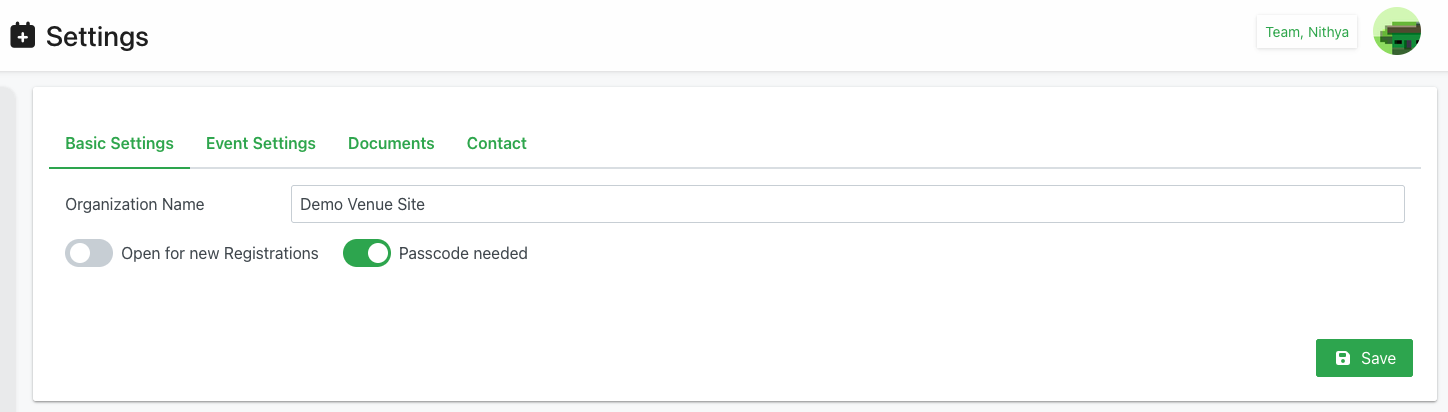
Organization Name
- Label: "Organization Name"
- Type: Text input field
- Purpose: Display name for the organization
- Example: "Demo Venue Site"
- Usage:
- Appears in member communications
- Displayed on public pages
- Used in event confirmations
- Shows in email headers
- Best Practice: Use official organization name
Open for new Registrations
- Type: Toggle switch
- States:
- OFF (Gray): Registration closed
- ON (Green): Registration open
- Label: "Open for new Registrations"
- Purpose: Control whether new members can register
- When OFF:
- New registration page disabled
- Existing members can still log in
- Member invitations may still work
- When ON:
- Public registration page accessible
- New members can create accounts
- Registration forms available
- Use Cases:
- Turn OFF during off-season
- Turn OFF when at capacity
- Turn OFF for internal-only periods
- Turn ON during recruitment
Passcode needed
- Type: Toggle switch
- States:
- OFF (Gray): No passcode required
- ON (Green): Passcode required
- Label: "Passcode needed"
- Purpose: Require passcode for new registrations
- When OFF:
- Anyone can register freely
- Open access to registration
- When ON:
- Registration requires passcode
- Passcode must be provided separately
- Controlled registration access
- Prevents unauthorized registrations
- Use Cases:
- Invitation-only registration
- Controlled membership growth
- Prevent spam registrations
- Partner organization access
- Note: Both toggles can be used together or independently
Event Settings Tab
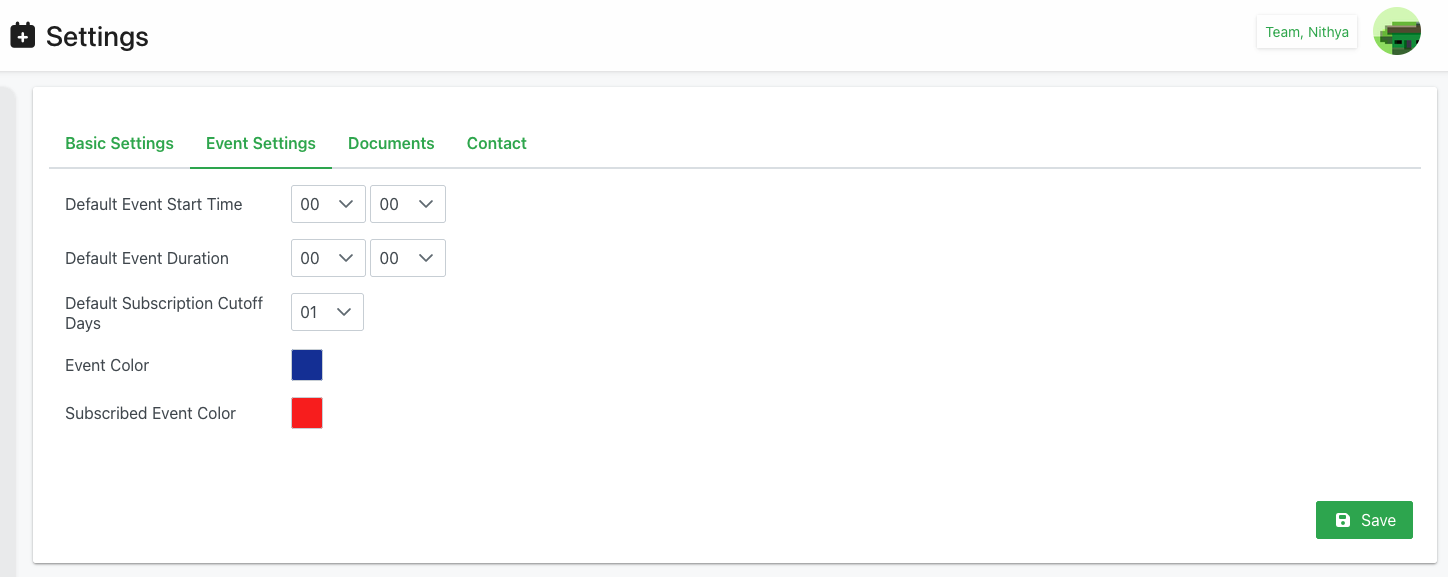
Default Event Start Time
- Label: "Default Event Start Time"
- Type: Time picker (two dropdowns)
- Format: HH:MM (24-hour format)
- Components:
- Hour dropdown: 00-23
- Minute dropdown: 00-59
- Example: "00:00" (midnight)
- Purpose: Default start time for new events
- Usage:
- Pre-fills when creating new events
- Used in bulk schedule upload if not specified
- Saves time during event creation
- Can be overridden per event
- Best Practice: Set to typical event start time
Default Event Duration
- Label: "Default Event Duration"
- Type: Time picker (two dropdowns)
- Format: HH:MM (hours and minutes)
- Components:
- Hour dropdown: 00-23
- Minute dropdown: 00-59
- Example: "00:00" (no default duration)
- Purpose: Default duration for new events
- Usage:
- Pre-fills event duration field
- Used in bulk uploads if not specified
- Typical event length
- Can be changed per event
- Common Values:
- "02:00" for 2-hour events
- "04:00" for 4-hour shifts
- "08:00" for full-day events
- Best Practice: Set to most common event length
Default Subscription Cutoff Days
- Label: "Default Subscription Cutoff Days"
- Type: Number dropdown
- Example: "01" (1 day)
- Purpose: How many days before event that subscriptions close
- Usage:
- Members cannot subscribe after cutoff
- Allows planning time before event
- Can be overridden per event
- Helps with preparation and staffing
- Examples:
- "01" = Members must subscribe at least 1 day before
- "03" = 3-day advance subscription required
- "07" = One week advance notice needed
- Use Cases:
- Uniform preparation time
- Credential processing time
- Training scheduling
- Travel arrangements
Event Color
- Label: "Event Color"
- Type: Color picker
- Display: Colored square showing selected color
- Example: Blue (as shown in screenshot)
- Purpose: Default color for regular events in calendar
- Usage:
- Calendar event display
- Visual identification
- Schedule at-a-glance
- Color coding in views
- Best Practice:
- Choose distinct color
- Ensure good contrast
- Different from subscribed color
Subscribed Event Color
- Label: "Subscribed Event Color"
- Type: Color picker
- Display: Colored square showing selected color
- Example: Red (as shown in screenshot)
- Purpose: Color for events member has subscribed to
- Usage:
- Personal calendar view
- Quick visual identification
- Shows member's commitments
- Differentiates from available events
- Best Practice:
- Contrasts with Event Color
- Highly visible
- Easy to distinguish
Documents Tab
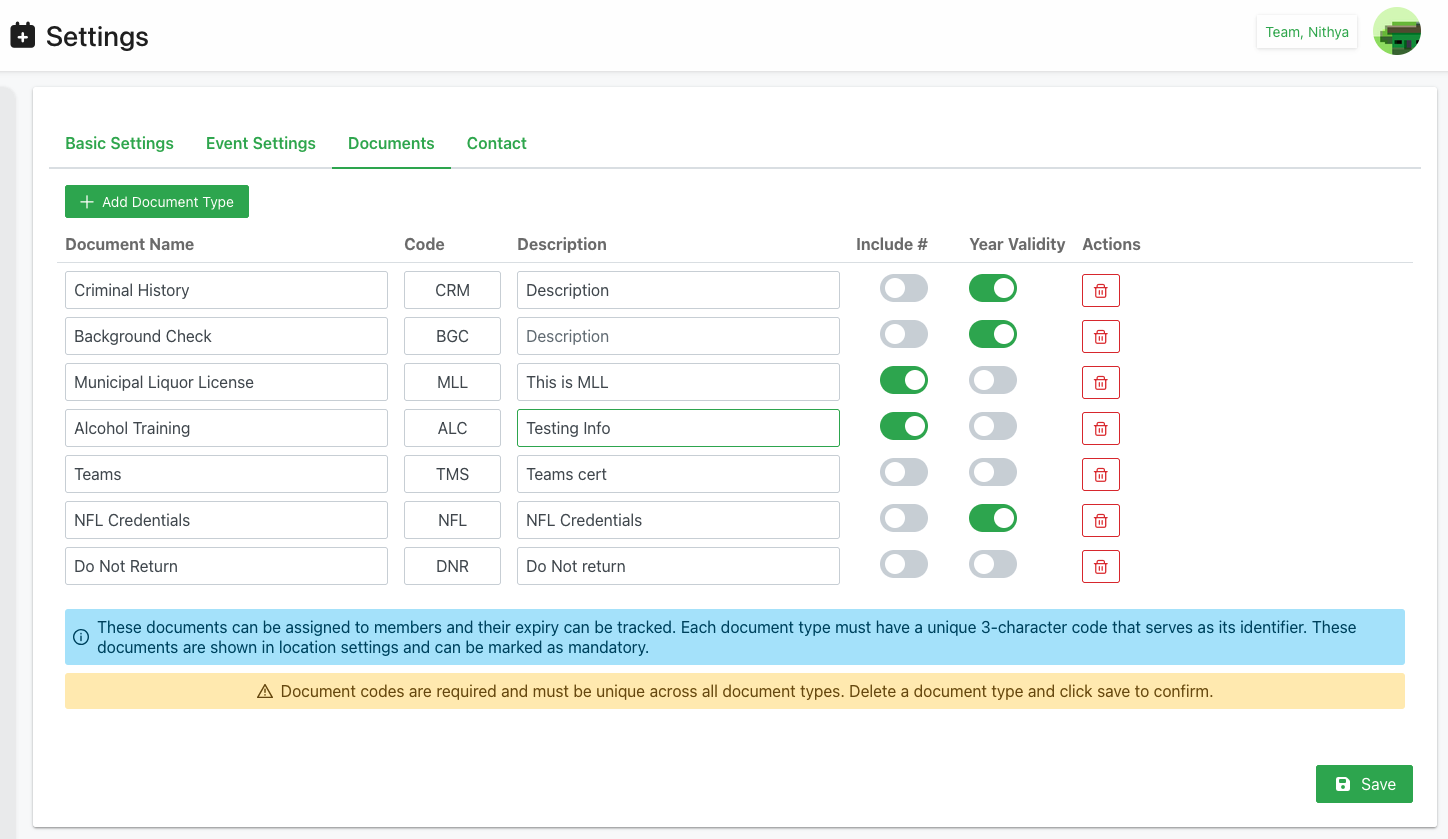
Overview
The Documents tab manages document types used for member compliance tracking. Each document type (e.g., Criminal History, Background Check, Credentials) can be configured with unique identifiers and validation requirements.
Add Document Type Button
- Position: Top-left of Documents tab
- Color: Green
- Icon: ➕ Plus icon
- Label: "Add Document Type"
- Action: Adds new blank row to document table
- Purpose: Create new document type for tracking
Document Table
Table with inline editing for managing document types:
Column: Document Name
- Type: Text input
- Purpose: Full name of document type
- Examples:
- "Criminal History"
- "Background Check"
- "Municipal Liquor License"
- "Alcohol Training"
- "Teams"
- "NFL Credentials"
- "Do Not Return"
- Editable: Yes, inline editing
- Required: Yes
- Best Practice: Clear, descriptive names
Column: Code
- Type: Text input (3 characters)
- Purpose: Unique identifier for document type
- Examples:
- "CRM" (Criminal History)
- "BGC" (Background Check)
- "MLL" (Municipal Liquor License)
- "ALC" (Alcohol Training)
- "TMS" (Teams)
- "NFL" (NFL Credentials)
- "DNR" (Do Not Return)
- Editable: Yes, inline editing
- Required: Yes
- Constraints:
- Must be exactly 3 characters
- Must be unique across all document types
- Case-sensitive
- Purpose:
- Short identifier for system use
- Used in integrations
- Database reference
- API identifier
- Warning: Yellow banner states codes are required and must be unique
Column: Description
- Type: Text input
- Purpose: Additional details about document type
- Examples:
- "Description"
- "This is MLL"
- "Testing Info"
- "Teams cert"
- "NFL Credentials"
- "Do Not return"
- Editable: Yes, inline editing
- Required: No (optional)
- Usage:
- Internal notes
- Instructions for users
- Clarification of requirements
Column: Include
- Label: "Include #"
- Type: Toggle switch
- States:
- OFF (Gray): No number/ID tracking
- ON (Green): Document number required
- Purpose: Whether to track document identification numbers
- When ON:
- System requires document number field
- Useful for license numbers, certificate IDs
- Enables tracking of specific document instances
- When OFF:
- Only tracks if document exists (Yes/No)
- No specific identification needed
- Examples of ON:
- "Municipal Liquor License" - License number needed
- "Alcohol Training" - Certificate number needed
- Examples of OFF:
- "Teams" - Just completion status
- "Do Not Return" - Just flag status
Column: Year Validity
- Label: "Year Validity"
- Type: Toggle switch
- States:
- OFF (Gray): No year-based expiry
- ON (Green): Year-based validity tracking
- Purpose: Track if document expires annually
- When ON:
- System tracks expiry year
- Can generate expiry reports
- Alerts for renewals
- When OFF:
- No automatic expiry tracking
- Manual tracking if needed
- Examples of ON:
- "Criminal History" - Annual renewal
- "Background Check" - Annual requirement
- "NFL Credentials" - Season-based
- Examples of OFF:
- "Municipal Liquor License" - May use Include # for expiry
- "Teams" - One-time completion
- "Do Not Return" - Permanent flag
Column: Actions
- Icon: 🗑️ Trash/Delete icon
- Color: Red outlined button
- Action: Delete document type
- Confirmation: May prompt for confirmation
- Warning: Cannot delete if documents assigned to members
- Purpose: Remove unused or incorrect document types
Information Banners
Blue Info Banner
- Icon: ℹ️ Information icon
- Background: Light blue
- Text: "These documents can be assigned to members and their expiry can be tracked. Each document type must have a unique 3-character code that serves as its identifier. These documents are shown in location settings and can be marked as mandatory."
- Purpose: Explains document functionality
Yellow Warning Banner
- Icon: ⚠️ Warning triangle
- Background: Light yellow/tan
- Text: "Document codes are required and must be unique across all document types. Delete a document type and click save to confirm."
- Purpose: Emphasizes code requirements and deletion process
Contact Tab
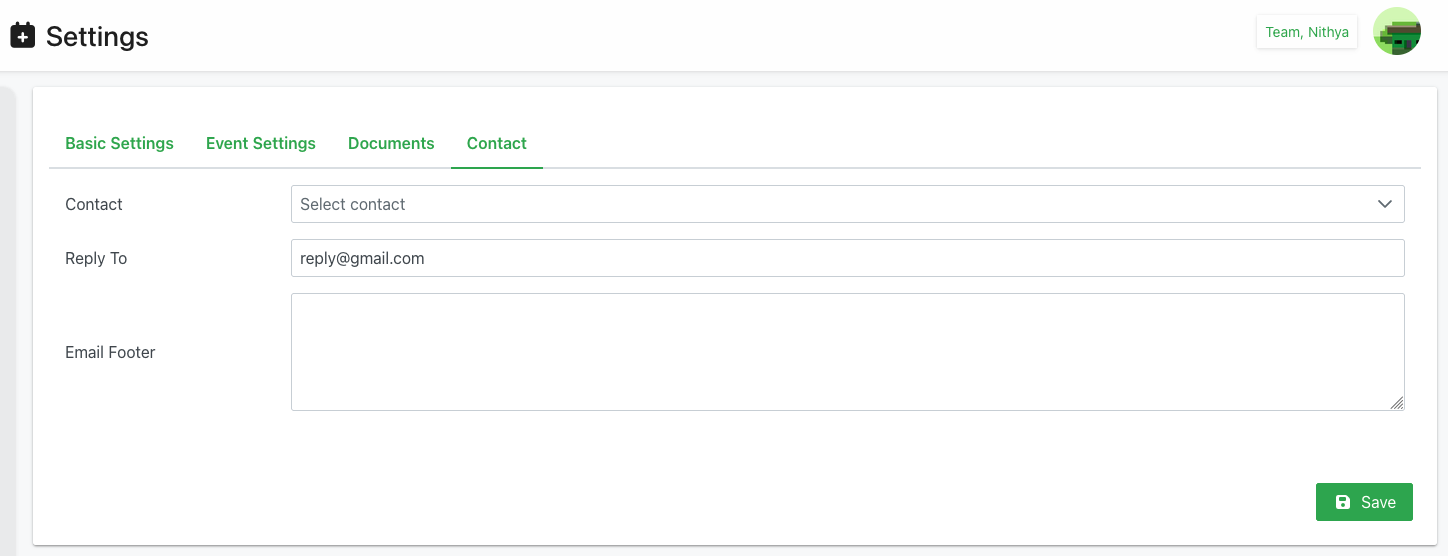
Contact
- Label: "Contact"
- Type: Dropdown select
- Placeholder: "Select contact"
- Purpose: Default contact person for system communications
- Usage:
- Shown on event details
- Default sender for notifications
- Contact for questions
- Administrative contact
- Selection: Choose from existing members
- Best Practice: Select administrator or coordinator
Reply To
- Label: "Reply To"
- Type: Email input field
- Example: "reply@gmail.com"
- Purpose: Email address for reply-to header in outgoing emails
- Usage:
- When members reply to notifications
- Response emails directed here
- May differ from sender address
- Centralized response handling
- Validation: Must be valid email format
- Best Practice:
- Use monitored email address
- Consider shared mailbox
- Ensure prompt response capability
Email Footer
- Label: "Email Footer"
- Type: Multiline text area
- Height: Approximately 5-6 lines
- Purpose: Text appended to all outgoing emails
- Usage:
- Standard signature
- Organization information
- Legal disclaimers
- Contact information
- Social media links
- Unsubscribe information
- Format: Plain text
- Examples:
Best regards,
Demo Venue Site

Contact: info@demovenue.com
Website: www.demovenue.com - Best Practice:
- Include organization name
- Provide contact information
- Keep concise
- Professional tone
Saving Changes
Save Button Behavior
- Location: Bottom-right of each tab
- Visibility: Always visible
- Action: Saves all changes in current tab
- Process:
- Click Save button
- System validates input
- If valid, changes persisted
- Success message displayed
- Remains on same tab
- Validation:
- Required fields must be filled
- Document codes must be 3 characters
- Document codes must be unique
- Email format must be valid
- Errors:
- Error messages shown near invalid fields
- Save prevented until corrected
- User notified of specific issues
Tab-Specific Saving
- Each tab saves independently
- Changes in one tab don't affect others
- Must save each tab after making changes
- Can navigate between tabs without saving (changes may be lost)
- Best practice: Save after each set of changes
Use Cases
Initial Organization Setup
Scenario: Setting up new organization in system
Process:
- Open Settings page
- Basic Settings Tab:
- Enter Organization Name
- Enable "Open for new Registrations"
- Enable "Passcode needed" if desired
- Click Save
- Event Settings Tab:
- Set Default Event Start Time (e.g., "09:00")
- Set Default Event Duration (e.g., "04:00")
- Set Subscription Cutoff Days (e.g., "03")
- Choose Event Color (e.g., blue)
- Choose Subscribed Event Color (e.g., red)
- Click Save
- Documents Tab:
- Click "Add Document Type" for each needed document
- Enter document details
- Set Include # and Year Validity toggles
- Click Save
- Contact Tab:
- Select default contact person
- Enter Reply To email
- Add Email Footer text
- Click Save
Updating Event Defaults
Scenario: Change standard event times for new season
Process:
- Navigate to Settings
- Click Event Settings tab
- Update Default Event Start Time
- Update Default Event Duration if needed
- Click Save
- New events use updated defaults
Adding Compliance Document
Scenario: New credential requirement for members
Process:
- Open Settings
- Click Documents tab
- Click "Add Document Type"
- Enter Document Name (e.g., "Safety Training")
- Enter unique 3-character Code (e.g., "SFT")
- Add Description
- Toggle "Year Validity" ON for annual renewal
- Click Save
- Document type now available for member assignments
Configuring Email Settings
Scenario: Update email footer with new contact info
Process:
- Navigate to Settings
- Click Contact tab
- Update Email Footer text with new information
- Verify Reply To address is correct
- Click Save
- All future emails include updated footer
Closing Registration Temporarily
Scenario: Pause new registrations during system updates
Process:
- Open Settings
- Basic Settings tab
- Toggle "Open for new Registrations" OFF
- Click Save
- Registration page now disabled
- Re-enable when ready
Best Practices
Organization Settings
- Clear Name: Use official, recognizable organization name
- Registration Control: Only open when actively recruiting
- Passcode Strategy: Use passcode for controlled growth
- Regular Review: Periodically verify settings remain appropriate
Event Defaults
- Realistic Times: Set defaults to most common event times
- Appropriate Duration: Match typical event length
- Cutoff Days: Balance member flexibility with planning needs
- Color Differentiation: Choose distinct, contrasting colors
- Accessibility: Ensure colors work for colorblind users
Document Management
- Meaningful Codes: Use intuitive 3-character codes
- Unique Codes: Verify uniqueness before saving
- Clear Names: Use full, descriptive document names
- Appropriate Tracking: Enable Include # only when needed
- Validity Flags: Enable Year Validity for renewable documents
- Documentation: Use Description field for clarity
Email Configuration
- Monitored Email: Ensure Reply To address is checked regularly
- Professional Footer: Keep footer concise and professional
- Contact Info: Include essential contact information
- Consistent Branding: Match organization's communication style
- Legal Compliance: Include required disclaimers if needed
Change Management
- Save Regularly: Save after each set of changes
- Test Changes: Verify impact of setting changes
- Communicate: Inform team of significant setting changes
- Document: Keep record of when and why settings changed
- Backup Strategy: Note original values before major changes
Troubleshooting
Cannot Save Document Type
Problem: Save button doesn't work on Documents tab
Possible Causes:
- Document code not 3 characters
- Duplicate document code
- Document name empty
Solutions:
- Check all codes are exactly 3 characters
- Verify no duplicate codes
- Ensure all document names filled
- Review error messages
- Fix issues and try saving again
Email Footer Not Appearing
Problem: Custom footer not showing in emails
Possible Causes:
- Changes not saved
- Email template override
- System delay
Solutions:
- Verify Save button was clicked
- Check footer text is entered
- Send test email to verify
- Wait a few minutes for system update
- Contact support if persists
Colors Not Showing in Calendar
Problem: Event colors not displaying
Possible Causes:
- Changes not saved
- Cache issue
- Browser problem
Solutions:
- Verify Save clicked on Event Settings
- Refresh browser page
- Clear browser cache
- Try different browser
- Check with other users
Registration Page Still Open
Problem: Registration open despite toggle being OFF
Possible Causes:
- Changes not saved
- Cache issue
- System delay
Solutions:
- Verify toggle is OFF and Save was clicked
- Clear browser cache
- Test in incognito/private window
- Wait a few minutes
- Contact administrator
Related Features
- Locations - Manage venue locations and document requirements
- Roles - Define member roles and permissions
- Announcements - Post organization-wide announcements
- Members - Manage member documents and credentials
Tips
- Save Each Tab: Remember to save changes in each tab separately
- 3-Character Codes: Document codes must be exactly 3 characters and unique
- Test Defaults: Create test event to verify default times work well
- Color Contrast: Choose highly contrasting colors for easy visual distinction
- Email Testing: Send test email after changing footer to verify appearance
- Document Planning: Plan document types before adding to avoid deletions
- Registration Control: Use both toggles (Open and Passcode) for maximum control
- Reply Monitoring: Regularly check Reply To email address
- Cutoff Days: Consider member needs when setting subscription cutoff
- Regular Review: Periodically review all settings for continued relevance