Create Notification
Purpose
Compose and send email notifications to teams and members with optional rich text formatting and file attachments.
Access
From Notifications page:
- Click the + Create button
- New Notification form opens
Screenshot
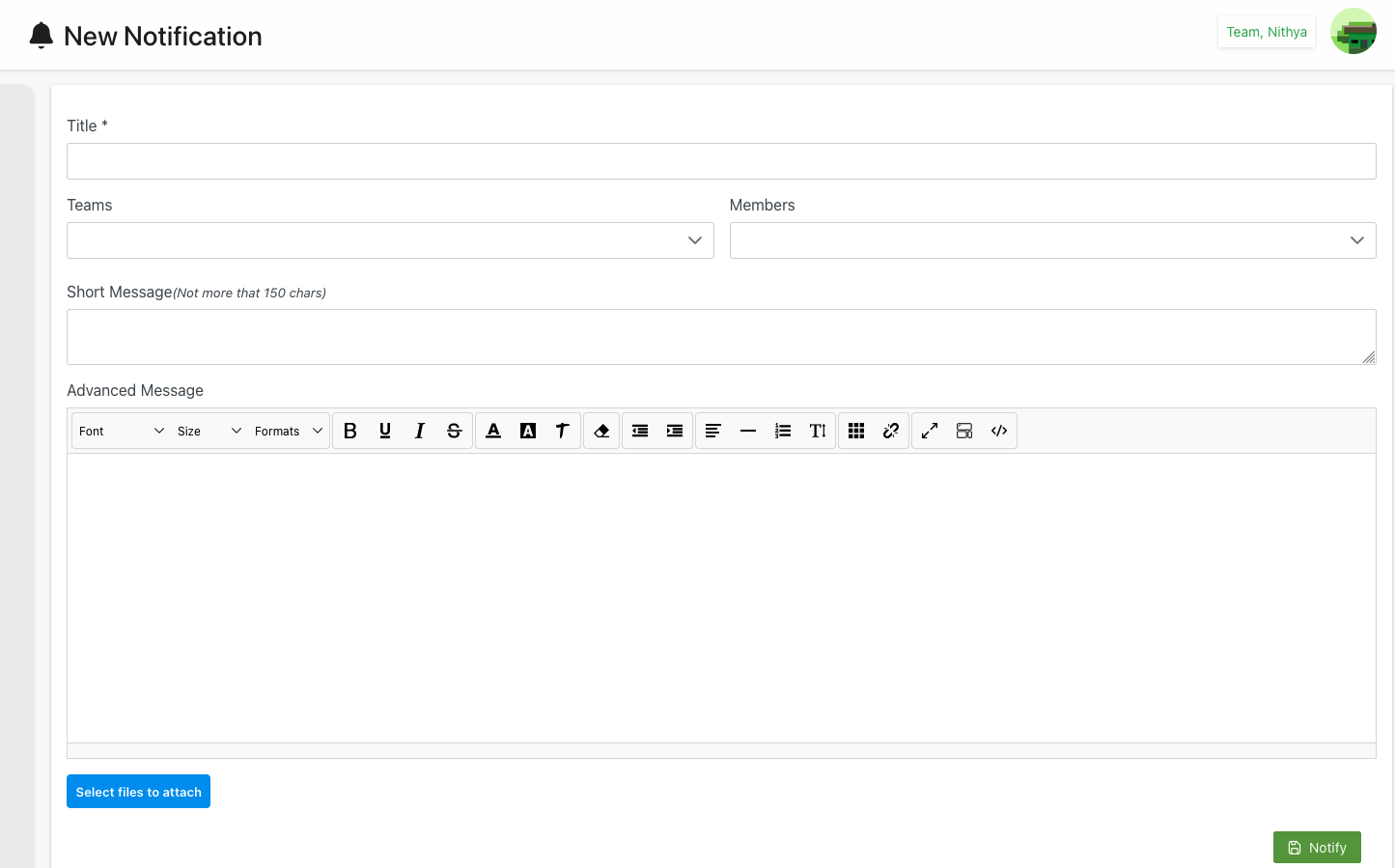
Description
The Create Notification form provides a comprehensive interface for composing and sending email communications to selected teams and members. The form supports both simple text messages and advanced HTML-formatted content with file attachments.
Header Section
Page Title
- Icon: 🔔 Bell icon
- Title: "New Notification"
- User Info: Current user display (e.g., "Team, Nithya")
- Purpose: Clear identification of notification creation
Form Fields
Title (Required)
- Label: "Title *"
- Type: Text input
- Required: Yes (indicated by asterisk)
- Purpose: Subject line for the email notification
- Character Limit: Typically 100-200 characters
- Examples:
- "Schedule Update - January 15"
- "New Policy: Check-in Procedures"
- "URGENT: Event Cancellation"
- Best Practices:
- Be specific and descriptive
- Include date if time-sensitive
- Use "URGENT" prefix for critical messages
- Keep concise but informative
Teams
- Label: "Teams"
- Type: Multi-select dropdown
- Required: Optional
- Icon: ▼ Dropdown indicator
- Purpose: Select entire teams to notify
- Behavior:
- Click to expand team list
- Multiple teams can be selected
- All active members of selected teams included
- Can combine with individual member selection
- Examples:
- "Referees Team"
- "Security Team"
- "Medical Staff"
- Notes:
- Team membership must be current
- Inactive members excluded automatically
- Each member receives individual email
Members
- Label: "Members"
- Type: Multi-select dropdown
- Required: Optional
- Icon: ▼ Dropdown indicator
- Purpose: Select specific individual members to notify
- Behavior:
- Click to expand member list
- Search/filter members by name
- Multiple individuals can be selected
- Can combine with team selection
- Duplicates automatically handled (if member in team and individually selected)
- Display Format: Typically "FirstName LastName" or "LastName, FirstName"
- Use Cases:
- Specific individuals not in selected teams
- Subset of a team
- VIP or special notifications
- Additional recipients beyond team selection
Short Message
- Label: "Short Message"
- Sublabel: "(Not more than 150 chars)"
- Type: Multiline text area
- Required: Optional
- Character Limit: 150 characters
- Height: Approximately 3-4 lines
- Purpose: Brief text-only message for quick communications
- Use Cases:
- Simple announcements
- Quick reminders
- Brief status updates
- When formatting not needed
- Examples:
- "Tomorrow's game starts 30 minutes earlier. Report by 5:30 PM."
- "Parking lot B is closed today. Use lot C instead."
- "Uniform check required before shift. See supervisor."
- Notes:
- Plain text only (no formatting)
- Character counter may display
- Alternative to Advanced Message
- Faster for recipients to read
Advanced Message
- Label: "Advanced Message"
- Type: Rich text editor
- Required: Optional
- Purpose: HTML-formatted message with styling and structure
- Editor Area: Large multiline text area with formatting toolbar
Formatting Toolbar
The toolbar provides comprehensive text formatting options:
Font Controls (Left Section)
- Font: Dropdown to select font family
- Options: Arial, Times New Roman, Courier, etc.
- Default: System default
- Size: Dropdown to select font size
- Options: 8pt - 72pt
- Common: 10pt, 12pt, 14pt
- Formats: Predefined text styles
- Paragraph
- Headings (H1-H6)
- Preformatted
Text Styling
- B (Bold): Make text bold
- I (Italic): Italicize text
- U (Underline): Underline text
- S (Strikethrough): Strike through text
- A (Text Color): Change text color
- A (Background): Highlight text background
- T (Remove Formatting): Clear all formatting
Alignment and Lists
- 🎨 (Color Picker): Advanced color selection
- ≡ (Align Left): Left-align text
- ≡ (Align Center): Center-align text
- ≡ (Align Right): Right-align text
- ≡ (Align Justify): Justify text
- ― (Horizontal Rule): Insert line divider
- • List (Bullets): Create bulleted list
- 1. List (Numbering): Create numbered list
Special Features
- T↓ (Subscript): Subscript text
- ⊞ (Table): Insert table
- 🔗 (Link): Insert hyperlink
- ⤢ (Full Screen): Expand editor to full screen
- 📷 (Image): Insert image
- Source Code (HTML): View/edit HTML source
Editor Best Practices
- Structure Content: Use headings to organize
- Bullet Points: Break up long text
- Bold Key Info: Highlight important details
- Links: Add hyperlinks to resources
- Professional: Maintain appropriate tone
- Test: Preview before sending
File Attachments
Select Files Button
- Label: "Select files to attach"
- Color: Blue button
- Icon: May include paperclip or upload icon
- Action: Opens file browser
- Purpose: Attach documents, images, or other files to notification
Attachment Behavior
- File Selection:
- Click button to browse computer
- Select one or multiple files
- Supported formats: PDF, DOC, DOCX, XLS, XLSX, JPG, PNG, etc.
- File Size Limits:
- Individual file: Typically 10-25 MB
- Total attachments: May have combined limit
- Upload Process:
- Files upload immediately upon selection
- Progress indicator shown
- Thumbnail or filename displayed after upload
- Remove Attachments:
- X or delete icon next to each file
- Click to remove before sending
Attachment Display
After selection, attachments shown with:
- Filename
- File size
- Remove option
- Preview icon (for images)
Action Buttons
Notify (Green Button)
- Position: Bottom-right
- Color: Green background with white text
- Icon: 📢 Notification icon or checkmark
- Label: "Notify"
- Action: Send notification to all selected recipients
- Requirements:
- Title must be filled
- At least one team OR member selected
- At least one message type (Short or Advanced) filled
- Result:
- Notification sent immediately
- Each recipient receives individual email
- Redirects to Notifications list
- Success confirmation shown
- Notification appears in list with "Sent" status
Cancel/Close
- Position: May be X in corner or Cancel button
- Action: Close form without sending
- Confirmation: May prompt if data entered
- Result: Returns to Notifications list
Message Type Selection
Short Message vs. Advanced Message
Use Short Message When:
- Quick, simple announcement
- Under 150 characters
- No formatting needed
- Time-sensitive brief update
- Text-only is appropriate
Use Advanced Message When:
- Detailed communication needed
- Formatting required (bold, lists, etc.)
- Long content with structure
- Professional appearance important
- Including links or images
- Formal policy communications
Both Messages:
- Can use both fields together
- Short message may appear as preview
- Advanced message contains full content
- Both included in email
Sending Process
Step-by-Step
1. Open Form
- Navigate to Notifications page
- Click + Create button
- New Notification form opens
2. Enter Title
- Click in Title field
- Type descriptive subject
- Review for clarity and accuracy
- Keep concise but informative
3. Select Recipients
- For Teams:
- Click Teams dropdown
- Select one or more teams
- Teams expand to show members (may preview)
- For Individuals:
- Click Members dropdown
- Search or scroll to find members
- Select specific individuals
- Can select multiple
- Combined:
- Select both teams and individuals
- System handles duplicates automatically
4. Compose Message
- Simple Notification:
- Type in Short Message field
- Stay under 150 characters
- Preview as you type
- Formatted Notification:
- Click in Advanced Message editor
- Type content
- Use toolbar to format:
- Bold important information
- Create bullet lists for clarity
- Add headers for structure
- Insert links if needed
- Review formatting
- Both:
- Fill both fields if desired
- Short message as summary
- Advanced message as full content
5. Add Attachments (Optional)
- Click Select files to attach
- Browse computer for files
- Select file(s)
- Wait for upload completion
- Verify filenames appear
- Add more files if needed
- Remove any unwanted files
6. Review
- Verify Title is correct
- Check Recipients selection
- Proofread message(s)
- Verify attachments uploaded
- Ensure appropriate tone and content
7. Send
- Click Notify button
- Wait for sending confirmation
- System processes notification
- Redirects to Notifications list
- New notification appears with status
Use Cases
Simple Team Announcement
Scenario: Brief schedule reminder to one team
Process:
- Create new notification
- Title: "Reminder: Early Start Tomorrow"
- Select Teams: "Field Crew"
- Short Message: "Tomorrow's shift starts at 7 AM (1 hour earlier). Please arrive on time."
- Click Notify
- Each field crew member receives individual email
Formal Policy Update
Scenario: New policy distribution with document
Process:
- Create new notification
- Title: "New Check-In Policy - Effective Feb 1"
- Select Teams: All relevant teams
- Advanced Message:
Dear Team Members,

Effective February 1, 2026, we are implementing a new check-in policy.

Key Changes:
• Check-in required 15 minutes before shift
• Photo ID must be presented
• Late arrivals (>5 min) require supervisor approval

Please review the attached policy document for complete details.

If you have questions, contact your supervisor.

Thank you,
Management - Attach PDF: "Check-In_Policy_2026.pdf"
- Review and send
- Each member receives formatted email with policy attachment
Emergency Notification
Scenario: Urgent cancellation to multiple groups
Process:
- Create new notification
- Title: "URGENT: Tonight's Event CANCELLED"
- Select Teams: Multiple teams working tonight
- Short Message: "Tonight's event at Stadium A is CANCELLED due to weather. Do not report. Check tomorrow AM for updates."
- No advanced message needed
- No attachments
- Send immediately
- Quick, clear communication to all affected
Selective Member Update
Scenario: Message to specific individuals across teams
Process:
- Create notification
- Title: "Supervisor Meeting - Jan 20"
- Teams: Leave empty
- Members: Select specific supervisors by name
- Advanced Message:
You are invited to the monthly supervisors meeting.

Date: January 20, 2026
Time: 2:00 PM - 3:30 PM
Location: Conference Room B

Agenda:
1. Q4 Review
2. New Training Requirements
3. Spring Schedule Planning

Please confirm attendance by replying to this email. - Attach: "Meeting_Agenda_Jan20.pdf"
- Send to selected supervisors only
Compliance and Privacy
Individual Email Delivery
How It Works:
- System sends separate email to each recipient
- Recipients do NOT see other recipients
- No CC or BCC lists used
- Each email personalized to individual
- Privacy maintained per club compliance
Why It Matters:
- Member privacy protection
- Club compliance requirements
- Professional communication
- Prevents reply-all issues
- Maintains confidentiality
Audit Trail
- All notifications logged
- Timestamp recorded
- Recipients list stored
- Delivery status tracked
- Available for compliance review
Best Practices
Title Creation
- Specific: Clearly describe notification purpose
- Date: Include date for time-sensitive items
- Priority: Mark urgent items clearly
- Consistent: Use similar format for same types
- Searchable: Include keywords for later search
Recipient Selection
- Verify Teams: Ensure team membership current
- Check Members: Confirm individual selections
- Avoid Duplicates: System handles, but review
- Appropriate: Only notify relevant people
- Test First: For important messages, send to yourself first
Message Composition
- Clear: Be direct and specific
- Concise: Respect recipients' time
- Professional: Maintain appropriate tone
- Proofread: Check for errors
- Format: Use formatting to improve readability
- Action Items: Clearly state what's expected
- Contact Info: Provide follow-up contact if needed
Attachments
- Relevant: Only attach necessary files
- Size: Keep file sizes reasonable
- Format: Use common, accessible formats
- Names: Use clear, descriptive filenames
- Scan: Ensure files are virus-free
- Test: Verify attachments open correctly
Timing
- Appropriate: Send during reasonable hours
- Advance: Give adequate notice when possible
- Urgent: Mark truly urgent items appropriately
- Follow-up: Plan for responses or questions
Troubleshooting
Cannot Send Notification
Problem: Notify button disabled or send fails
Possible Causes:
- Title field empty
- No recipients selected
- No message entered
- Attachment upload in progress
Solutions:
- Verify Title filled
- Ensure at least one team OR member selected
- Add Short Message or Advanced Message
- Wait for attachment uploads to complete
- Check for error messages
Attachment Won't Upload
Problem: File fails to attach
Possible Causes:
- File too large
- Unsupported file type
- Network issue
- Browser problem
Solutions:
- Check file size (reduce if needed)
- Verify file format is supported
- Check internet connection
- Try different browser
- Refresh page and try again
Recipients Not Showing
Problem: Team or member dropdown empty
Possible Causes:
- No teams/members in system
- Permissions issue
- Data loading delay
Solutions:
- Wait a moment for data to load
- Refresh page
- Verify teams/members exist in system
- Check user permissions
- Contact administrator
Formatting Not Working
Problem: Rich text editor not responding
Possible Causes:
- Browser compatibility
- JavaScript disabled
- Editor not loaded
Solutions:
- Try different browser
- Ensure JavaScript enabled
- Refresh page
- Clear browser cache
- Use Short Message as alternative
Related Features
- Notifications Overview - Main notifications list
- Notification Details - View sent notification details
- Teams Management - Manage team memberships
- Members Management - Manage member profiles
Tips
- Individual Emails: Each member receives separate email for privacy compliance
- Test Sends: Send to yourself first for important messages
- Save Templates: Keep common messages in external file for reuse
- Short for Urgent: Use short message for time-sensitive communications
- Format for Formal: Use Advanced Message for professional communications
- Attachment Sizes: Keep files small when possible (compress if needed)
- Clear Subjects: Descriptive titles improve open rates
- Proofread: Always review before sending
- Timing Matters: Send during appropriate hours
- Follow Up: Monitor delivery status after sending