Notification Details
Purpose
View complete details of a sent notification, including recipients, message content, attachments, delivery status, and technical information. Optionally resend the notification.
Access
From Notifications list:
- Click on any notification row
- Notification detail view opens
Screenshot
Description
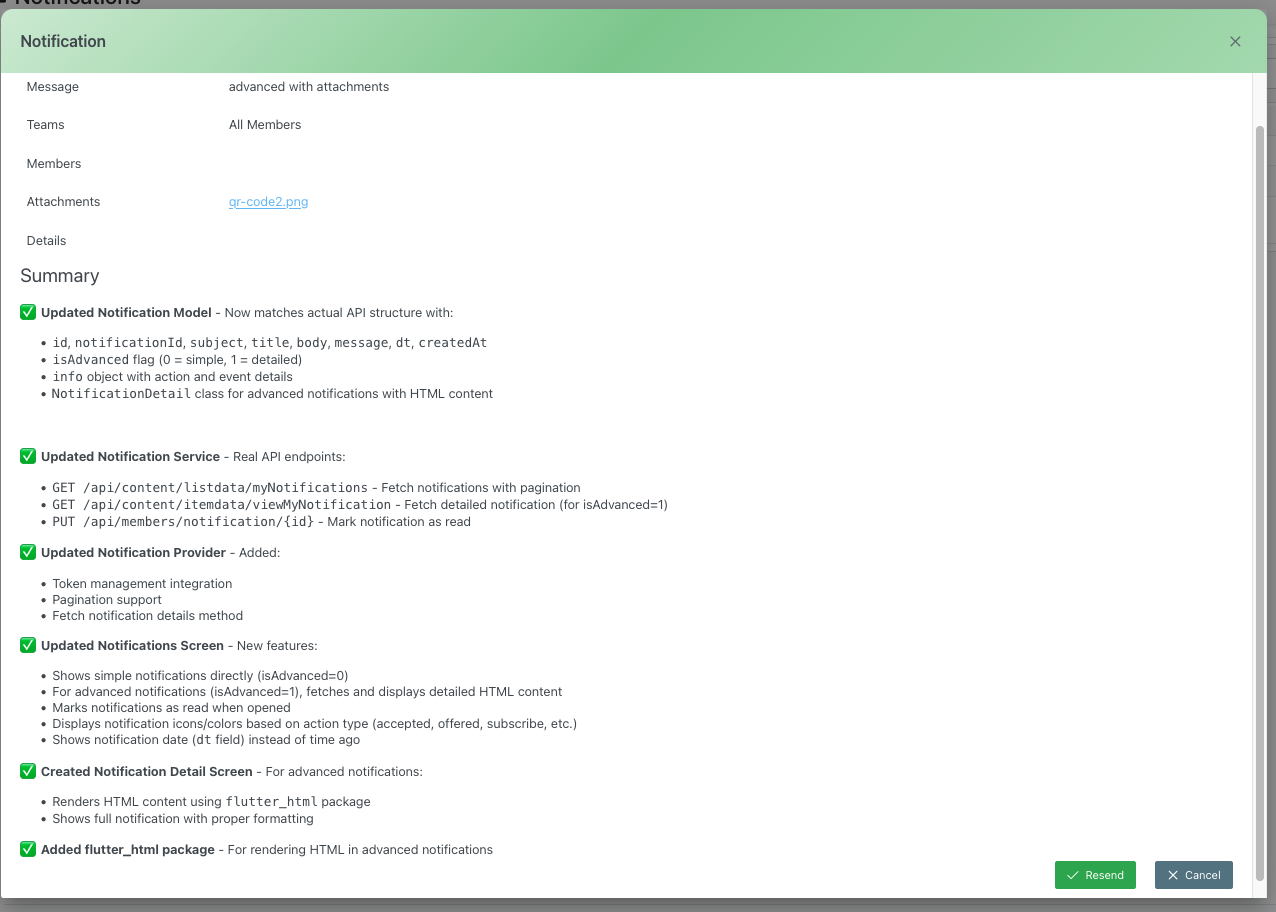
The Notification Details screen provides a comprehensive view of a sent notification, including all content, recipients, attachments, and system information. This view is useful for verification, audit purposes, and troubleshooting.
Header Section
Page Title
- Title: "Notification"
- Close Button: X icon in top-right corner
- Purpose: View complete notification information
Notification Information
Message
- Label: "Message"
- Content: The title/subject of the notification
- Example: "advanced with attachments"
- Display: Plain text display of subject line
- Purpose: Identifies the notification
Teams
- Label: "Teams"
- Content: List of teams that received the notification
- Examples:
- "All Members"
- "Referees Team"
- "Security Team, Medical Staff"
- "None" (if only individuals selected)
- Display: Comma-separated team names
- Purpose: Shows which teams were notified
- Note: Each member of listed teams received individual email
Members
- Label: "Members"
- Content: List of individual members selected (if any)
- Display:
- Member names
- May show "None" if only teams selected
- Format: "FirstName LastName" or count (e.g., "25 members")
- Purpose: Shows specific individuals notified
- Privacy: Detail view shows full recipient list for audit
Attachments
- Label: "Attachments"
- Content: List of files attached to notification
- Display:
- Filename: Clickable link (e.g., "qr-code2.png")
- Link Color: Blue/teal underline
- Multiple Files: Listed separately
- None: Shows "None" if no attachments
- Action: Click filename to download/view file
- Purpose: Access attached documents
- Examples:
- "policy_document.pdf"
- "schedule.xlsx"
- "qr-code2.png"
Details
- Label: "Details"
- Content: Additional notification metadata
- May Include:
- Sent date/time
- Sender name
- Notification ID
- Delivery method (Email, In-app, etc.)
- Status overview
- Total recipients count
- Purpose: Administrative information
Summary Section
The Summary section provides technical and system information about the notification, including model updates, API details, and feature implementations.
Section Header
- Title: "Summary"
- Background: May be distinct color or section divider
- Purpose: Technical documentation and changelog
Technical Details (Example from Screenshot)
The summary may include entries like:
✅ Updated Notification Model
- Status: Checkmark indicates completion
- Description: "Now matches actual API structure with:"
- Details:
id, notificationId, subject, title, body, message, dt, createdAtisAdvanced flag (0 = simple, 1 = detailed)info object with action and event detailsNotificationDetail class for advanced notifications with HTML content
- Purpose: Documents data model used
✅ Updated Notification Service
- Status: Checkmark indicates completion
- Description: "Real API endpoints:"
- Details:
GET /api/content/listdata/myNotifications- Fetch notifications with paginationGET /api/content/itemdata/viewMyNotification- Fetch detailed notification (for isAdvanced=1)PUT /api/members/notification/{id}- Mark notification as read
- Purpose: Documents API integration
✅ Updated Notification Provider
- Status: Checkmark indicates completion
- Description: "Added:"
- Details:
- Token management integration
- Pagination support
- Fetch notification details method
- Purpose: Documents service layer updates
✅ Updated Notifications Screen
- Status: Checkmark indicates completion
- Description: "New features:"
- Details:
- Shows simple notifications directly (isAdvanced=0)
- For advanced notifications (isAdvanced=1), fetches and displays detailed HTML content
- Marks notifications as read when opened
- Displays notification icons/colors based on action type (accepted, offered, subscribe, etc.)
- Shows notification date (dt field) instead of time ago
- Purpose: Documents UI implementation
✅ Created Notification Detail Screen
- Status: Checkmark indicates completion
- Description: "For advanced notifications:"
- Details:
- Renders HTML content using flutter_html package
- Shows full notification with proper formatting
- Purpose: Documents detail view features
✅ Added flutter_html package
- Status: Checkmark indicates completion
- Description: "For rendering HTML in advanced notifications"
- Purpose: Technical dependency documentation
Summary Purpose
For Administrators:
- Audit trail of changes
- Technical specifications
- System capabilities documentation
- Troubleshooting reference
For Developers:
- API documentation
- Implementation details
- Data models
- Integration points
For Compliance:
- Change tracking
- Feature documentation
- System behavior record
Action Buttons
✅ Resend (Green Button)
- Position: Bottom-right, right button
- Color: Green background
- Icon: ✓ Checkmark or 🔄 refresh icon
- Label: "Resend"
- Action: Resend notification to original recipients
- Purpose:
- Resend if original delivery failed
- Send again if content needs redistribution
- Correct delivery issues
- Behavior:
- Sends same notification content
- Same recipients receive it again
- New timestamp applied
- Original notification remains in history
- May create duplicate entry in list
- Confirmation: May prompt "Are you sure you want to resend?"
- Result:
- Notification sent immediately
- Each recipient receives individual email again
- Success message displayed
- Returns to notifications list or stays in detail view
- Use Cases:
- Original send had delivery failures
- Important message needs reinforcement
- Recipients requested resend
- System issue during original send
✕ Cancel (Gray Button)
- Position: Bottom-right, left button
- Color: Gray/dark background
- Icon: ✕ X icon
- Label: "Cancel"
- Action: Close detail view without action
- Result: Returns to Notifications list
Recipient Details
Individual Email Delivery
Important Privacy Feature:
- Each recipient received separate individual email
- Recipients cannot see other recipients
- No CC or BCC lists used
- Complies with club privacy requirements
- Each email personalized to recipient
Recipient Count
- Total number of recipients calculated from:
- All members in selected teams
- Plus individually selected members
- Minus any duplicates (if member selected and also in team)
- Display may show: "Sent to 47 members"
Delivery Status
May show per-recipient or aggregate:
- Sent: Successfully delivered
- Delivered: Confirmed receipt by mail server
- Opened: Recipient opened email (if tracking enabled)
- Failed: Delivery failed
- Bounced: Email address invalid or bounced
- Pending: Still in queue
Use Cases
Verify Sent Notification
Scenario: Confirm notification was sent correctly
Process:
- Open Notifications list
- Find notification by date or subject
- Click to open details
- Verify:
- Correct teams/members listed
- Message content accurate
- Attachments present
- Status shows "Sent"
- Close detail view
Download Attachment from Sent Notification
Scenario: Need copy of previously sent document
Process:
- Navigate to Notifications list
- Find notification with attachment
- Click notification to open details
- Scroll to Attachments section
- Click filename link
- File downloads to computer
- Open and verify file
Resend Failed Notification
Scenario: Original notification had delivery failures
Process:
- Find notification in list (may show "Failed" status)
- Click to open details
- Review details to confirm correct content
- Check recipient list
- Click Resend button
- Confirm resend action
- System sends notification again
- Monitor for successful delivery
- Verify status updates
Audit Notification for Compliance
Scenario: Need documentation of what was sent and when
Process:
- Open notification details
- Review all information:
- When sent (date/time)
- Who received it (teams/members)
- What was sent (message + attachments)
- Delivery status
- Take screenshot or export if needed
- Document in compliance records
- Use Summary section for technical audit
Verify Recipients Received Individual Emails
Scenario: Confirm privacy compliance
Process:
- Open notification details
- Review recipient list
- Confirm: Each member listed received individual email
- Check with sample recipients: They cannot see other recipients
- Verify no CC/BCC visible in emails
- Document compliance with club requirements
Technical Information
Notification Types
Simple Notifications (isAdvanced=0)
- Plain text message
- Basic subject line
- No HTML formatting
- Quick to display
- Lower bandwidth
- Suitable for brief updates
Advanced Notifications (isAdvanced=1)
- Rich HTML content
- Full formatting supported
- Images and links
- Professional appearance
- May include attachments
- Fetches detailed content from API
- Renders using flutter_html package
Data Model
Core Fields:
- id: Unique identifier
- notificationId: External reference
- subject/title: Notification title
- body/message: Message content
- dt/createdAt: Timestamp
- isAdvanced: Type flag (0=simple, 1=detailed)
Extended Fields:
- info object: Action and event metadata
- recipients: Team and member lists
- attachments: File references
- status: Delivery status
API Integration
Fetch Notifications:
GET /api/content/listdata/myNotifications
- Pagination support
- Filter by date range
- Status filtering
Fetch Details:
GET /api/content/itemdata/viewMyNotification
- For advanced notifications
- Returns full HTML content
- Includes all metadata
Mark Read:
PUT /api/members/notification/{id}
- Updates read status
- Tracks engagement
Best Practices
Review Before Resend
- Verify Content: Ensure message still accurate
- Check Recipients: Confirm list still appropriate
- Timing: Consider if resend timing is appropriate
- Necessity: Only resend if truly needed
- Communicate: Consider adding note about why resending
Audit Trail Usage
- Document: Keep records of important notifications
- Compliance: Use details for compliance verification
- Reference: Detail view serves as notification archive
- Training: Use technical details for staff training
- Troubleshooting: Summary section helps diagnose issues
Attachment Access
- Verification: Always verify attachments after sending
- Backup: Keep original files, not just in system
- Version Control: Track document versions
- Access: Ensure attachments remain accessible
- Security: Verify appropriate file access
Privacy Compliance
- Individual Delivery: Confirm each email sent separately
- Audit: Use for compliance documentation
- Training: Educate staff on privacy features
- Verification: Spot-check email delivery
- Documentation: Keep records for audit
Troubleshooting
Cannot Open Notification Details
Problem: Click on notification doesn't open detail view
Possible Causes:
- Permissions issue
- Data loading error
- Browser problem
Solutions:
- Refresh page and try again
- Check user permissions
- Try different browser
- Check console for errors
- Contact administrator
Attachment Won't Download
Problem: Clicking attachment link doesn't download file
Possible Causes:
- File no longer available
- Permissions issue
- Storage issue
- Link broken
Solutions:
- Refresh page and try again
- Check if file still in storage
- Verify permissions to access file
- Try different browser
- Contact administrator if file missing
Resend Button Disabled
Problem: Cannot click Resend button
Possible Causes:
- Permissions restriction
- Notification too old
- System policy prevents resend
Solutions:
- Check user permissions
- Verify notification can be resent (policy)
- Create new notification instead
- Contact administrator
Summary Section Empty
Problem: No technical information displayed
Possible Causes:
- Notification sent before feature added
- Data not captured
- Display issue
Solutions:
- Normal for older notifications
- Technical data only on newer sends
- Check with administrator
- Ignore if not needed for use case
Related Features
- Notifications Overview - Main notifications list
- Create Notification - Send new notification
- Teams Management - Manage team memberships
- Members Management - Manage member profiles
Tips
- Individual Emails: Remember each recipient got separate email
- Attachment Access: Download attachments for backup before they expire
- Resend Carefully: Only resend when necessary
- Audit Ready: Detail view provides comprehensive audit trail
- Technical Info: Summary section useful for troubleshooting
- Privacy Verified: Use to confirm compliance with privacy requirements
- Reference: Keep notification IDs for reference in communications
- Status Check: Monitor delivery status for important messages
- Attachment Links: Test attachment downloads periodically
- Documentation: Screenshot details for important compliance records