Bulk Edit Background Checks
Purpose
Edit multiple background check records simultaneously using an inline editing grid with auto-save functionality for efficient mass updates of compliance data.
Access
From Background Checks page:
- Click the ✏️ Bulk Edit button
- Bulk Edit Items interface opens
Screenshot
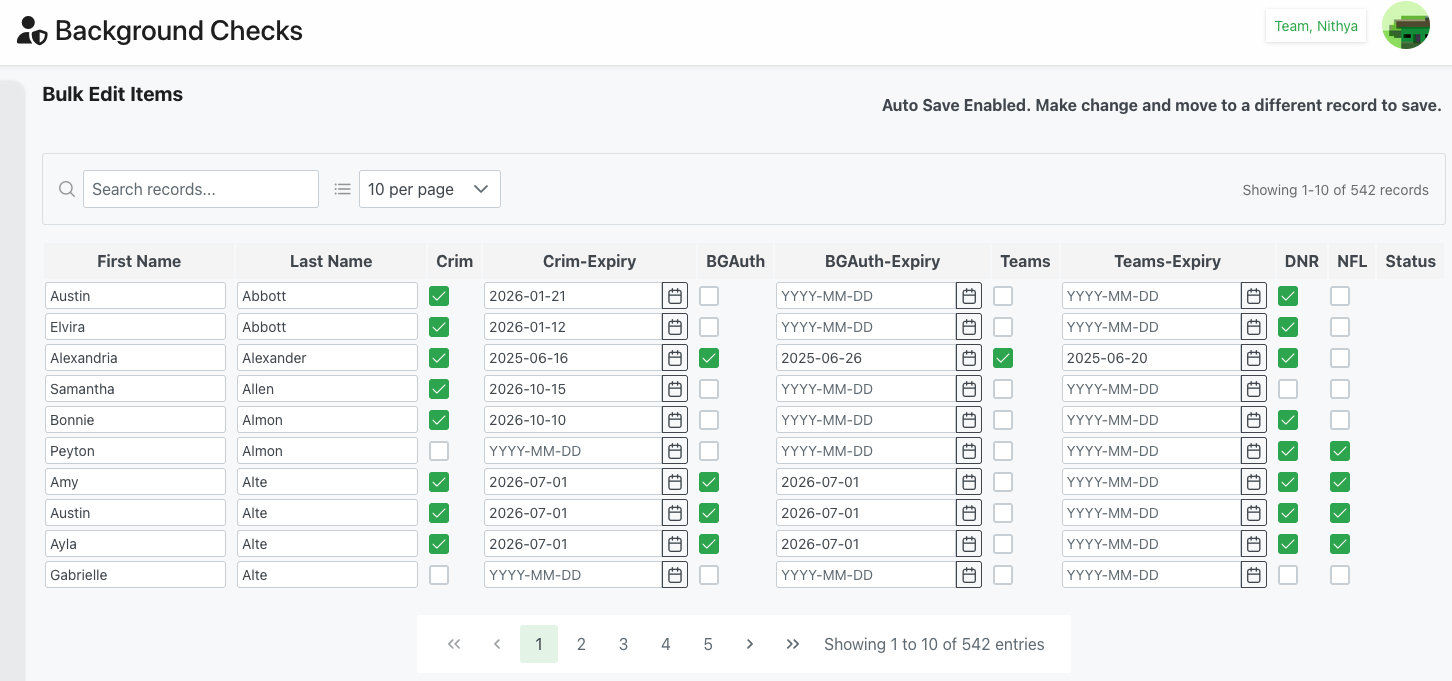
Description
The Bulk Edit Items interface provides a powerful spreadsheet-like editing environment where administrators can update multiple background check records simultaneously. With auto-save enabled, changes are saved automatically as you move between fields, making large-scale updates efficient and reliable.
Page Header
Title
- Text: "Bulk Edit Items"
- Purpose: Indicates mass editing mode
- Warning Message: "Auto Save Enabled. Make change and move to a different record to save."
- Color: Typically orange or yellow background
- Importance: Critical to understand save behavior
- Behavior: Changes saved when moving to different record
Interface Controls
Search Records
- Position: Top-left
- Icon: 🔍 Search icon
- Placeholder: "Search records..."
- Real-time: Filters grid as you type
- Searchable Fields: First Name, Last Name
- Purpose: Quickly find specific records in large dataset
Records Per Page
- Position: Next to search
- Icon: ≡ List view icon
- Options: 10, 25, 50, 100 per page
- Default: "10 per page"
- Purpose: Control how many records display at once
- Performance: Smaller page sizes load faster
Record Count
- Position: Top-right
- Format: "Showing 1-10 of 542 records"
- Purpose: Shows current view within total dataset
- Example: 542 total background check records in system
Editable Grid
Grid Layout
The interface presents data in a spreadsheet-style grid with these characteristics:
- Inline Editing: Click any field to edit directly
- Tab Navigation: Use Tab key to move between fields
- Auto-Save: Changes save when moving to different record
- Checkmarks: Green checkmarks indicate "Yes" status
- Empty Boxes: Unchecked boxes indicate "No" status
- Date Pickers: Calendar icons open date selection
- Column Headers: Sortable and indicate data type
Column Structure
First Name
- Type: Text input
- Editable: Yes
- Examples: "Austin", "Elvira", "Alexandria", "Samantha", "Bonnie", "Peyton", "Amy", "Austin", "Ayla", "Gabrielle"
- Use: Correct name spelling, update information
- Validation: Cannot be empty
Last Name
- Type: Text input
- Editable: Yes
- Examples: "Abbott", "Alexander", "Allen", "Almon", "Alte"
- Use: Correct name spelling, update information
- Validation: Cannot be empty
Crim (Criminal Check)
- Type: Checkbox
- Visual: Green checkmark = Yes, Empty box = No
- Editable: Click to toggle
- Purpose: Quickly mark criminal checks as complete/incomplete
- Most Common: Bulk marking as complete after batch processing
Crim-Expiry (Criminal Check Expiry)
- Type: Date input with calendar picker
- Format: YYYY-MM-DD
- Icon: 📅 Calendar icon
- Examples from screenshot:
- "2026-01-21"
- "2026-01-12"
- "2025-06-16"
- "2026-10-15"
- "2026-10-10"
- "YYYY-MM-DD" (placeholder)
- "2026-07-01"
- Editable: Click calendar icon or date field
- Use: Set or update expiry dates in bulk
- Auto-Complete: May suggest date based on policy (e.g., +1 year)
BGAuth (Background Authorization)
- Type: Checkbox
- Visual: Green checkmark = Yes, Empty box = No
- Editable: Click to toggle
- Purpose: Mark authorization checks complete
- Bulk Action: Useful for marking batch authorizations
BGAuth-Expiry
- Type: Date input with calendar picker
- Format: YYYY-MM-DD
- Icon: 📅 Calendar icon
- Examples from screenshot:
- "YYYY-MM-DD" (placeholder - not set)
- "2025-06-26"
- "2026-07-01"
- Editable: Click to set/update date
- Use: Batch update authorization expiry dates
Teams (Training)
- Type: Checkbox
- Visual: Green checkmark = Yes, Empty box = No
- Editable: Click to toggle
- Purpose: Mark training completion
- Bulk Use: Mark entire training session as complete
Teams-Expiry (Training Expiry)
- Type: Date input with calendar picker
- Format: YYYY-MM-DD
- Icon: 📅 Calendar icon
- Examples from screenshot:
- "YYYY-MM-DD" (placeholder)
- "2025-06-20"
- Editable: Click to set date
- Use: Set training certification expiry
- Common: Annual training renewal dates
DNR (Do Not Recruit)
- Type: Checkbox
- Visual: Green checkmark = Yes (Flagged), Empty = No
- Editable: Click to toggle
- Purpose: Flag ineligible members
- Warning: Use carefully - affects eligibility
- Examples: Some records checked in screenshot
NFL (Credentialed)
- Type: Checkbox
- Visual: Green checkmark = Yes, Empty = No
- Editable: Click to toggle
- Purpose: Mark credential status
- Note: May vary by organization
Status
- Type: Checkbox or status indicator
- Editable: May be checkbox or derived status
- Purpose: Overall compliance status
- Note: May be calculated from other fields
Pagination and Navigation
Pagination Controls
- Position: Bottom-center
- ⏮ First: Jump to page 1
- ◀ Prev: Go to previous page
- Page Numbers: Click specific page (1, 2, 3, 4, 5 visible)
- Current Page: Highlighted (green "1" in screenshot)
- ▶ Next: Go to next page
- ⏭ Last: Jump to last page
Status Display
- Position: Bottom-right
- Text: "Showing 1 to 10 of 542 entries"
- Purpose: Context of current view
Auto-Save Behavior
How Auto-Save Works
Trigger Conditions
The auto-save triggers when you:
- Click Another Row: Move to different record
- Tab Away: Tab to field in different record
- Page Navigation: Move to different page
- Search/Filter: Apply search or filter
What Gets Saved
- All changes made to current record
- Multiple field changes in same record
- Both checkbox and date changes
- Name corrections
Visual Feedback
- No explicit save confirmation
- Changes persist immediately
- Refresh page to verify if unsure
- Check audit log for save confirmation
Important Auto-Save Notes
Critical Behaviors:
- No Manual Save: No save button to click
- Automatic: Saves without confirmation
- Record-Level: Saves when leaving record
- No Undo: Changes saved automatically (no undo)
- Be Careful: Verify changes before moving away
Best Practices:
- Review changes before moving to next record
- Double-check dates before tabbing away
- Be deliberate with checkbox clicks
- Use search to work on specific subset
Use Cases
Batch Updating Expiry Dates
Scenario: Annual renewal - updating expiry dates for entire group
Process:
- Click Bulk Edit button
- Optional: Search or filter for specific group
- Set records per page to larger number (e.g., 25 or 50)
- Click on first Crim-Expiry date field
- Enter or select new expiry date (e.g., +1 year)
- Tab to next record's Crim-Expiry field
- Previous record auto-saves
- Continue for all records needing update
- Navigate through pages as needed
- All changes save automatically
Marking Training Complete
Scenario: Training session completed - marking entire group
Process:
- Access Bulk Edit interface
- Search for attendees if needed
- Click Teams checkbox for first member
- Click calendar icon for Teams-Expiry
- Set expiry date (e.g., one year from training)
- Move to next record (auto-saves)
- Repeat for all training attendees
- All members now marked as trained
Updating Criminal Check Status
Scenario: Batch of criminal checks completed
Process:
- Open Bulk Edit
- Search for members whose checks completed
- Check Crim checkbox for first member
- Set Crim-Expiry date
- Tab to next member
- Repeat process
- All checks marked complete and dated
Correcting Name Spelling
Scenario: Multiple names misspelled in import
Process:
- Access Bulk Edit
- Search for affected records
- Click in First Name or Last Name field
- Correct spelling
- Tab to next field or record
- Change auto-saves
- Continue for all corrections
Bulk DNR Flagging
Scenario: Multiple members failed checks or violated policy
Process:
- Open Bulk Edit
- Locate first member to flag
- Check DNR checkbox
- Update relevant check status (uncheck Crim if failed)
- Move to next record (saves)
- Repeat for all members needing flag
- Follow up with detailed notes in individual records
Setting Initial Expiry Dates
Scenario: New records need expiry dates established
Process:
- Filter to show new records
- Bulk Edit interface
- For each record, set expiry dates:
- Crim-Expiry (e.g., one year from check)
- BGAuth-Expiry
- Teams-Expiry
- Tab between fields and records
- All dates save automatically
- Expiry monitoring now active
Tips for Efficient Bulk Editing
Preparation
Before Starting
- Plan Changes: Know exactly what needs updating
- Filter First: Use search to narrow to relevant records
- Backup: Export data before major changes
- Page Size: Set appropriate records per page
- Reference Data: Have reference information ready (e.g., expiry dates)
During Editing
Efficiency Tips
- Tab Navigation: Faster than mouse clicking
- Keyboard Shortcuts: Learn date entry shortcuts
- Pattern Work: Work in patterns (all Crim, then all BGAuth)
- Pagination: Work page by page systematically
- Double-Check: Review each entry before moving on
Accuracy Tips
- Go Slow: Speed causes mistakes
- Verify Dates: Ensure correct year/month/day
- Checkbox Caution: Easy to accidentally click
- Name Review: Check spelling carefully
- Cross-Reference: Compare with source documents
Common Mistakes to Avoid
Auto-Save Pitfalls
- Accidental Clicks: Clicking wrong checkbox saves immediately
- Hasty Tab: Tabbing away saves incomplete changes
- Wrong Date: Entering wrong date saves when you move
- Lost Focus: Clicking outside row may trigger save
Prevention Strategies
- Focus: Minimize distractions during bulk editing
- Systematic: Work methodically through list
- Verify: Check previous record before continuing
- Audit: Review changes after bulk edit session
- Backup: Can restore from export if major error
Best Practices
Organizing Bulk Edit Sessions
Session Planning
- Time Block: Allocate sufficient uninterrupted time
- Batch Similar: Group similar changes together
- Small Batches: Edit 10-25 records at a time
- Break: Take breaks to maintain accuracy
- Document: Note what changes were made
Quality Control
- Spot Check: Verify random sample after editing
- Export After: Download data to verify changes
- Compare: Compare before/after exports
- Audit Trail: Review system logs if available
- Second Review: Have colleague verify critical changes
Data Integrity
Maintaining Accuracy
- Source Documents: Reference official documents
- Consistency: Use same date formats and conventions
- Completeness: Don't leave fields half-updated
- Verification: Confirm changes with members if critical
- Documentation: Note significant changes
Security and Privacy
Access Control
- Limited Access: Restrict bulk edit to authorized users only
- Audit Logging: Ensure all changes are logged
- Supervision: May require manager approval for bulk changes
- Training: Train users before granting bulk edit access
Troubleshooting
Changes Not Saving
Problem: Edits don't persist after leaving record
Possible Causes:
- Browser issue or connection problem
- Validation error preventing save
- Insufficient permissions
- System error
Solutions:
- Verify you moved to different record after editing
- Check for error messages or red fields
- Refresh page to see if changes persisted
- Try editing again with single record
- Check browser console for errors
- Verify your permissions
Accidentally Changed Wrong Field
Problem: Clicked wrong checkbox or entered wrong data
Solutions:
- Immediately click back into the field
- Correct the error before moving away
- If already saved, go back and correct
- Use individual edit for important corrections
- Export to verify and fix if many errors
Date Not Accepting Entry
Problem: Date field won't accept input
Possible Causes:
- Wrong format
- Invalid date
- Calendar picker required
Solutions:
- Use calendar picker instead of typing
- Verify date format matches system (YYYY-MM-DD)
- Check for valid date (not Feb 30, etc.)
- Clear field and try again
- Refresh page if technical issue
Lost Track of Changes
Problem: Don't remember what was changed
Solutions:
- Export current data
- Compare with previous export (if available)
- Check system audit logs
- Review records page by page
- Contact support for change history
Related Features
- Background Checks Overview - Main background checks management
- Create/Edit Background Check - Individual record editing
- Bulk Upload - Import multiple records
- Members Management - Member information
Tips
- Plan First: Know what you're changing before starting
- Filter Down: Use search to narrow to relevant records
- Larger Pages: Increase page size for fewer page turns
- Tab Navigate: Keyboard is faster than mouse
- Review Before Moving: Always verify before tabbing away
- Save Checkpoint: Export after each bulk edit session
- Small Batches: Don't try to edit hundreds at once
- Take Breaks: Maintain accuracy with regular breaks
- Double-Check Dates: Easy to enter wrong year
- Audit After: Review changes after session to verify accuracy