Create and Edit Background Check
Purpose
Create new background check records or edit existing compliance information for members, including personal details and all verification statuses.
Access
Create New Record
From Background Checks page:
- Click the + Create button
- Background check entry form opens
Edit Existing Record
From Background Checks page:
- Click the gear icon (⚙) next to a record
- Select Edit from the context menu
Screenshot
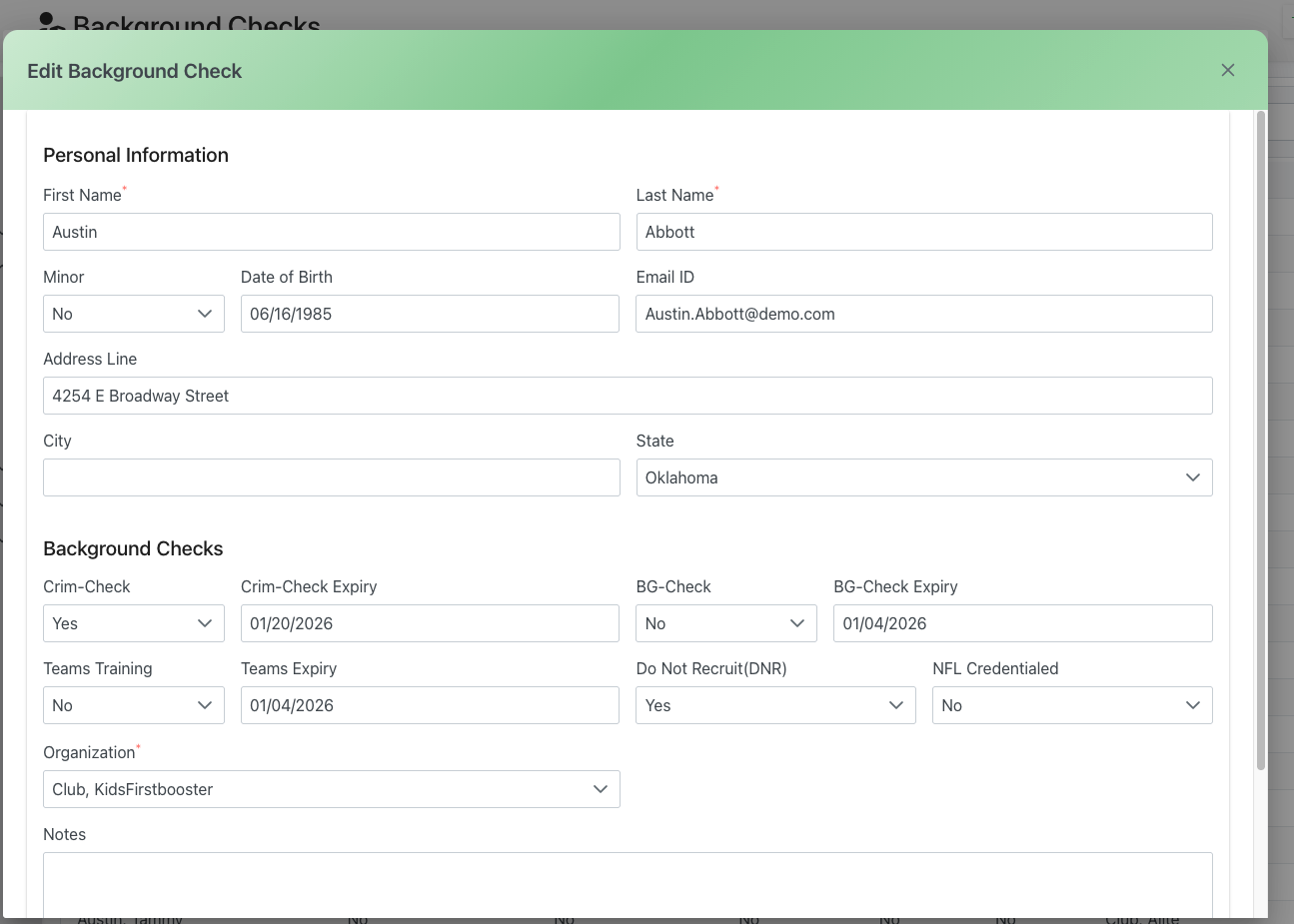
Description
The Edit Background Check dialog provides a comprehensive form for recording and managing all compliance-related information for a member. This single interface captures personal details and tracks multiple types of background checks and training requirements.
Dialog Header
- Title: "Edit Background Check" (or "Create Background Check" for new records)
- Close Button: X icon in the top-right corner to dismiss
- Purpose: Comprehensive compliance record management
Form Sections
Personal Information
This section captures identifying information about the member.
First Name
- Label: "First Name"
- Type: Text input field
- Required: Yes (indicated by * if required)
- Example: "Austin"
- Purpose: Member's given name
- Validation: Cannot be empty
Last Name
- Label: "Last Name"
- Type: Text input field
- Required: Yes
- Example: "Abbott"
- Purpose: Member's family name
- Validation: Cannot be empty
Minor
- Label: "Minor"
- Type: Dropdown select
- Options: "Yes", "No"
- Default: "No"
- Example from screenshot: "No"
- Purpose: Indicate if member is under 18
- Impact:
- May require different checks for minors
- Affects eligibility for certain roles
- May require parental consent
- Different screening requirements
Date of Birth
- Label: "Date of Birth"
- Type: Date picker input
- Format: MM/DD/YYYY
- Example: "06/16/1985"
- Purpose: Age verification and eligibility
- Required: Yes
- Use: Calculate age, verify minor status
Email ID
- Label: "Email ID"
- Type: Email input field
- Format: Standard email format
- Example: "Austin.Abbott@demo.com"
- Purpose: Contact information and account linking
- Validation: Must be valid email format
- Use:
- Communication with member
- Account identification
- Notification delivery
Address Line
- Label: "Address Line"
- Type: Text input field
- Example: "4254 E Broadway Street"
- Purpose: Member's street address
- Required: May vary by organization
- Use:
- Jurisdiction for background checks
- Verification purposes
- Compliance documentation
City
- Label: "City"
- Type: Text input field
- Example: (empty in screenshot)
- Purpose: City of residence
- Use: Geographic information for checks
State
- Label: "State"
- Type: Dropdown select
- Options: All US states
- Example: "Oklahoma"
- Purpose: State of residence
- Use:
- State-specific background check requirements
- Jurisdiction determination
- Compliance with state laws
Background Checks
This section tracks various verification and compliance checks.
Crim-Check
- Label: "Crim-Check"
- Type: Dropdown select
- Options: "Yes", "No", "Pending", "Expired"
- Example: "Yes"
- Purpose: Criminal background check status
- Definition: Screening for criminal history
- Importance: Critical for working with vulnerable populations
Crim-Check Expiry
- Label: "Crim-Check Expiry"
- Type: Date picker
- Format: MM/DD/YYYY
- Example: "01/20/2026"
- Purpose: Track when criminal check expires
- Use:
- Trigger renewal process
- Maintain compliance
- Prevent expired checks
- Alert: System may alert before expiry
BG-Check
- Label: "BG-Check"
- Type: Dropdown select
- Options: "Yes", "No", "Pending", "Expired"
- Example: "No"
- Purpose: General background authorization status
- Scope: May include employment verification, references, etc.
- Requirements: Organization-specific
BG-Check Expiry
- Label: "BG-Check Expiry"
- Type: Date picker
- Format: MM/DD/YYYY
- Example: "01/04/2026"
- Purpose: Track background authorization expiration
- Use: Schedule renewals and maintain compliance
Teams Training
- Label: "Teams Training"
- Type: Dropdown select
- Options: "Yes", "No", "Pending", "N/A"
- Example: "No"
- Purpose: Track completion of mandatory training
- Training Types:
- Safety training
- Compliance training
- Role-specific training
- Child protection training
- Code of conduct
Teams Expiry
- Label: "Teams Expiry"
- Type: Date picker
- Format: MM/DD/YYYY
- Example: "01/04/2026"
- Purpose: Track when training certification expires
- Use: Schedule refresher training
Do Not Recruit(DNR)
- Label: "Do Not Recruit(DNR)"
- Type: Dropdown select
- Options: "Yes", "No"
- Example: "Yes"
- Purpose: Flag individuals ineligible for recruitment
- Effect:
- Prevents assignment to roles
- Blocks from scheduling
- Alerts administrators
- Maintains safety
- Reasons:
- Failed background check
- Policy violations
- Safety concerns
- Legal restrictions
- Voluntary exclusion
NFL Credentialed
- Label: "NFL Credentialed"
- Type: Dropdown select
- Options: "Yes", "No", "Pending", "Expired"
- Example: "No"
- Purpose: Track special credentials or certifications
- Note: Label may vary by organization
- Examples:
- Professional certifications
- Venue credentials
- Industry-specific licenses
- Security clearances
Organization
Organization
- Label: "Organization" (marked with *)
- Type: Dropdown select
- Required: Yes
- Example: "Club, KidsFirstbooster"
- Purpose: Link member to their affiliated organization
- Use:
- Group compliance by organization
- Organization-specific requirements
- Reporting by club/group
- Access control
Notes
Notes
- Label: "Notes"
- Type: Multi-line text area
- Required: No
- Purpose: Additional information about checks or member
- Best Used For:
- Special circumstances
- Check details
- Follow-up requirements
- Historical information
- Compliance notes
- Issue documentation
- Contact history
Action Buttons
Save / Update
- Position: Bottom-right (not visible in partial screenshot)
- Label: "Save" for new records, "Update" for edits
- Color: Green
- Action: Save all information
- Validation: Checks required fields are complete
- Result:
- Record saved to system
- Dialog closes
- Record appears in main list
- Expiry dates trigger monitoring
Cancel
- Position: Bottom (not fully visible in screenshot)
- Action: Close without saving changes
- Result:
- All edits discarded
- Returns to Background Checks list
- No changes made to record
Use Cases
Creating Initial Background Check Record
Scenario: New member needs background check documentation
Process:
- Click + Create on Background Checks page
- Enter personal information:
- First and Last Name
- Date of Birth
- Address information
- Select Minor status if applicable
- Choose Organization from dropdown
- Set initial check statuses (likely "Pending" or "No")
- Add notes about initiated checks
- Click Save
- Initiate actual background check process
- Return to update when results received
Recording Completed Background Check
Scenario: Background check results received
Process:
- Find member record in list
- Click gear icon (⚙) and select Edit
- Update check status to "Yes"
- Enter expiry date (e.g., one year from completion)
- Add notes about check results if needed
- Verify all information accurate
- Click Update
- Member now eligible for assignments
Updating Expiry Dates
Scenario: Renewing expiring background checks
Process:
- Locate member with approaching expiry
- Edit the record
- Initiate renewal process
- Update expiry date once renewed
- Verify all other information current
- Add note about renewal
- Save changes
Flagging Member as DNR
Scenario: Member fails check or violates policy
Process:
- Edit member's record
- Change "Do Not Recruit(DNR)" to "Yes"
- Update relevant check status (e.g., change Crim-Check to "No" if failed)
- Add detailed notes explaining:
- Reason for DNR status
- Date of incident or failure
- Who made decision
- Any appeal process
- Notify relevant stakeholders
- Save changes
- Member automatically excluded from assignments
Updating Training Completion
Scenario: Member completes required training
Process:
- Edit member's record
- Change Teams Training to "Yes"
- Enter training completion date
- Enter expiry date (e.g., annual training)
- Add notes about training specifics
- Save changes
- Member now current on training requirements
Minor Status Update
Scenario: Member turns 18
Process:
- Edit member's record
- Change Minor status from "Yes" to "No"
- Verify Date of Birth is accurate
- Check if different background checks now required
- Update check requirements as needed
- Add note about status change
- Save changes
Field Guidelines
Personal Information Best Practices
Name Entry
- Use legal names as they appear on official documents
- Consistent format across all records
- Match to government-issued ID
- Consider nicknames in notes if needed
Date of Birth
- Verify accuracy - critical for checks
- Use consistent date format
- Cross-reference with identification
- Update minor status when appropriate
Contact Information
- Keep email current for communications
- Verify address for jurisdiction purposes
- Update promptly when changed
- Use primary contact information
Check Status Guidelines
Setting Initial Status
- No: Check not yet initiated
- Pending: Check requested but not complete
- Yes: Check completed and current
- Expired: Check completed but expired
Expiry Date Rules
- Set realistic expiry based on policy
- Common: 1 year for criminal checks
- Training: Often annual
- Credentials: Follow issuing authority
- Calendar reminders: Set 30-60 days before expiry
DNR Flag Usage
When to Set DNR
- Failed criminal background check
- Serious policy violations
- Safety incidents
- Legal restrictions
- Compliance breaches
- Voluntary request to be excluded
DNR Documentation
- Always document: Reason for DNR in notes
- Date: When DNR was set
- Authority: Who made decision
- Review: When DNR should be reviewed (if applicable)
- Process: Any appeal or review process
DNR Effects
- Prevents scheduling assignments
- Blocks from team membership
- Alerts in event planning
- May trigger access restrictions
- Permanent or temporary based on policy
Organization Assignment
Selecting Organization
- Choose member's primary organization
- Usually their club or employer
- Affects reporting and grouping
- May determine check requirements
- Required field - must be selected
Data Validation
Required Fields
- First Name
- Last Name
- Date of Birth
- Email ID
- Organization
Format Validation
- Email: Must be valid email format
- Dates: Must be valid dates in MM/DD/YYYY format
- Expiry Dates: Should be future dates (warning if past)
Logical Validation
- Minor status should align with Date of Birth
- Expiry dates should be after check completion
- DNR flag should have note explaining reason
- Check status should align with dates
Best Practices
Creating Records
Complete Information
- Fill in all available information
- Verify accuracy before saving
- Document in notes any special circumstances
- Link to supporting documentation if system supports it
Consistent Data Entry
- Follow organizational standards
- Use same formats across all records
- Coordinate with team on conventions
- Review existing records for consistency
Updating Records
Regular Reviews
- Schedule periodic record reviews
- Update as member information changes
- Verify expiry dates approach
- Keep notes current
Audit Trail
- Document significant changes in notes
- Note who requested updates
- Track check renewals
- Maintain compliance history
Privacy and Security
Sensitive Information
- Limit access to authorized personnel only
- Don't include sensitive check results details in notes
- Follow privacy regulations
- Secure storage of supporting documents
- Proper disposal of old records
Troubleshooting
Cannot Save Record
Problem: Save button doesn't work or shows error
Possible Causes:
- Required fields not completed
- Invalid date formats
- Duplicate email address
- Invalid email format
Solutions:
- Check all required fields are filled (marked with *)
- Verify dates are in correct format
- Ensure email is properly formatted
- Check for validation error messages
- Try refreshing if technical issue
Expiry Date Warnings
Problem: System shows warnings about expiry dates
Causes:
- Date is in the past
- Date is approaching expiry threshold
Solutions:
- Update with current expiry date
- Initiate renewal process if expired
- Change check status to "Expired" if past date
- Plan renewal if approaching expiry
Organization Not Listed
Problem: Member's organization not in dropdown
Solutions:
- Verify organization exists in system
- Check if organization is active
- Contact administrator to add organization
- Temporarily use parent organization
- Create organization first if needed
Related Features
- Background Checks Overview - Main background checks management
- Bulk Edit - Edit multiple records simultaneously
- Bulk Upload - Import multiple records
- Members Management - Member information
Tips
- Check Twice: Verify personal information accuracy before saving
- Set Reminders: Note expiry dates in your calendar system
- Document Everything: Use notes field liberally for important information
- DNR Justification: Always document reason when setting DNR flag
- Future Dates: Set expiry dates in advance to trigger renewal processes
- Batch Processing: If creating many records, consider bulk upload instead
- Consistent Status: Keep check statuses aligned with actual compliance state
- Regular Updates: Review and update records quarterly at minimum