Delete Schedule
Purpose
Remove a schedule from the system when it is no longer needed. This action permanently deletes the schedule and all associated data.
Route
/manage/schedules
Screenshot
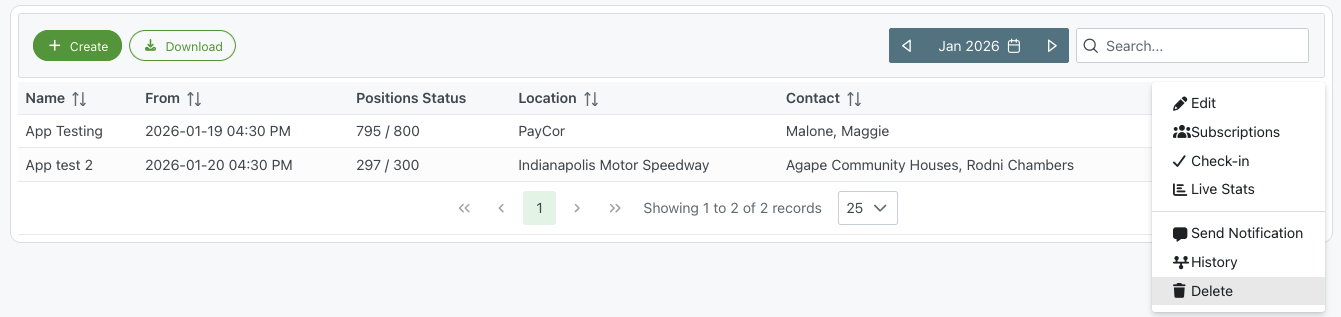
Schedules list view showing the context menu with delete option
Description
Accessing the Delete Function
To delete a schedule, navigate to the Schedules list view where you can see all your schedules displayed in a table format with the following information:
- Name: The schedule/event name
- From: Start date and time (e.g., "2026-01-19 04:30 PM")
- Positions Status: Current filled positions vs total required (e.g., "795 / 800")
- Location: The venue or location name
- Contact: Contact person(s) for the event
How to Delete a Schedule
- Locate the Schedule: Find the schedule you want to delete in the list
- Open Context Menu: Click on the schedule row or use the context menu trigger (usually a three-dot icon or right-click)
- Select Delete: From the context menu, choose the Delete option at the bottom of the menu
The context menu provides several options:
- ✏️ Edit: Modify schedule details
- 👥 Subscriptions: View member subscriptions
- ✓ Check-in: Access check-in functionality
- 📊 Live Stats: View real-time statistics
- 📢 Send Notification: Communicate with participants
- 🕐 History: Review change history
- 🗑️ Delete: Remove the schedule
Important Considerations
- Permanent Action: Deleting a schedule is typically a permanent action and cannot be undone
- Data Loss: All associated data including member subscriptions, check-ins, assignments, and statistics will be removed
- Confirmation: The system may prompt for confirmation before completing the deletion
- Permissions: Only users with appropriate permissions can delete schedules
Alternative Actions
Before deleting, consider if any of these alternatives might be more appropriate:
- Archive: Some systems offer archiving instead of deletion
- Edit: Update the schedule if information is incorrect
- Cancel: Mark the schedule as cancelled without removing historical data