Add Team Members
Purpose
Add one or more members to a team using a dual-pane selection interface that allows searching, browsing, and bulk member selection.
Access
From the Team Members page:
- Click the + Add Members button
- Add Team members dialog opens
Screenshot
Description
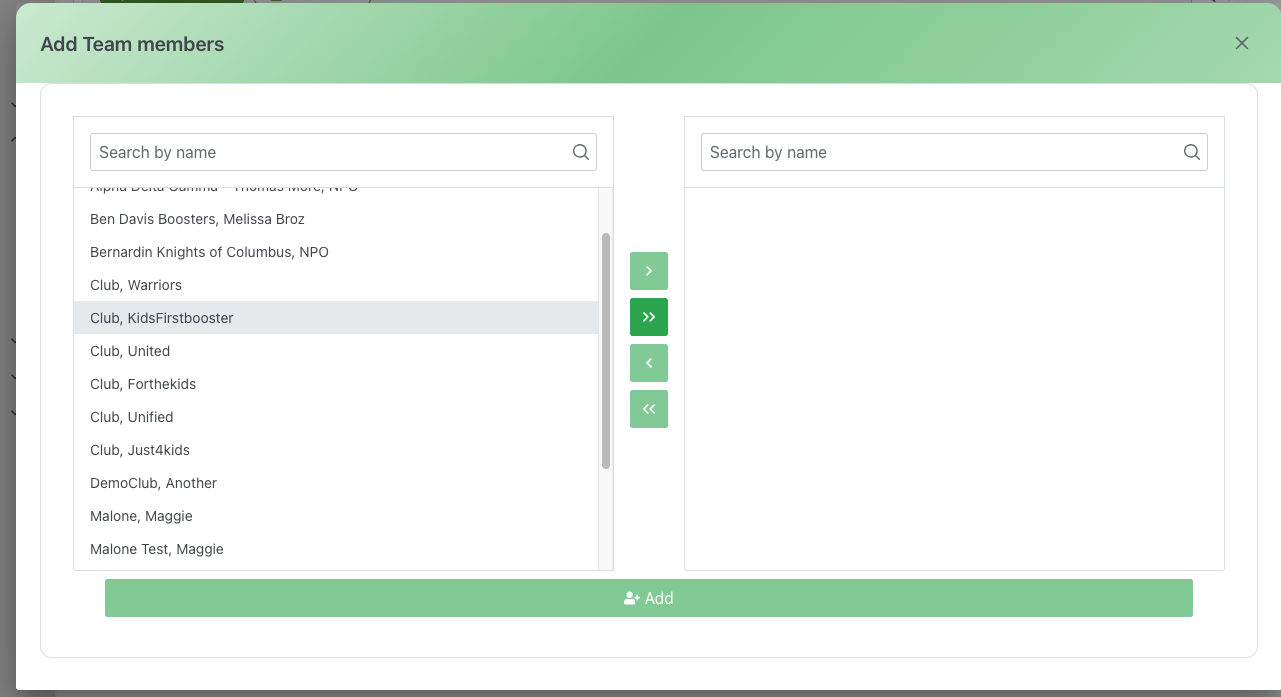
The Add Team Members dialog provides an intuitive dual-pane interface for selecting and adding members to a team. The left pane shows available members, the right pane shows selected members, and transfer controls allow moving members between panes.
Dialog Header
- Title: "Add Team members"
- Close Button: X icon in the top-right corner to dismiss
- Purpose: Clear identification of the member addition process
Interface Layout
Dual-Pane Design
The interface uses a two-pane layout connected by transfer controls:
- Left Pane: Available members (can be added to team)
- Center Controls: Transfer buttons to move members
- Right Pane: Selected members (will be added to team)
This design allows visual confirmation of selections before finalizing.
Left Pane: Available Members
Search Box
- Placeholder: "Search by name"
- Position: Top of left pane
- Icon: 🔍 Search icon on the right
- Real-time: Filters list as you type
- Search Behavior:
- Searches member names
- Case-insensitive
- Instant results
- Highlights or filters matches
Available Members List
Content: List of all organization members not currently on the team
Members from screenshot include:
- Alpha Delta Gamma - Thomas More, NPO
- Ben Davis Boosters, Melissa Broz
- Bernardin Knights of Columbus, NPO
- Club, Warriors
- Club, KidsFirstbooster (highlighted/selected)
- Club, United
- Club, Forthekids
- Club, Unified
- Club, Just4kids
- DemoClub, Another
- Malone, Maggie
- Malone Test, Maggie
Features:
- Scrollable: Scroll through long lists
- Selectable: Click to highlight/select a member
- Multi-Select: Can select multiple members
- Visual Feedback: Selected members are highlighted (shown with gray background)
- Alphabetical: Typically sorted alphabetically by name
Selection Behavior:
- Click member to select (highlights in gray)
- Click again to deselect
- Multiple members can be selected simultaneously
- Selected members ready to transfer to right pane
Transfer Controls (Center)
Four green buttons control movement between panes:
▶ Single Right (Top button)
- Icon: Single right arrow
- Action: Move currently selected member(s) from left to right
- Use: Transfer specific selected members
- Behavior:
- Moves highlighted member(s) to right pane
- Removes from left pane
- Maintains selection state
- Example: Selected "Club, KidsFirstbooster" moves to right pane
⏩ All Right (Second button)
- Icon: Double right arrow
- Action: Move ALL members from left pane to right pane
- Use: Add all available members to team at once
- Behavior:
- Transfers entire list
- Left pane becomes empty (or shows no results)
- All members now in right pane
- Caution: Use carefully to avoid adding unintended members
◀ Single Left (Third button)
- Icon: Single left arrow
- Action: Move selected member(s) from right pane back to left
- Use: Deselect specific members before adding
- Behavior:
- Returns member(s) to available pool
- Removes from right pane
- Member will not be added to team
⏪ All Left (Bottom button)
- Icon: Double left arrow
- Action: Move ALL members from right pane back to left
- Use: Clear all selections and start over
- Behavior:
- Returns all members to left pane
- Right pane becomes empty
- Resets selection completely
Right Pane: Selected Members
Search Box
- Placeholder: "Search by name"
- Position: Top of right pane
- Icon: 🔍 Search icon on the right
- Purpose: Search within selected members
- Use Cases:
- Find specific selection in long list
- Verify member was selected
- Quickly locate member to deselect
Selected Members List
Content: Members that will be added to team when confirmed
Features:
- Review Area: Final review before adding
- Scrollable: Scroll through selections
- Selectable: Click to select for removal (move back left)
- Empty State: Shows empty when no selections made
- Count: Can see how many members will be added
Purpose:
- Visual confirmation of selections
- Opportunity to review before committing
- Ability to adjust selections
Action Buttons
👥 Add (Green)
- Position: Bottom-center, spanning width
- Icon: People/group icon
- Label: "Add"
- Action: Add all members in right pane to the team
- Requirements: At least one member in right pane
- Result:
- All selected members added to team
- Members appear in team roster
- Dialog closes
- Success notification may appear
- Team member count updates
Close/Cancel
- Position: Top-right X button
- Action: Close dialog without adding members
- Result:
- No members are added
- All selections discarded
- Returns to Team Members page
- Team roster unchanged
Use Cases
Adding a Single Member
Scenario: Adding one new member to team
Process:
- Open Add Team Members dialog
- Search for member name in left pane search
- Click on the member to select (highlights)
- Click ▶ button to move to right pane
- Verify member appears in right pane
- Click Add button
- Member is added to team
- Dialog closes
Adding Multiple Specific Members
Scenario: Adding several specific members to team
Process:
- Open Add Team Members dialog
- Click first member to select
- Click additional members to select (multiple highlights)
- Click ▶ button to move all selected to right pane
- Repeat for additional batches if needed
- Review all selections in right pane
- Click Add button
- All selected members added to team
Adding All Available Members
Scenario: Adding entire organization to team
Process:
- Open Add Team Members dialog
- Click ⏩ (double right arrow) button
- All members move to right pane
- Review the complete list
- Optional: Move back any members to exclude
- Click Add button
- Entire group added to team
Searching and Adding
Scenario: Finding and adding specific members by name
Process:
- Open Add Team Members dialog
- Type member name in left pane search
- Results filter to matching members
- Select from filtered results
- Click ▶ to move to right pane
- Clear search to see full list again
- Continue adding more if needed
- Click Add button when done
Correcting Selection Before Adding
Scenario: Accidentally selected wrong member
Process:
- Notice incorrect member in right pane
- Click on the incorrect member in right pane
- Click ◀ button to move back to left
- Or click ⏪ to clear all and start over
- Reselect correct members
- Verify selections in right pane
- Click Add button
Bulk Add with Exclusions
Scenario: Adding most members but excluding a few
Process:
- Open Add Team Members dialog
- Click ⏩ to move all to right pane
- Search for members to exclude in right pane
- Select members to exclude
- Click ◀ to move them back to left
- Verify remaining selections
- Click Add button
- All except excluded members are added
Search and Filter Tips
Effective Searching
Left Pane Search
- Use for: Finding members to add
- Type: Partial names work (e.g., "club" finds all clubs)
- Clear: Clear search after selection to see full list
- Multiple: Can search, select, clear, search again
Right Pane Search
- Use for: Verifying selections
- Type: Find specific member in selections
- Review: Confirm member was added to right pane
- Remove: Easy way to find member to deselect
Search Strategies
By Organization:
- Search "club" to find all club members
- Search "NPO" to find non-profit organizations
- Search organization name prefix
By Name:
- Search last name to find individuals
- Search partial first name
- Search full name for exact match
By Type:
- Search common identifiers
- Search location names
- Search team or group keywords
Best Practices
Selection Process
Plan First
- Know Who: Identify members needed before opening dialog
- List Ready: Have list of names ready if many members
- Criteria Clear: Know selection criteria
- Verify Availability: Ensure members are available to add
Systematic Selection
- Search First: Use search to narrow down options
- Batch Select: Select related members together
- Review Often: Check right pane periodically
- Verify Names: Ensure you're selecting correct members
Avoiding Mistakes
Double-Check
- Review Right Pane: Always review final selection
- Search Selected: Search in right pane to verify specific members
- Count: Verify expected number of members
- Names: Check for similar names that might be confused
Use Controls Carefully
- Single vs All: Be clear which arrow you're clicking
- All Button Caution: Double-click avoid with ⏩ button
- Undo Available: Use ◀ and ⏪ to correct mistakes
- Start Over: Don't hesitate to use ⏪ and restart if confused
Bulk Operations
When to Use All (⏩)
- Adding entire organization to team
- Starting with everyone then removing exceptions
- Initial team population
- Emergency or urgent team creation
When NOT to Use All
- Only need specific members
- Team has strict membership criteria
- Members have different qualifications
- Need to verify each member individually
Communication
Before Adding
- Notify Intent: Let members know they'll be added to team
- Set Expectations: Explain team purpose and requirements
- Get Consent: Obtain agreement to join team (if required)
- Answer Questions: Address member concerns
After Adding
- Welcome Message: Send welcome communication
- Team Info: Provide team details and expectations
- Resources: Share team resources and tools
- Contacts: Introduce team leadership
- Next Steps: Outline immediate actions needed
Troubleshooting
Member Not in Available List
Problem: Expected member doesn't appear in left pane
Possible Causes:
- Member already on this team
- Member not in organization
- Member status is inactive
- Search filter hiding member
Solutions:
- Check if member already in team roster
- Clear search filter to see full list
- Verify member exists in Members management
- Check member's active status
- Refresh page and try again
Cannot Move Members
Problem: Transfer buttons not working
Possible Causes:
- No member selected
- Members already in destination pane
- Browser or connection issue
Solutions:
- Ensure member is selected (highlighted)
- Try clicking member again to select
- Refresh the dialog
- Close and reopen Add Members dialog
- Check browser console for errors
Selections Disappeared
Problem: Selected members vanished from right pane
Possible Causes:
- Accidentally clicked ⏪ (all left)
- Dialog refreshed or reset
- Browser issue
Solutions:
- Reselect members
- Work in smaller batches to minimize risk
- Add members frequently rather than building large selections
- Avoid refreshing browser during selection
Added Wrong Members
Problem: Incorrect members added to team
Solutions:
- Go to team members list
- Remove incorrect members individually
- Use gear menu > Remove from Team
- Verify correct members remain
- Add missed members if needed
Related Features
- Team Members - View and manage team members
- Teams Overview - Main teams management
- Create/Edit Team - Team information
- Members Management - Organization-wide members
Tips
- Search First: Use search to narrow options before selecting
- Review Right Pane: Always verify selections before clicking Add
- Batch Selections: Select related members together for efficiency
- Start Over Option: Don't hesitate to use ⏪ and restart if confused
- Test with Few: Start with small selections to test process
- Save Frequently: Add members in batches rather than one huge selection
- Verify After: Check team roster after adding to confirm success
- Welcome Members: Communicate with newly added team members