Team Members
Purpose
View and manage the members who belong to a specific team, including adding new members, removing members, and viewing member details.
Access
From the Teams page:
- Click on a team name to view its members
- Or click the gear icon (⚙) and select View Members or Manage Members
Screenshot
Description
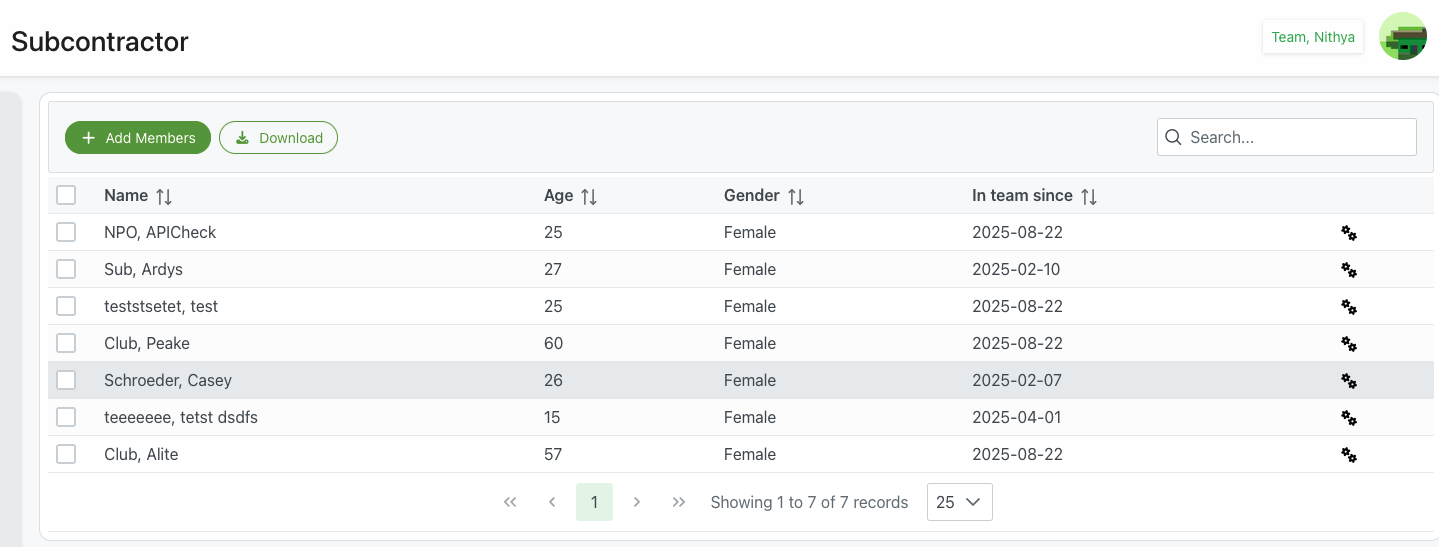
The Team Members page displays all members currently assigned to a specific team. This interface allows administrators to view member information, add new members, remove members, and perform various member management tasks within the team context.
Page Header
Title
- Format: Team name (e.g., "Subcontractor")
- Purpose: Clear indication of which team's members are being viewed
- Breadcrumb: May show navigation path back to main Teams page
- Context: Shows you're viewing a specific team's member list
User Context
- Display: Current administrator name in top-right
- Example: "Team, Nithya"
- Profile Icon: Access to user settings
Action Buttons
+ Add Members (Green)
- Purpose: Add new members to this team
- Action: Opens member selection dialog
- Icon: Plus (+) sign
- Use Cases:
- Adding newly recruited team members
- Transferring members from other teams
- Expanding team size
- Including members for specific projects
- Result: Opens Add Team Members dialog
⬇ Download (Outlined)
- Purpose: Export team members data
- Format: CSV or Excel file
- Exported Data:
- Member names
- Age
- Gender
- Join dates
- Contact information (if included)
- Use Cases:
- Team roster reporting
- External documentation
- Attendance tracking
- Backup records
- Integration with other systems
Search Functionality
- Position: Top-right corner
- Placeholder: "Search..."
- Real-time: Filters results as you type
- Searchable Fields:
- Member names
- Age
- Gender
- Join dates
- Clear Button: ✕ icon to reset search
Team Members Table
The table displays detailed information about each team member with sortable columns.
Table Features
Bulk Selection
- Checkbox Column: First column contains checkboxes
- Select All: Checkbox in header selects/deselects all
- Individual Selection: Check boxes for specific members
- Bulk Actions: Perform actions on multiple selected members
- Use Cases:
- Removing multiple members at once
- Bulk status changes
- Group notifications
- Mass operations
Table Columns
Name ↕
- Content: Full name of the team member
- Examples from screenshot:
- "NPO, APICheck"
- "teststsetet, test"
- "Club, Peake"
- "Schroeder, Casey"
- "teeeeeee, tetst dsdfs"
- "Club, Alite"
- Format: "Last Name, First Name" or "Organization Name"
- Sortable: Click header to sort alphabetically
- Action: May link to member's full profile
- Searchable: Can filter by typing name
Age ↕
- Content: Member's age in years
- Examples from screenshot:
- 25, 60, 26, 15, 57
- Sortable: Click to sort numerically
- Purpose:
- Age-based team composition
- Compliance requirements
- Demographic reporting
- Eligibility verification
- Privacy: May be restricted based on privacy settings
Gender ↕
- Content: Member's gender
- Values from screenshot: "Female"
- Other Common Values: Male, Non-binary, Prefer not to say
- Sortable: Click to group by gender
- Purpose:
- Demographic reporting
- Compliance tracking
- Team composition analysis
- Program requirements
- Privacy: May be restricted or optional
In team since ↕
- Content: Date member was added to this team
- Format: YYYY-MM-DD
- Examples from screenshot:
- "2025-08-22"
- "2025-02-07"
- "2025-04-01"
- Sortable: Click to sort chronologically
- Purpose:
- Track member tenure
- Identify newest members
- Anniversary tracking
- Seniority considerations
- Uses:
- Onboarding status
- Experience levels
- Recognition programs
- Historical tracking
Actions (⚙)
- Icon: Gear/settings icon
- Purpose: Access member-specific actions within team context
- Click: Opens context menu
- Common Actions:
- Remove from team: Remove this member from the team
- View member details: See full member profile
- Edit member info: Update member information
- View member history: See member's team history
- Send message: Contact the member
- Additional Options from screenshot:
- Delete: Permanently remove member (appears as separate option)
Context Menu Actions
Remove from Team
- Action: Remove member from this specific team
- Effect: Member removed from team but remains in organization
- Data Preserved: All member data stays intact
- Use Cases:
- Member transferred to different team
- Project completion
- Role change
- Temporary team membership ended
Delete
- Warning: This may permanently delete the member
- Caution: Use carefully - typically removes from system
- Confirmation: Should require confirmation dialog
- Difference from Remove: Remove from team vs. delete from system
- Best Practice: Usually remove from team rather than delete
Pagination Controls
Navigation
- ⏮ First Page: Jump to first page
- ◀ Previous: Go to previous page
- Page Number: Current page (highlighted in green, shows "1")
- ▶ Next: Go to next page
- ⏭ Last Page: Jump to last page
Information Display
- Record Count: "Showing 1 to 6 of 6 records"
- Format: "Showing [start] to [end] of [total] records"
- Purpose: Shows current view within total members
Page Size Selector
- Default: 25 records per page
- Options: Dropdown with choices (10, 25, 50, 100, All)
- Use: Adjust how many members display per page
Use Cases
Viewing Team Composition
Scenario: Reviewing who is on a team
Process:
- Navigate to team's member list
- Review all current members
- Check member demographics and join dates
- Verify team composition meets requirements
- Note any gaps or issues
- Export roster if needed for reporting
Adding New Team Members
Scenario: Recruiting new members to team
Process:
- Click + Add Members button
- Search for members to add
- Select members from available list
- Confirm additions
- New members appear in team roster
- Notify new members of team assignment
- See Add Team Members for detailed process
Removing Team Members
Scenario: Member leaving team or transferring
Process:
- Locate member in team roster
- Click gear icon (⚙) next to member
- Select Remove from Team
- Confirm removal
- Member removed from team roster
- Member data preserved in organization
- Notify member of removal if appropriate
Bulk Member Operations
Scenario: Performing action on multiple members
Process:
- Check boxes next to relevant members
- Or use "Select All" for entire list
- Choose bulk action from menu
- Confirm action
- Operation applied to all selected members
- Verify results
- Notify affected members if needed
Team Roster Reporting
Scenario: Generating team membership report
Process:
- Optional: Filter or search for specific members
- Click Download button
- Select export format (CSV/Excel)
- Save downloaded file
- Open in spreadsheet application
- Use for reporting, analysis, or external needs
- Share with stakeholders as appropriate
Demographic Analysis
Scenario: Analyzing team composition
Process:
- Review Age and Gender columns
- Sort by demographics to see distribution
- Identify any gaps or imbalances
- Export data for detailed analysis
- Compare with organizational goals
- Make adjustments to team composition if needed
Monitoring Team Changes
Scenario: Tracking member tenure and changes
Process:
- Sort by "In team since" column
- Identify newest members (recent dates)
- Identify longest-serving members (oldest dates)
- Track turnover patterns
- Plan onboarding for new members
- Recognize long-term members
- Analyze retention trends
Best Practices
Team Composition Management
Regular Reviews
- Frequency: Review team roster monthly or quarterly
- Accuracy: Ensure all members should be on team
- Activity: Check that members are actively participating
- Gaps: Identify missing skills or roles
- Balance: Consider demographic and skill distribution
Documentation
- Roster Records: Keep historical records of team composition
- Changes: Document why members are added or removed
- Contact Info: Ensure contact information is current
- Roles: Note each member's role or responsibilities
- Special Notes: Track any special circumstances
Member Addition
Selection Criteria
- Skills: Verify member has needed skills
- Availability: Confirm member has time for team
- Compatibility: Consider team dynamics
- Experience: Balance experience levels
- Commitment: Ensure member understands expectations
Onboarding
- Welcome: Formally welcome new team members
- Introduction: Introduce to existing team members
- Expectations: Clarify roles and responsibilities
- Resources: Provide access to team resources
- Support: Assign mentor or buddy if appropriate
Member Removal
Process Management
- Reason: Document why member is being removed
- Communication: Notify member respectfully
- Transition: Plan for knowledge transfer if needed
- Timeline: Give appropriate notice when possible
- Exit: Conduct exit interview if appropriate
Data Handling
- Preserve Records: Keep member's contribution history
- Access: Remove team-specific access appropriately
- Resources: Recover team resources from member
- Documentation: Update team documentation
- Reporting: Update team reports and rosters
Privacy and Sensitivity
Personal Information
- Respect Privacy: Handle demographic data carefully
- Need to Know: Share only necessary information
- Compliance: Follow privacy regulations (GDPR, etc.)
- Consent: Ensure proper consent for data use
- Security: Protect member information from unauthorized access
Sensitive Actions
- Confidentiality: Handle removals with discretion
- Professionalism: Maintain professional approach
- Communication: Use appropriate channels
- Documentation: Keep sensitive notes private
- Support: Provide support resources when needed
Related Features
- Teams Overview - Main teams management
- Add Team Members - Adding members to team
- Create/Edit Team - Team information management
- Members Management - Organization-wide member management
- Schedules - Team-based scheduling
Tips
- Regular Updates: Keep team rosters current with adds/removes
- Clear Communication: Notify members when they're added or removed
- Export Regularly: Download rosters for backup and reporting
- Use Search: Utilize search function to find members quickly
- Bulk Operations: Use checkboxes for efficient multi-member actions
- Document Changes: Note why team composition changed
- Monitor Demographics: Ensure team composition meets organizational goals
- Preserve History: Keep records of team membership over time