Create and Edit Team
Purpose
Create new teams or edit existing team information including name and description details.
Access
Create New Team
From the Teams page:
- Click the + Create button
- Team creation form opens
Edit Existing Team
From the Teams page:
- Click the gear icon (⚙) next to a team
- Select Edit from the context menu
Screenshot
Description
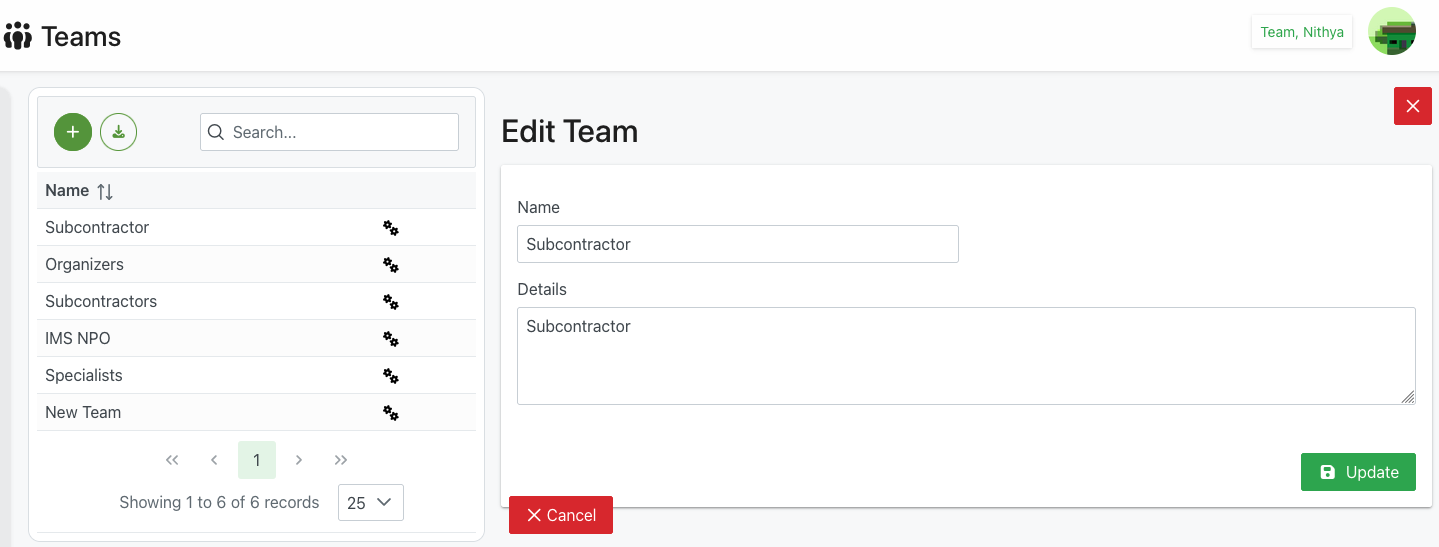
The Create/Edit Team dialog provides a simple interface for defining team information. The same form is used for both creating new teams and editing existing ones.
Dialog Header
- Title: "Edit Team" (or "Create Team" for new teams)
- Close Button: Red X icon in the top-right corner to dismiss
- Purpose: Clear identification of the team management action
Form Fields
Name
- Label: "Name"
- Type: Text input field
- Required: Yes
- Example: "Subcontractor"
- Purpose: Primary identifier for the team
- Validation:
- Cannot be empty
- Should be unique within the organization
- Typically alphanumeric with spaces allowed
- Best Practices:
- Use clear, descriptive names
- Follow organizational naming conventions
- Make purpose obvious from the name
- Keep it concise but meaningful
- Use title case for professionalism
Details
- Label: "Details"
- Type: Multi-line text area
- Required: No (optional)
- Example: "Subcontractor"
- Purpose: Description of team's purpose, scope, or additional information
- Format: Free-form text
- Best Used For:
- Explaining team purpose
- Documenting team scope
- Listing team responsibilities
- Adding contact information
- Recording special instructions
- Noting team-specific procedures
- Size: Large text area for detailed descriptions
Action Buttons
✕ Cancel (Red)
- Position: Bottom-left
- Action: Close dialog without saving changes
- Behavior:
- For new teams: Discards all entered information
- For edits: Reverts to original team data
- Result:
- Dialog closes
- Returns to Teams list
- No changes are made
- Team data remains unchanged
💾 Update (Green) / Create (Green)
- Position: Bottom-right
- Label: "Update" for editing, "Create" for new teams
- Icon: Save/disk icon
- Action: Save team information
- Validation: Checks that required fields are completed
- Result:
- Team information is saved
- Dialog closes
- Teams list refreshes
- Success notification may appear
- For new teams: Team appears in list
- For edits: Updated information displays
Use Cases
Creating a New Department Team
Scenario: Setting up a new departmental team
Process:
- Click + Create on Teams page
- Enter team name (e.g., "Marketing Department")
- Add detailed description in Details field:
- Team purpose and responsibilities
- Key contacts
- Operational scope
- Click Create
- Team is now available
- Add members to the new team
Creating a Location-Based Team
Scenario: Organizing team by venue location
Process:
- Click + Create
- Enter location-based name (e.g., "IMS NPO")
- Add details:
- "This team consist of all NPO leads at the IMS location"
- Venue address and details
- Special location requirements
- Click Create
- Add members assigned to that location
Creating a Project Team
Scenario: Temporary team for specific project
Process:
- Click + Create
- Enter project name (e.g., "Summer Festival 2025")
- Add project details:
- Project duration
- Project goals
- Key milestones
- Contact information
- Click Create
- Add project team members
- Archive when project completes
Creating a Functional Team
Scenario: Group by role or function
Process:
- Click + Create
- Enter functional name (e.g., "Specialists")
- Add details about specialization area
- Click Create
- Add members with that specialization
Updating Team Name
Scenario: Team renamed or reorganized
Process:
- Click gear icon (⚙) next to team
- Select Edit
- Update the Name field with new name
- Click Update
- Team name changes throughout system
- Notify team members of name change
Expanding Team Description
Scenario: Adding more information to existing team
Process:
- Click gear icon (⚙) next to team
- Select Edit
- Keep name the same
- Expand Details with additional information:
- Updated responsibilities
- New contact information
- Revised procedures
- Additional context
- Click Update
- Enhanced information available to all users
Correcting Team Information
Scenario: Fixing typos or incorrect information
Process:
- Click gear icon (⚙) next to team
- Select Edit
- Correct errors in Name or Details
- Verify all information is accurate
- Click Update
- Corrected information displays
Field Guidelines
Team Name Guidelines
Effective Team Names
- Clear Purpose: Name should indicate what team does
- Descriptive: Provides context without needing details
- Concise: Short enough to display in lists and dropdowns
- Professional: Uses appropriate business language
- Unique: Distinguishable from other teams
- Searchable: Easy to find when searching
Examples of Good Team Names
- By Department: "Marketing", "Finance", "Operations"
- By Location: "Downtown Office", "IMS NPO", "West Campus"
- By Function: "Event Coordinators", "Specialists", "Organizers"
- By Project: "Summer Festival Team", "Annual Gala Committee"
- By Vendor: "ABC Contractors", "Subcontractor"
Names to Avoid
- Too Generic: "Team 1", "Group A"
- Too Long: "The Special Committee for Organizing Community Events and Activities"
- Ambiguous: "Misc", "Others", "Various"
- Informal: "Bob's Group", "The Cool Kids"
- Abbreviations Only: "TCO", "SFT" (without context)
Team Details Guidelines
What to Include in Details
- Primary Purpose: Why the team exists
- Scope: What areas the team covers
- Responsibilities: Key team duties
- Membership Criteria: Who should be on the team
- Meeting Information: Regular meeting schedule (if applicable)
- Contact Information: Key team contacts or leaders
- Special Instructions: Any unique team procedures
- Related Teams: Connections to other teams
- Notes: Any other relevant information
Details Format Examples
Departmental Team:
Marketing team responsible for all promotional activities and communications.
Coordinates events, social media, and public relations.
Team Lead: John Smith (john@org.com)
Meets: Every Monday at 10am
Location-Based Team:
This team consist of all NPO leads at the IMS location.
Coordinates venue operations, scheduling, and local member support.
Primary venue: Indianapolis Motor Speedway
Emergency contact: 555-1234
Project Team:
Annual fundraising gala planning committee.
Timeline: January - June 2025
Goal: Raise $100,000 for new facilities
Subcommittees: Venue, Catering, Entertainment, Sponsorships
Functional Team:
Specialists with advanced certifications in technical areas.
Provides expert consultation and training to other teams.
Specializations: Safety, Compliance, Technical Operations
Available for cross-team support as needed
Best Practices
Creating Teams
Planning
- Define Purpose: Know exactly why team is needed before creating
- Research Names: Check existing teams to avoid confusion
- Plan Structure: Consider how team fits into organization
- Member Identification: Identify who will be members before creating
- Permission Planning: Plan what access team will need
Execution
- Complete Information: Fill in all relevant fields
- Clear Description: Write helpful, comprehensive details
- Consistent Naming: Follow organizational conventions
- Verify Details: Double-check spelling and accuracy
- Document: Keep record of new teams created
Follow-Up
- Add Members: Don't leave new teams empty
- Set Permissions: Configure access rights promptly
- Communicate: Notify relevant stakeholders
- Test: Verify team works as expected
- Document: Update organizational charts or documentation
Editing Teams
Before Editing
- Verify Need: Confirm changes are necessary
- Impact Assessment: Consider effect on members and schedules
- Communication Plan: Plan how to notify affected parties
- Backup Info: Note current information before changing
- Authorization: Ensure you have authority to make changes
During Editing
- Minimal Changes: Change only what's necessary
- Accuracy: Ensure all information is correct
- Consistency: Maintain naming and format standards
- Completeness: Update all related information
- Review: Double-check before saving
After Editing
- Verification: Confirm changes took effect
- Notification: Inform team members of changes
- Documentation: Update related documentation
- Monitor: Watch for any issues from changes
- Follow-Up: Verify team functions correctly with changes
Documentation Standards
Name Standards
- Use title case for professional appearance
- Avoid special characters unless necessary
- Keep under 50 characters for display purposes
- Make searchable and sortable
- Ensure uniqueness
Details Standards
- Start with primary purpose statement
- Use proper grammar and punctuation
- Organize information logically
- Include relevant contact information
- Update as team evolves
- Date significant updates if helpful
Troubleshooting
Cannot Save Team
Problem: Save/Update button doesn't work
Possible Causes:
- Name field is empty
- Duplicate team name exists
- Special characters causing validation error
- Insufficient permissions
Solutions:
- Ensure Name field is filled
- Try a different unique name
- Remove special characters from name
- Check error messages for specific issues
- Verify your admin permissions
Team Name Already Exists
Problem: Error that team name is duplicated
Solutions:
- Choose a more specific name
- Add location or department qualifier
- Check existing teams list for conflicts
- Consider using category prefix (e.g., "2025 - Project Name")
- Archive or rename the existing team if it's obsolete
Changes Not Appearing
Problem: Edited team information doesn't update
Possible Causes:
- Changes didn't save properly
- Browser cache issue
- System sync delay
Solutions:
- Verify changes were saved (reopen edit dialog)
- Refresh the Teams page
- Clear browser cache and reload
- Wait a moment for system to sync
- Try editing again if changes weren't saved
Lost Changes
Problem: Accidentally closed dialog before saving
Solutions:
- Reopen edit dialog (for existing teams, info is preserved)
- For new teams, re-enter information
- Consider drafting complex details in external document first
- Be careful with close button
- Use Cancel button intentionally
Related Features
- Teams Overview - Main teams management page
- Team Members - Manage members within team
- Add Team Members - Add members to team
- Members Management - Organization-wide members
Tips
- Descriptive Names: Use clear, purpose-driven team names
- Detailed Descriptions: Include comprehensive team details
- Regular Updates: Keep team information current
- Consistent Format: Follow organizational naming standards
- Plan First: Think through team purpose before creating
- Document Changes: Note why team information was updated
- Communicate: Notify members of team changes
- Review Periodically: Update team details as purposes evolve