Notifications Overview
Purpose
Send bulk notifications to teams and members via email, with support for rich text formatting and file attachments. Each member receives a separate individual email for compliance reasons.
Access
Navigate to: /manage/bulkNotify or Bulk → Notifications
Screenshot
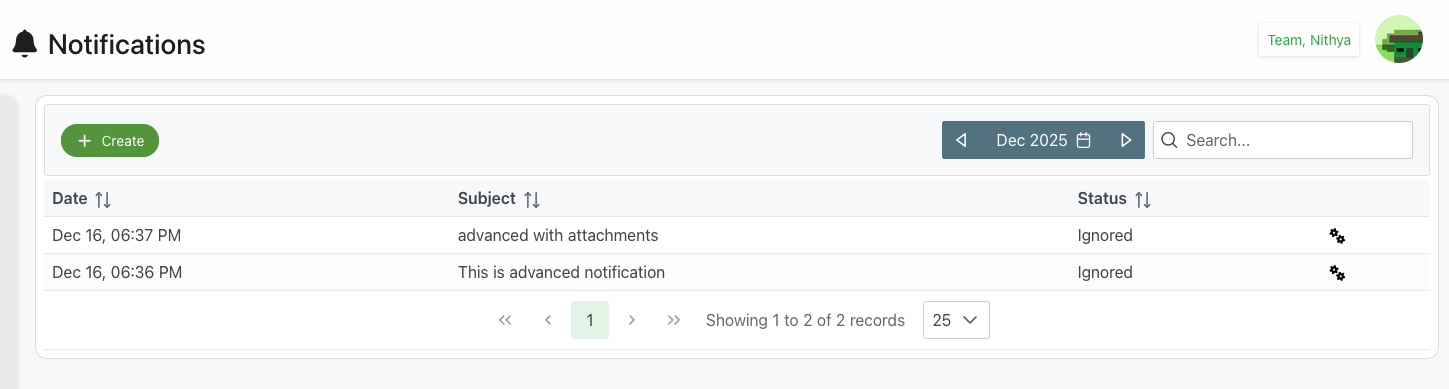
Description
The Notifications system allows administrators to send email communications to selected teams or individual members. The system provides both simple and advanced messaging options, file attachments, and comprehensive tracking of notification delivery status.
Key Features
Compliance-First Design
- Individual Emails: Each member receives a separate email (not CC'd or BCC'd with other recipients)
- Privacy Protection: Recipient lists are not visible to other recipients
- Club Compliance: Meets member club privacy and compliance requirements
- Audit Trail: Full tracking of who received what notification and when
Flexible Messaging
- Short Messages: Quick text-only messages (max 150 characters)
- Advanced Messages: Rich HTML content with formatting
- File Attachments: Attach documents, images, or other files
- Rich Text Editor: Full formatting toolbar for professional communications
Smart Targeting
- Team Selection: Send to entire teams
- Member Selection: Choose specific individuals
- Combined Selection: Mix teams and individual members
- Flexible Recipients: Multiple teams and members in one notification
Notifications List Page
Header Section
Navigation
- Bell Icon: Notifications indicator
- Title: "Notifications"
- User Info: Displays current user (e.g., "Team, Nithya")
Action Bar
- Create Button: Green "+ Create" button to compose new notification
- Date Navigation:
- ◀ Previous Month: View older notifications
- Current Month/Year: Shows current period (e.g., "Dec 2025")
- Calendar Icon: Quick date picker
- ▶ Next Month: View future scheduled notifications (if any)
- Search Box: Search notifications by subject or content
Notifications Table
Columns
Date
- Format: "MMM DD, HH:MM AM/PM" (e.g., "Dec 16, 06:37 PM")
- Sortable: Click column header to sort by date
- Default Sort: Newest first
- Purpose: Shows when notification was sent
Subject
- Content: Notification title/subject line
- Clickable: Click to view notification details
- Search: Searchable via search box
- Examples: "advanced with attachments", "This is advanced notification"
Status
- Values:
- Sent: Successfully delivered
- Pending: In queue
- Failed: Delivery failed
- Ignored: Not processed/delivered
- Sortable: Click to sort by status
- Visual: May include color coding
- Purpose: Track delivery status
Actions
- Icon: ⚙ Settings/gear icon
- Menu Options:
- View Details
- Resend
- Delete
- Quick Access: Fast actions without opening detail
Pagination
Controls
- ⏮ First Page: Jump to first page
- ◀ Previous: Previous page
- Page Number: Current page (e.g., "1")
- ▶ Next: Next page
- ⏭ Last Page: Jump to last page
Display Info
- Record Count: "Showing 1 to 2 of 2 records"
- Page Size: Dropdown to change records per page (e.g., "25")
- Options: Typically 10, 25, 50, 100 records per page
Empty State
When no notifications exist:
- Message: "No notifications found"
- Suggestion: "Click Create to send your first notification"
- Icon: Empty inbox or bell icon
Common Use Cases
Team Announcements
Scenario: Notify entire team about schedule changes
Process:
- Click Create button
- Enter descriptive title (e.g., "Schedule Update - Jan 15")
- Select team from Teams dropdown
- Compose message
- Click Notify
- Each team member receives individual email
Emergency Notifications
Scenario: Urgent message to specific members
Process:
- Create new notification
- Leave Teams empty
- Select specific members from Members dropdown
- Mark as urgent in title (e.g., "URGENT: Event Cancelled")
- Use short message for immediate visibility
- Send notification
- Monitor status for delivery confirmation
Policy Updates with Attachments
Scenario: Distribute updated policy documents
Process:
- Create notification
- Select all relevant teams
- Enter title: "Updated Safety Policy - Effective Immediately"
- Use Advanced Message for formatted content
- Click Select files to attach
- Upload policy document (PDF)
- Review and send
- Each member gets individual email with attachment
Event Invitations
Scenario: Invite multiple teams to special event
Process:
- Create notification
- Select multiple teams
- Title: "Invitation: Annual Awards Ceremony"
- Use Advanced Message with formatting:
- Bold headers
- Bullet points for details
- Formatted date/time/location
- Attach RSVP form or event flyer
- Send to all selected recipients
Navigation Paths
From Main Menu
- Click Bulk in main navigation
- Select Notifications
Direct Access
Navigate to: /manage/bulkNotify
Quick Links
- Dashboard widgets may link directly to notifications
- Recent activity feeds may link to specific notifications
Best Practices
Message Composition
- Clear Subjects: Use descriptive, specific subjects
- Concise Content: Keep messages focused and brief
- Professional Tone: Maintain appropriate communication style
- Proofread: Check for typos before sending
- Test First: Consider sending to yourself first for important messages
Recipient Selection
- Verify Selection: Double-check teams/members before sending
- Appropriate Audience: Only include relevant recipients
- Privacy Respect: Remember each receives individual email
- List Management: Keep team memberships current
Attachments
- File Size: Be mindful of attachment sizes
- File Types: Use common formats (PDF, Word, images)
- Virus Scan: Ensure files are clean before attaching
- Relevance: Only attach necessary files
- File Names: Use clear, descriptive filenames
Compliance
- Respect Privacy: System sends individual emails for member privacy
- Content Appropriateness: Follow club communication policies
- Record Keeping: Notification history is maintained
- Audit Trail: Use for compliance documentation
- Retention: Understand notification retention policies
Related Features
- Create Notification - Compose and send new notifications
- Notification Details - View detailed notification information
- Bulk Schedules - Bulk schedule operations
- Teams Management - Manage team memberships
Tips
- Individual Delivery: Each member receives their own separate email (no CC/BCC lists)
- Search History: Use search to find past notifications quickly
- Date Navigation: Use month arrows to browse notification history
- Status Monitoring: Check Status column to verify delivery
- Resend Option: Failed notifications can be resent from actions menu
- Subject Clarity: Start subjects with category for easier filtering
- Advanced Format: Use Advanced Message for important formal communications
- Attachment Preview: Review attachments before sending
- Multiple Teams: Select multiple teams efficiently for broad communications
- Compliance Built-In: System automatically handles individual email delivery