Teams Overview
Purpose
Manage teams and groups within your organization for scheduling, permissions, resource allocation, and member organization. Teams provide a way to group members for coordinated activities and streamlined management.
Route
/manage/teams
Screenshot
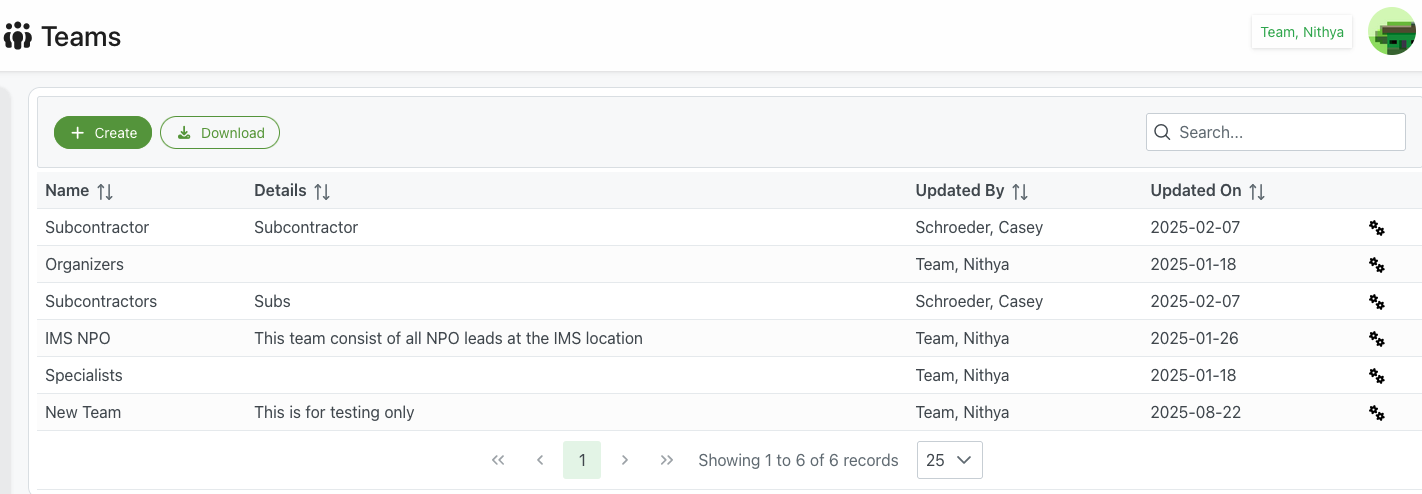
Description
The Teams page provides a centralized interface for creating and managing teams across your organization. Teams can be used for various purposes including scheduling coordination, permission management, resource allocation, and organizational structure.
Page Header
Title
- Icon: 👥 Teams icon
- Text: "Teams"
- Purpose: Clear identification of the teams management interface
- User Context: Current administrator name in top-right (e.g., "Team, Nithya")
Action Buttons
+ Create (Green)
- Purpose: Create a new team
- Action: Opens team creation form
- Use Cases:
- Creating departmental teams
- Setting up project groups
- Organizing by location or specialization
- Creating temporary event teams
- Permissions: Requires appropriate admin access
⬇ Download (Outlined)
- Purpose: Export teams data
- Format: Typically CSV or Excel file
- Exported Data:
- Team names
- Details/descriptions
- Member counts
- Update information
- Creation dates
- Use Cases:
- Reporting and analytics
- External documentation
- Backup and auditing
- Integration with other systems
Search Functionality
- Position: Top-right corner
- Real-time Search: Filters results as you type
- Searchable Fields:
- Team name
- Details/description
- Updated by
- Clear Button: ✕ icon to reset search
Teams Table
The table displays all teams in the organization with comprehensive information.
Table Columns
Name ↕
- Content: Name of the team
- Examples from screenshots:
- "Subcontractor"
- "Organizers"
- "Subcontractors"
- "IMS NPO"
- "Specialists"
- "New Team"
- Sortable: Click header to sort alphabetically
- Action: Click name to view team details
- Format: Clear, descriptive team names
Details ↕
- Content: Description or purpose of the team
- Examples from screenshots:
- "Subcontractor"
- "Subs"
- "This team consist of all NPO leads at the IMS location"
- "This is for testing only"
- Sortable: Click to sort by description
- Purpose: Provides context about the team's purpose
- Format: Free text description (optional)
Updated By ↕
- Content: Name of the administrator who last modified the team
- Examples from screenshots:
- "Schroeder, Casey"
- "Team, Nithya"
- Sortable: Click to sort by editor
- Purpose: Track who made recent changes
- Audit Trail: Part of change tracking system
Updated On ↕
- Content: Date of last modification
- Format: YYYY-MM-DD
- Examples from screenshots:
- "2025-02-07"
- "2025-01-18"
- "2025-01-26"
- "2025-08-22"
- Sortable: Click to sort chronologically
- Purpose: Track recency of updates
- Default Sort: Often sorted by most recent
Actions (⚙)
- Icon: Gear/settings icon
- Purpose: Access team-specific actions
- Click: Opens context menu
- Common Actions:
- Edit team details
- Manage team members
- Delete team
- View team history
- Duplicate team
Pagination Controls
Navigation
- ⏮ First Page: Jump to first page
- ◀ Previous: Go to previous page
- Page Number: Current page (highlighted in green)
- ▶ Next: Go to next page
- ⏭ Last Page: Jump to last page
Information Display
- Record Count: "Showing 1 to 6 of 6 records"
- Format: "Showing [start] to [end] of [total] records"
- Purpose: Context of current view
Page Size Selector
- Default: Usually 25 records per page
- Options: Dropdown with choices (10, 25, 50, 100, All)
- Use: Adjust display density
Team Types and Purposes
Organizational Teams
- Purpose: Represent organizational structure
- Examples: Departments, divisions, committees
- Use Cases:
- Administrative hierarchy
- Reporting structure
- Permission management
- Communication channels
Functional Teams
- Purpose: Group by function or role
- Examples: "Specialists", "Organizers", "Subcontractors"
- Use Cases:
- Task assignment
- Skill-based grouping
- Resource allocation
- Scheduling coordination
Location-Based Teams
- Purpose: Group by geographic location
- Examples: "IMS NPO" (IMS location)
- Use Cases:
- Venue-specific operations
- Local coordination
- Regional management
- Geographic reporting
Project Teams
- Purpose: Temporary teams for specific projects
- Examples: Event teams, initiative groups
- Use Cases:
- Event coordination
- Project management
- Time-limited activities
- Cross-functional collaboration
Contractor/Vendor Teams
- Purpose: External partners and contractors
- Examples: "Subcontractor", "Subcontractors"
- Use Cases:
- Vendor management
- Contract tracking
- External resource coordination
- Partnership management
Use Cases
Creating Organizational Structure
Scenario: Setting up departmental teams
Process:
- Click + Create to create new team
- Enter team name (e.g., "Marketing Department")
- Add detailed description of team purpose
- Save the team
- Add members to the team
- Assign appropriate permissions
- Use team for scheduling and coordination
Scheduling Coordination
Scenario: Managing team-based event scheduling
Process:
- Create or select appropriate team
- Add all relevant members to team
- Use team selection in event scheduling
- All team members receive notifications
- Track team participation and availability
- Generate team-based reports
Permission Management
Scenario: Granting access based on team membership
Process:
- Define teams based on access levels
- Add members to appropriate teams
- Configure permissions at team level
- Members inherit team permissions
- Update team membership to change access
- Audit permissions by team
Resource Allocation
Scenario: Assigning resources to teams
Process:
- Create teams for different functions
- Allocate resources to specific teams
- Track resource usage by team
- Generate team resource reports
- Adjust allocations as needed
Communication and Notifications
Scenario: Sending targeted communications
Process:
- Organize members into relevant teams
- Use team selections for notifications
- Send announcements to entire teams
- Track communication by team
- Manage subscriptions at team level
Best Practices
Team Organization
Naming Conventions
- Clear Names: Use descriptive, self-explanatory names
- Consistency: Follow consistent naming patterns
- Avoid Ambiguity: Make purpose obvious from name
- Professional: Use formal, professional terminology
- Scalability: Names should work as organization grows
Structure Planning
- Logical Hierarchy: Organize teams in logical groups
- Size Management: Keep teams at manageable sizes
- Overlap Consideration: Plan for members in multiple teams
- Purpose Clarity: Each team should have clear purpose
- Regular Review: Periodically review team structure
Team Maintenance
Regular Updates
- Active Review: Review active teams monthly or quarterly
- Membership Updates: Keep team rosters current
- Description Updates: Update details as purposes evolve
- Archive Inactive: Archive or delete obsolete teams
- Document Changes: Track why teams are modified
Data Quality
- Accurate Descriptions: Maintain clear team descriptions
- Current Members: Ensure member lists are up to date
- Permission Accuracy: Verify team permissions are correct
- Contact Information: Keep team contact info current
- Usage Tracking: Monitor which teams are actually used
Communication
Team Information
- Clear Purpose: Communicate team purpose to members
- Role Clarity: Explain member roles within teams
- Expectations: Set clear expectations for team participation
- Updates: Notify members of team changes
- Documentation: Provide team documentation to members
Administrative Coordination
- Ownership: Assign team owners or managers
- Admin Access: Control who can modify teams
- Change Notifications: Alert admins of team changes
- Audit Trail: Maintain records of team modifications
- Best Practices: Share team management best practices
Team Management Features
Member Management
- Add Members: Easily add members to teams
- Remove Members: Remove members when needed
- Bulk Operations: Add/remove multiple members at once
- Search: Find members to add quickly
- Member Details: View member information within team context
Team Details
- Name: Primary team identifier
- Description: Detailed purpose and notes
- Creation Info: Who created and when
- Update History: Track modifications over time
- Member Count: Number of members in team
Access Control
- Team Permissions: Set permissions at team level
- Inheritance: Members inherit team access rights
- Override Options: Individual exceptions when needed
- Audit Capability: Track permission usage
- Security: Maintain secure access control
Reporting and Analytics
- Team Reports: Generate team-specific reports
- Member Reports: Report on team membership
- Activity Tracking: Monitor team activity
- Usage Statistics: Track team utilization
- Export Capability: Export team data for analysis
Related Features
- Team Members - Manage members within a team
- Create/Edit Team - Team creation and editing
- Add Team Members - Adding members to teams
- Members Management - Organization-wide member management
- Schedules - Team-based scheduling
Tips
- Clear Naming: Use descriptive names that clearly indicate team purpose
- Regular Audits: Review teams quarterly to ensure they're still needed
- Document Purpose: Always fill in team details/description
- Consistent Structure: Maintain consistent team organization across organization
- Member Communication: Keep team members informed about their team membership
- Permission Planning: Plan team permissions carefully before implementation
- Archive Old Teams: Don't delete - archive teams that may be needed later
- Export Regularly: Download team data periodically for backup and analysis