Locations Overview
Purpose
Manage venue locations where events and schedules take place, including complete address information and stand/position configuration for each location.
Access
Navigate to: /organize/locations or Organize → Locations
Screenshot
Description
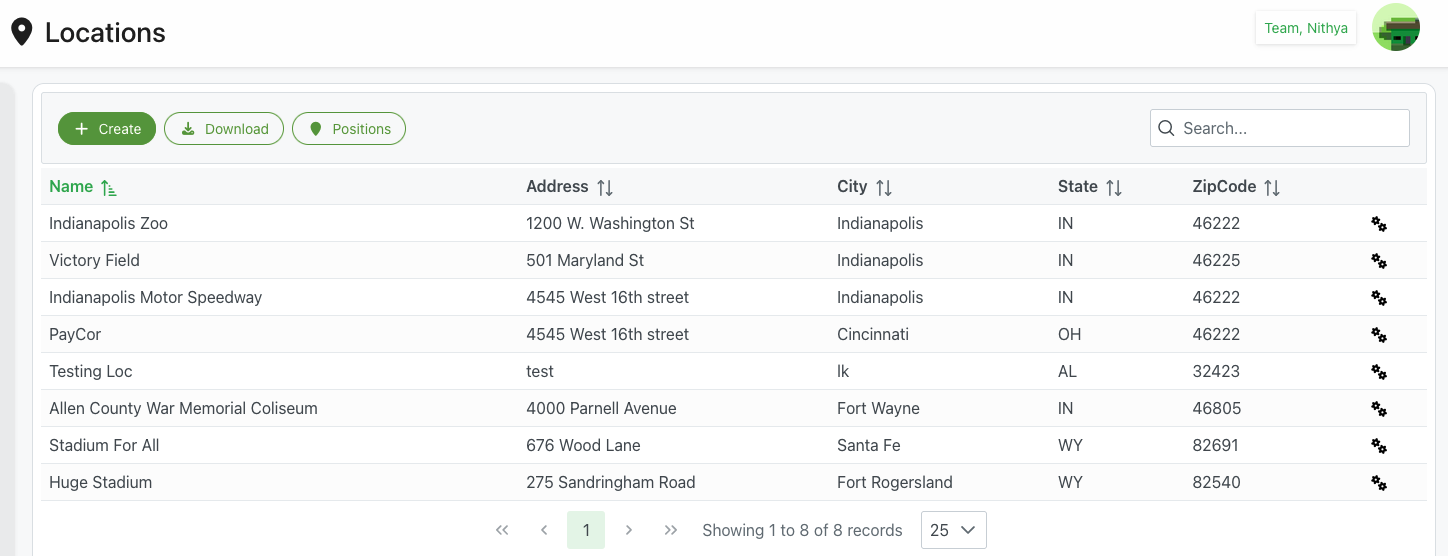
The Locations module provides centralized management of all venue locations used for scheduling events. Each location can have a complete address profile and be configured with stands and positions specific to that venue. Locations are referenced throughout the system when creating schedules, events, and assignments.
Key Features
Location Management
- Create and maintain venue locations
- Complete address information (street, city, state, postal code)
- Edit location details
- Delete unused locations
Stands Configuration
- Define stands/sections within each location
- Manage position types per stand
- Zone organization and color coding
- Default group assignments
Integration Points
- Referenced in schedule creation
- Used in event assignments
- Linked to member availability
- Document requirements per location
Page Structure
Header
- Icon: 📍 Location pin icon
- Title: "Locations"
- User Info: Current user display (e.g., "Team, Nithya")
Action Toolbar
➕ Create Button
- Position: Top-left
- Color: Green
- Icon: Plus icon
- Label: "Create"
- Action: Opens location creation form
- Purpose: Add new venue location
📥 Download Button
- Position: Next to Create
- Color: White/outlined
- Icon: Download arrow
- Label: "Download"
- Action: Export locations list
- Format: Typically CSV or Excel
- Purpose: Backup or external use of location data
📍 Positions Button
- Position: Next to Download
- Color: White/outlined with green border
- Icon: Location pin icon
- Label: "Positions"
- Action: May show position summary or filter
- Purpose: Quick access to position management
Search Box
- Position: Top-right corner
- Icon: 🔍 Magnifying glass
- Placeholder: "Search..."
- Function: Filter locations by name, city, or address
- Real-time: Updates table as you type
Locations Table
Columns
Name
- Content: Location name
- Sortable: Click header to sort A-Z or Z-A
- Icon: ↕️ Sort arrows
- Examples:
- "Indianapolis Zoo"
- "Victory Field"
- "Indianapolis Motor Speedway"
- "PayCor"
- Clickable: Click name to view location details
- Purpose: Primary identifier for locations
Address
- Content: Street address
- Sortable: Click header to sort
- Icon: ↕️ Sort arrows
- Format: Street number and name
- Examples:
- "1200 W. Washington St"
- "501 Maryland St"
- "4545 West 16th street"
- Purpose: Physical location identification
City
- Content: City name
- Sortable: Click header to sort
- Icon: ↕️ Sort arrows
- Examples:
- "Indianapolis"
- "Cincinnati"
- "Fort Wayne"
- Purpose: Geographic organization
State
- Content: State abbreviation
- Sortable: Click header to sort
- Icon: ↕️ Sort arrows
- Format: Two-letter state code
- Examples:
- "IN" (Indiana)
- "OH" (Ohio)
- "AL" (Alabama)
- "WY" (Wyoming)
- Purpose: State-level filtering and organization
ZipCode
- Content: Postal code
- Sortable: Click header to sort
- Icon: ↕️ Sort arrows
- Format: 5-digit ZIP code
- Examples:
- "46222"
- "46225"
- "46805"
- Purpose: Precise location identification
Actions
- Icon: ⚙️ Settings/gear icon
- Action: Opens action menu
- Options:
- Edit location
- View/Manage stands
- Delete location
- Visual: Clickable icon in each row
Table Features
Sorting
- Click any column header to sort
- First click: Ascending order
- Second click: Descending order
- Sort indicator shows current sort
Pagination
- Controls: ⏮ First, ◀ Previous, Page Numbers, ▶ Next, ⏭ Last
- Info: "Showing 1 to 8 of 8 records"
- Page Size: Dropdown (e.g., "25" records per page)
- Options: Typically 10, 25, 50, 100 records per page
Row Actions
- Hover over row for highlight
- Click settings icon for actions menu
- Click location name to view details
Creating a Location
Access Create Form
- Click Create button
- Location creation form opens as modal or panel
Required Information
Name (Required)
- Location name/title
- Must be unique
- Used throughout system
- Examples: "Indianapolis Zoo", "Victory Field"
Street Address
- Full street address
- Example: "1200 W. Washington St"
- Used for directions and identification
City
- City name
- Example: "Indianapolis"
- Used for geographic organization
State
- State selection (dropdown)
- Example: "Indiana" or "IN"
- Used for filtering and reports
Postal Code
- ZIP code
- Format: 5 digits
- Example: "46222"
- Used for precise location
Saving Location
- Fill all required fields
- Click Save or Create button
- Location added to list
- Success confirmation shown
- Can now configure stands for location
Editing a Location
Access Edit Form
- Find location in table
- Click settings icon (⚙️) in Actions column
- Select "Edit" from menu
- OR: Click location name to open details, then Edit
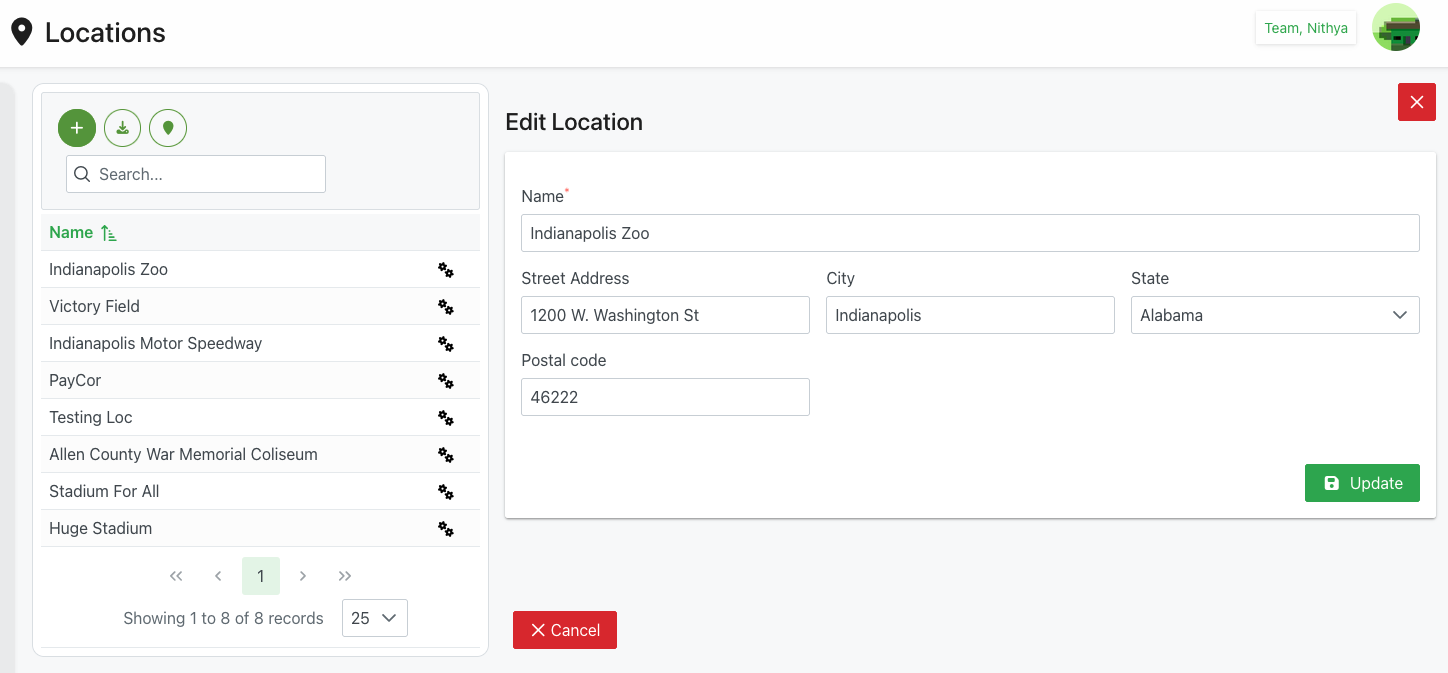
Edit Location Dialog
Dialog Header
- Title: "Edit Location"
- Close: X icon in top-right corner
Form Fields
Name (Required)
- Label: "Name*"
- Type: Text input
- Current Value: Displayed for editing
- Example: "Indianapolis Zoo"
- Editable: Yes
Street Address
- Label: "Street Address"
- Type: Text input
- Example: "1200 W. Washington St"
- Editable: Yes
City
- Label: "City"
- Type: Text input
- Example: "Indianapolis"
- Editable: Yes
State
- Label: "State"
- Type: Dropdown select
- Example: "Alabama" (shown in screenshot)
- Options: All US states
- Editable: Select different state
Postal code
- Label: "Postal code"
- Type: Text input
- Format: 5-digit ZIP
- Example: "46222"
- Editable: Yes
Action Buttons
✅ Update (Green)
- Position: Bottom-right
- Action: Save changes
- Validation: Checks required fields
- Result: Updates location, closes dialog
✕ Cancel (Red)
- Position: Bottom-left
- Action: Close without saving
- Confirmation: May prompt if changes made
- Result: Returns to locations list
Deleting a Location
Delete Process
- Click settings icon (⚙️) for location
- Select "Delete" from menu
- Confirmation prompt appears
- Confirm deletion
- Location removed from list
Delete Restrictions
- Cannot delete if location used in:
- Active schedules
- Upcoming events
- Historical records
- Must reassign or remove references first
- System prevents deletion with error message
Stands Management
For locations that require stands/sections with specific positions, see:
- Stands Overview - Manage stands within locations
- Position Management - Configure positions within stands
Use Cases
Initial Venue Setup
Scenario: Adding new venues to system
Process:
- Click Create button
- Enter location name (e.g., "Lucas Oil Stadium")
- Fill complete address:
- Street: "500 S Capitol Ave"
- City: "Indianapolis"
- State: "IN"
- ZIP: "46225"
- Click Save
- Location now available for scheduling
- Configure stands if needed
Updating Location Address
Scenario: Venue address change or correction
Process:
- Find location in list
- Click settings icon
- Select Edit
- Update address fields
- Click Update
- All references updated automatically
Organizing Multiple Venues
Scenario: Managing events across multiple locations
Process:
- Create all venue locations with complete addresses
- Use City and State columns for geographic grouping
- Sort by City to see venues by location
- Use search to quickly find specific venue
- Export list for reference or planning
Venue Consolidation
Scenario: Merging or removing unused venues
Process:
- Identify unused locations
- Reassign any events to different locations
- Delete unused locations
- Keep list current and relevant
Best Practices
Location Naming
- Clear Names: Use official, recognizable venue names
- Consistent: Use same format for all locations
- Avoid Abbreviations: Unless widely known
- Unique: Each location distinct from others
Address Data
- Complete Information: Fill all address fields
- Accurate: Verify addresses are correct
- Formatted Correctly: Use proper street notation
- Current: Keep addresses updated
Organization
- Regular Review: Periodically verify location list
- Remove Unused: Delete locations no longer needed
- Logical Grouping: Use city/state for organization
- Documentation: Note any special venue details
Stands Configuration
- Plan First: Map out venue layout before adding stands
- Consistent Naming: Use clear stand identifiers
- Position Types: Define all needed position types
- Regular Updates: Adjust as venue configurations change
Troubleshooting
Cannot Create Location
Problem: Create button doesn't work or form won't submit
Possible Causes:
- Required fields missing
- Duplicate location name
- Invalid ZIP code format
Solutions:
- Verify Name field filled
- Check for existing location with same name
- Ensure ZIP code is 5 digits
- Review error messages
- Try different browser if persists
Location Not Appearing in Schedule
Problem: Location not available when creating events
Possible Causes:
- Location recently created (cache delay)
- Permissions issue
- Location marked inactive (if feature exists)
Solutions:
- Refresh page or browser
- Verify location exists in locations list
- Check user permissions
- Wait a moment and try again
- Contact administrator
Cannot Delete Location
Problem: Delete option disabled or fails
Possible Causes:
- Location in use by schedules
- Historical events reference it
- Active stands configured
Solutions:
- Check for active schedules using location
- Reassign events to different location
- Remove or archive historical references
- Contact administrator for force deletion if needed
Address Not Displaying Correctly
Problem: Address shows incorrectly formatted
Possible Causes:
- Data entry error
- Special characters in address
- Field length limitations
Solutions:
- Edit location
- Re-enter address correctly
- Avoid special characters if possible
- Use standard address format
- Update and verify display
Related Features
- Stands Management - Configure stands within locations
- Position Management - Manage positions within stands
- Schedule Management - Create events at locations
- Settings - Organization-wide configuration
Tips
- Complete Addresses: Always fill all address fields for accuracy
- Verify Data: Double-check addresses before saving
- Search Function: Use search to quickly find locations
- Sort Options: Sort by city to group venues geographically
- Export Backup: Periodically download locations list for backup
- Consistent Names: Use official venue names consistently
- Update Regularly: Keep location information current
- Stands Planning: Plan venue layout before configuring stands
- ZIP Code Format: Use 5-digit format for postal codes
- Delete Carefully: Ensure location not in use before deleting