Additional Details
Purpose
Add or edit special notes and additional information about members for internal administrative reference and tracking.
Access
From the Members list:
- Click the gear icon (⚙) next to a member
- Select 📝 Additional Notes from the context menu
Screenshot
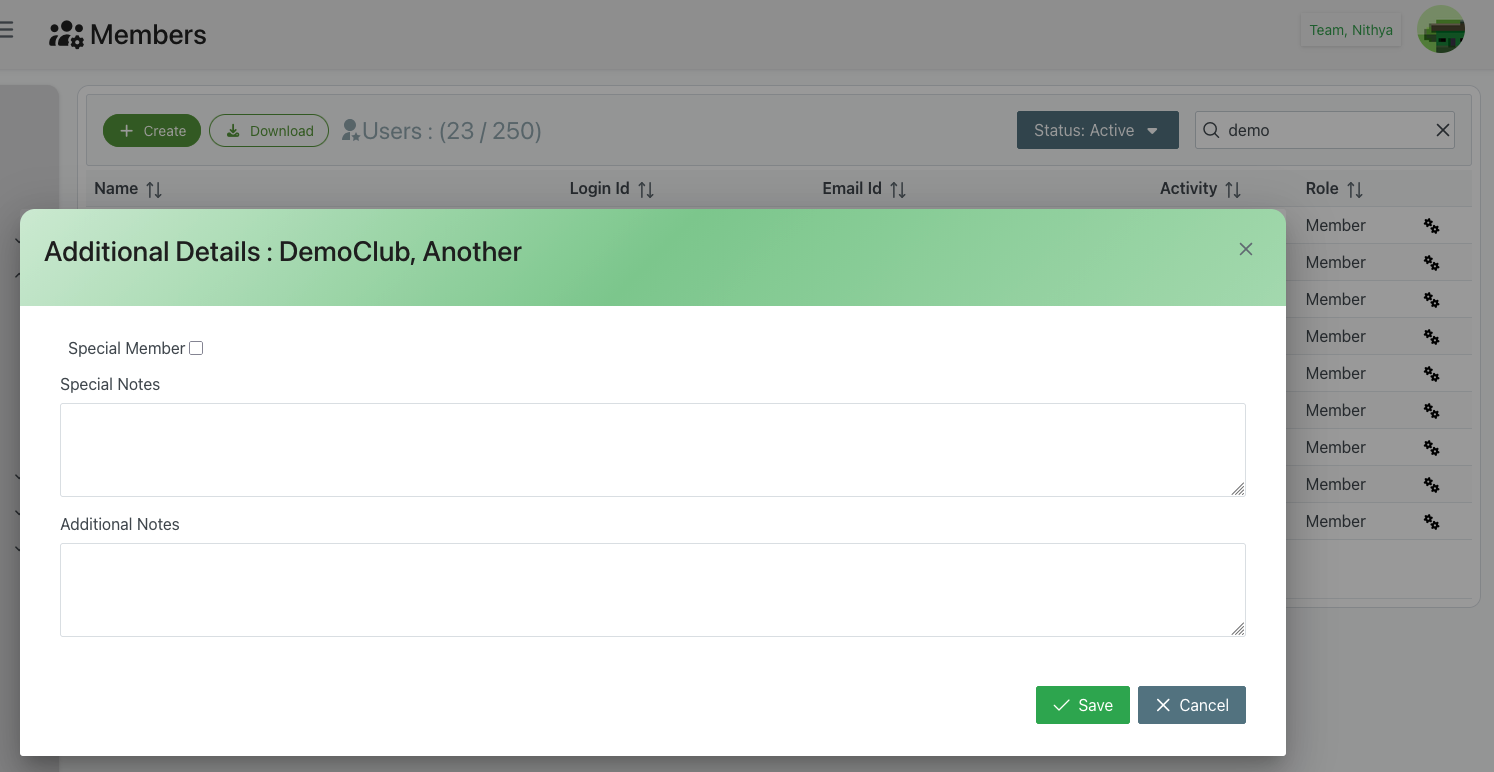
Additional Details dialog showing special notes and additional notes fields
Description
The Additional Details dialog provides a dedicated space for administrators to document special circumstances, requirements, or any other important information about a specific member or club.
Dialog Header
- Title Format: "Additional Details : [Member Name]"
- Example: "Additional Details : DemoClub, Another"
- Example: "Additional Details : Club, Unified"
- Close Button: X icon in the top-right corner to dismiss the dialog
Form Fields
Special Member Checkbox
- Label: Special Member
- Type: Checkbox (unchecked by default)
- Purpose: Flag this member as having special status or requiring special attention
- Use Cases:
- VIP members
- Members with special needs or accommodations
- Priority members requiring extra attention
- Members with unique privileges or restrictions
Special Notes
- Type: Multi-line text area
- Purpose: Document specific notes that relate to the member's special status
- Best Used For:
- Recording special accommodations needed
- Noting specific requirements or preferences
- Documenting exceptions to standard procedures
- Important reminders for staff when dealing with this member
- Medical or safety considerations (if applicable)
- Contact instructions or escalation procedures
Additional Notes
- Type: Multi-line text area
- Purpose: General notes and information about the member
- Best Used For:
- General observations about the member
- Historical information
- Communication preferences
- Background information
- Follow-up items or action items
- Past issues and resolutions
- Relationship to other members or organizations
Action Buttons
✓ Save (Green)
- Action: Save all changes to the member's additional details
- Result:
- Information is saved to the member's record
- Dialog closes and returns to Members list
- Changes are immediately reflected in the system
✕ Cancel (Gray)
- Action: Discard all changes and close the dialog
- Result:
- No changes are saved
- Returns to Members list
- Member record remains unchanged
Use Cases
Special Status Tracking
Mark members who require special handling:
- Check the Special Member checkbox
- Add specific requirements in Special Notes
- Document any procedures in Additional Notes
- Save the information
Communication Logging
Document important communications:
- Add conversation summaries in Additional Notes
- Include dates and outcomes
- Note any commitments or follow-ups needed
- Save for future reference
Accommodation Documentation
Record accessibility or special needs:
- Check Special Member if accommodations are needed
- Detail specific accommodations in Special Notes
- Add contact information or procedures in Additional Notes
- Ensure staff has access to this information
Historical Record Keeping
Maintain a member's history:
- Use Additional Notes to track membership timeline
- Note significant events or milestones
- Document changes in status or participation
- Create a comprehensive member profile
Best Practices
Documentation Standards
- Be Specific: Include dates, names, and concrete details
- Stay Factual: Record objective information, not opinions
- Be Concise: Keep notes clear and to the point
- Update Regularly: Keep information current and relevant
- Use Proper Grammar: Maintain professional documentation
Privacy and Security
- Sensitive Information: Be mindful of what information is documented
- Access Control: Remember that other administrators can view these notes
- Professional Tone: Maintain appropriate professional language
- Data Protection: Follow organizational privacy policies
- Confidentiality: Only include information that's necessary and appropriate
Organizational Tips
- Date Your Entries: Start notes with dates for chronological tracking
- Use Clear Headings: Separate different types of information
- Action Items: Clearly mark items that require follow-up
- Contact Info: Include relevant contact information when needed
- Cross-References: Reference related members or cases when applicable
Special Member Flag Usage
Only use the Special Member checkbox when:
- Member requires consistent special attention
- Staff needs to be immediately alerted about special status
- Member has ongoing special requirements
- Special procedures must be followed for this member
Don't overuse this flag, as it loses effectiveness if too many members are marked as special.
Related Features
- Members Overview - Main members management page
- Create/Edit Member - Basic member information
- Change Password - Password management
- Resources - Member resources management
Tips
- Regular Updates: Review and update notes periodically to keep information current
- Team Communication: Use notes to communicate important information to other administrators
- Search Keywords: Include keywords that might be useful for future searches
- Version Control: Consider adding dates to notes to track when information was added
- Standardized Format: Develop a team standard for note formatting for consistency