Unlock Account
Purpose
Unlock member accounts that have been locked due to failed login attempts or security measures, restoring the member's access to the system.
Access
From the Members list:
- Click the gear icon (⚙) next to a locked member
- Select 🔓 Unlock from the context menu
Screenshot
Description
The Unlock Account feature allows administrators to restore access to member accounts that have been automatically locked by the system's security measures. This typically occurs after multiple failed login attempts but can also result from other security triggers.
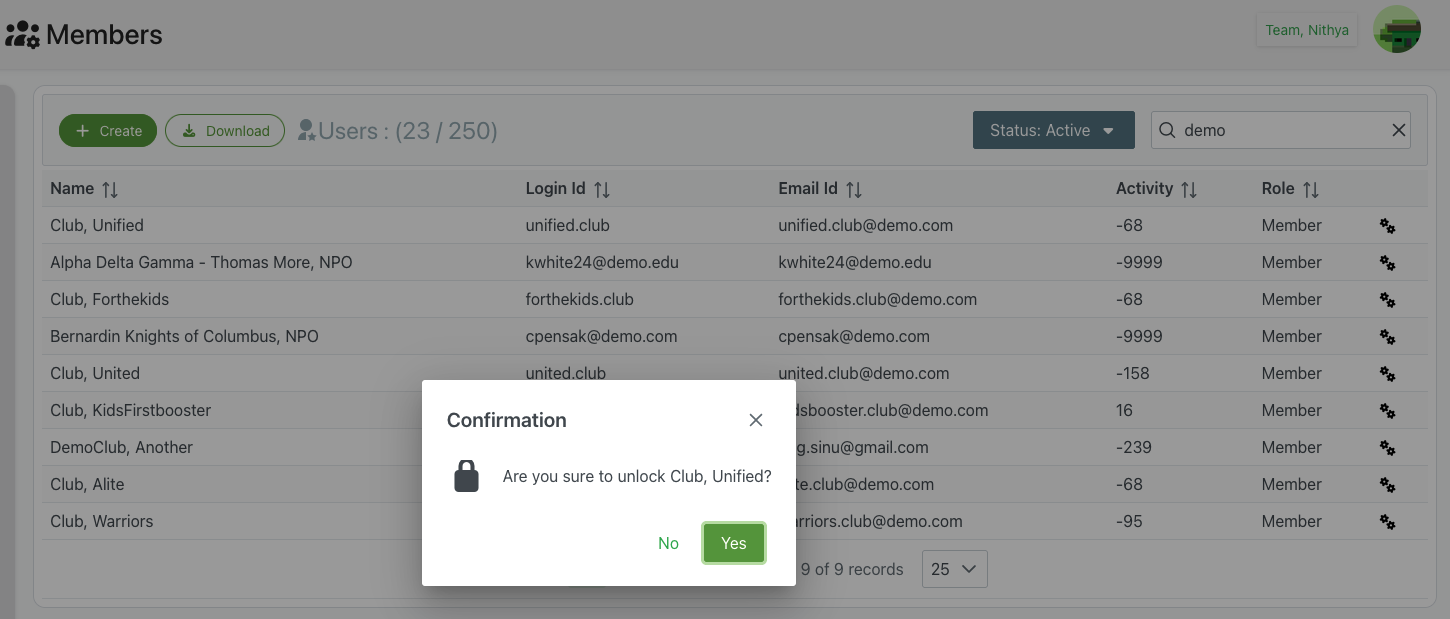
Confirmation Dialog
When selecting the Unlock action, a confirmation dialog appears to prevent accidental unlocking.
Dialog Elements
- Title: "Confirmation"
- Icon: 🔒 Lock icon indicating security-related action
- Message: "Are you sure to unlock [Member Name]?"
- Example: "Are you sure to unlock Club, Unified?"
- Close Button: X icon in the top-right corner
Action Buttons
No (Green)
- Action: Cancel the unlock operation
- Result:
- Dialog closes
- Account remains locked
- No changes are made
- Returns to Members list
Yes (Green)
- Action: Confirm and proceed with unlocking the account
- Result:
- Account is immediately unlocked
- Member can attempt to log in again
- Failed login attempt counter is reset
- Dialog closes
- Success notification may appear
How Accounts Get Locked
Automatic Security Locks
Accounts are typically locked automatically when:
- Failed Login Attempts: Multiple consecutive failed login attempts (usually 3-5 attempts)
- Suspicious Activity: Unusual login patterns or locations detected
- Brute Force Protection: Potential automated attack attempts
- Security Policies: Violation of organizational security policies
- Password Expiration: Password has expired and not been updated
Manual Locks
Administrators may also lock accounts manually for:
- Security investigations
- Suspected compromise
- Policy violations
- Administrative holds
- Pending verification
Use Cases
Standard Failed Login Recovery
Most common scenario when members forget their password:
- Member attempts to log in multiple times with wrong password
- System automatically locks the account for security
- Member contacts administrator for help
- Administrator verifies the member's identity
- Administrator unlocks the account
- Optionally, administrator also resets the password
- Member can now log in successfully
Security Investigation Resolution
After investigating a security concern:
- Account was locked during security investigation
- Investigation determines account is safe
- Administrator unlocks the account
- Member is notified that access is restored
- Document the resolution in Additional Notes
Temporary Lockout After Maintenance
Following system maintenance or updates:
- Some accounts may be locked as a precaution
- Verify system is functioning correctly
- Unlock affected accounts in bulk
- Notify members that access is restored
- Monitor for any ongoing issues
False Positive Security Triggers
When security systems lock accounts incorrectly:
- Review the security log to understand why account was locked
- Verify with the member their activity
- Confirm account is legitimate
- Unlock the account
- Consider adjusting security thresholds if needed
Best Practices
Before Unlocking
Identity Verification
- Confirm Identity: Verify you're unlocking the correct member's account
- Contact Member: Reach out to confirm they need access restored
- Security Check: Ensure the unlock request is legitimate
- Review Activity: Check recent account activity for suspicious patterns
Investigation
- Check Logs: Review why the account was locked
- Assess Risk: Determine if there's a security concern
- Pattern Analysis: Look for recurring lock issues with this member
- Documentation: Review any notes about this member or account
During Unlocking
Communication
- Notify Member: Let the member know you're unlocking their account
- Set Expectations: Explain any additional steps they need to take
- Provide Support: Offer assistance if they continue having issues
- Password Reset: Consider if a password reset is also needed
Security Measures
- Verify Source: Ensure the unlock request came through proper channels
- Two-Factor Authentication: Consider enabling if available
- Password Change: Recommend or require password change if compromise suspected
- Monitoring: Flag account for monitoring after unlock if appropriate
After Unlocking
Follow-Up
- Confirm Access: Verify the member can successfully log in
- Document Action: Add note about unlock in Additional Notes
- Member Education: If applicable, educate member about password best practices
- Policy Reminder: Remind member of relevant security policies
Ongoing Management
- Track Patterns: Note if same member requires frequent unlocks
- Root Cause: Investigate why accounts are being locked repeatedly
- Training: Provide training if users frequently forget credentials
- System Review: Check if lock thresholds need adjustment
Common Scenarios and Solutions
Member Forgot Password
Scenario: Member locked out after trying multiple passwords
Solution:
- Verify member's identity
- Unlock the account
- Immediately change the password using Change Password feature
- Securely provide new password to member
- Recommend they change it after first login
Shared Computer Login Issues
Scenario: Multiple members try to log in from shared computer, causing lockouts
Solution:
- Unlock the affected accounts
- Educate members about proper logout procedures
- Consider implementing clear session management
- Post reminder signs near shared computers
- Monitor for recurring issues
Automated System Lockouts
Scenario: Multiple accounts locked simultaneously after maintenance
Solution:
- Investigate the root cause
- Verify system is functioning correctly
- Unlock affected accounts (may need bulk process)
- Send notification to all affected members
- Document the incident for future reference
Suspicious Activity Locks
Scenario: Account locked due to unusual access patterns
Solution:
- DO NOT unlock immediately
- Contact member to verify recent activity
- Review security logs thoroughly
- If legitimate, unlock and document
- If suspicious, keep locked and investigate further
- Consider password reset and additional security measures
Security Considerations
When to Unlock
- Member identity is properly verified
- Legitimate reason for unlock request
- No indication of account compromise
- Member is reachable and confirms need
- Following proper authorization procedures
When NOT to Unlock
- Cannot verify member identity
- Suspicious recent account activity
- Active security investigation
- Unauthorized unlock request
- Account shows signs of compromise
- Policy violations are being investigated
Audit Trail
Most systems maintain logs of unlock actions:
- Who: Which administrator performed the unlock
- When: Date and timestamp of the unlock
- Why: Reason or notes about the unlock (if documented)
- Account: Which member account was affected
- Result: Success or failure of the unlock operation
This audit trail is important for:
- Security reviews
- Compliance requirements
- Troubleshooting recurring issues
- Accountability and transparency
Troubleshooting
Account Still Locked After Unlock
Problem: Member reports still cannot log in after unlock
Possible Causes:
- Browser cache issues
- Account locked again due to immediate failed attempt
- Unlock didn't fully process
- Account has other restrictions (inactive status, etc.)
Solutions:
- Have member clear browser cache/cookies
- Wait a few minutes and try again
- Verify account is actually Active status
- Unlock the account again
- Check for other account restrictions
Unable to Unlock Account
Problem: Unlock option is unavailable or doesn't work
Possible Causes:
- Insufficient administrator permissions
- Account is not actually locked
- System issue or bug
- Account requires higher-level administrator access
Solutions:
- Verify your admin permissions
- Check account status carefully
- Contact system administrator
- Try refreshing the page
- Review with technical support if issue persists
Recurring Lockouts
Problem: Same member's account gets locked repeatedly
Possible Causes:
- Member genuinely forgetting password frequently
- Saved incorrect password in browser
- Multiple devices with old password trying to connect
- Shared credentials causing conflicts
- Possible security issue
Solutions:
- Help member set memorable but secure password
- Clear saved passwords from browsers/devices
- Check all connected devices and apps
- Implement password manager for the member
- Investigate for security concerns
- Consider additional training or support
Related Features
- Members Overview - Main members management page
- Change Password - Reset member passwords
- Change Login Id - Change member username
- Toggle Active Status - Activate/deactivate accounts
- Create/Edit Member - Basic member information
- Additional Details - Document unlock history
Tips
- Document Everything: Always add notes about why an account was unlocked
- Verify First: Always verify identity before unlocking
- Combine with Password Reset: Often need to both unlock AND reset password
- Educate Users: Use unlock opportunities to educate about password security
- Monitor Patterns: Track which members need frequent unlocks
- Clear Communication: Keep members informed during the unlock process
- Security First: When in doubt, investigate before unlocking