Toggle Active Status
Purpose
Change a member's active status between Active and Inactive, controlling their access to the system without permanently deleting their account.
Access
From the Members list:
- Click the gear icon (⚙) next to a member
- Select ⚡ Toggle Active Status from the context menu
Screenshot
Description
The Toggle Active Status feature allows administrators to activate or deactivate member accounts. This is useful for temporarily restricting access without deleting the account, preserving all member data for future reactivation.
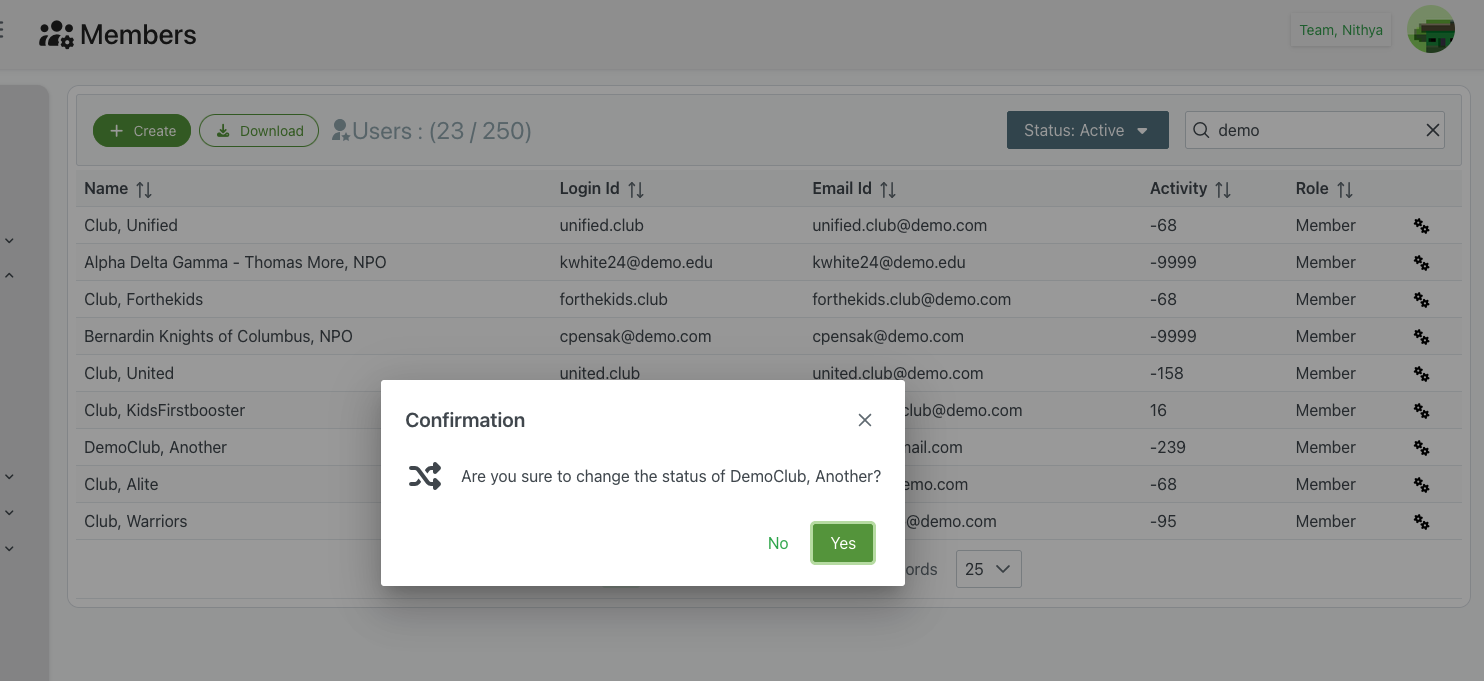
Confirmation Dialog
When toggling a member's status, a confirmation dialog appears to prevent accidental changes.
Dialog Elements
Header
- Title: "Confirmation"
- Close Button: X icon in the top-right corner to cancel
- Purpose: Confirm the administrative action before proceeding
Content
Icon
- Symbol: 🔀 Toggle/switch icon
- Purpose: Visual indicator of status change action
- Placement: Left side of confirmation message
Confirmation Message
- Format: "Are you sure to change the status of [Member Name]?"
- Example: "Are you sure to change the status of DemoClub, Another?"
- Purpose:
- Clear identification of which member will be affected
- Explicit confirmation of the action
- Prevent accidental status changes
Action Buttons
No (Green)
- Position: Bottom-right, left button
- Color: Green outline or green text
- Action: Cancel the status change
- Result:
- Dialog closes
- No changes are made to the member
- Member status remains unchanged
- Returns to Members list
Yes (Green)
- Position: Bottom-right, right button
- Color: Solid green background
- Action: Proceed with the status change
- Result:
- Member's status is toggled (Active ↔ Inactive)
- Dialog closes
- Status change takes effect immediately
- Member list refreshes to show new status
Status States
Active Status
When a member is Active:
Access Rights
- System Login: Can log into the system
- Event Participation: Can participate in scheduled events
- Resource Access: Can use assigned resources and locations
- Scheduling: Can view and manage schedules
- Notifications: Receives system notifications and communications
Visibility
- Member Lists: Appears in active member lists
- Reports: Included in standard reports
- Search Results: Shows up in member searches
- Scheduling Options: Available for event assignment
Inactive Status
When a member is Inactive:
Access Restrictions
- System Login: Cannot log into the system
- Event Participation: Cannot participate in new events
- Resource Access: Loses access to resources and locations
- Scheduling: Cannot be scheduled for new events
- Notifications: May not receive standard notifications
Visibility
- Member Lists: Hidden from default active member views
- Reports: Excluded from standard reports (unless specifically included)
- Search Results: May not appear in default searches
- Scheduling Options: Not available for new event assignments
Data Preservation
- Historical Data: All past data is preserved
- Previous Events: Past event participation remains recorded
- Member Information: Profile data is retained
- Resources: Resource assignments are preserved (but not accessible)
- Reactivation: Can be reactivated at any time with full data intact
Use Cases
Temporary Leave of Absence
Scenario: Member taking time off but planning to return
Process:
- Select Toggle Active Status for the member
- Confirm status change to Inactive
- Document reason in Additional Notes
- Notify member that account is temporarily suspended
- When member returns, toggle status back to Active
- Member regains full access with all data intact
Seasonal Membership
Scenario: Member only participates during certain seasons
Process:
- At end of season, toggle member to Inactive
- Document seasonal suspension
- Member account preserved during off-season
- At start of new season, toggle back to Active
- Member resumes participation without re-enrollment
Compliance or Policy Violation
Scenario: Member violated policies and needs temporary suspension
Process:
- Toggle member status to Inactive immediately
- Document violation in Additional Notes
- Notify member of suspension
- Review violation and resolution process
- When cleared, toggle back to Active
- Monitor member activity going forward
Payment or Renewal Issues
Scenario: Member's payment or membership renewal is overdue
Process:
- Toggle status to Inactive when payment overdue
- Send notification about inactive status
- Member cannot access system until payment resolved
- When payment received, toggle back to Active
- Member access restored immediately
Organization Departure (Non-Permanent)
Scenario: Member leaving but may return (not permanent removal)
Process:
- Toggle status to Inactive
- Document departure date and reason
- Preserve all member data
- If member returns, simply toggle back to Active
- All historical data and settings are preserved
Account Security Investigation
Scenario: Suspected security issue requires temporary access restriction
Process:
- Immediately toggle member to Inactive
- Investigate security concern
- Member cannot access system during investigation
- If cleared, toggle back to Active
- If compromised, take additional security measures
Status Toggle vs. Other Actions
Toggle Status vs. Delete
- Toggle: Reversible, preserves all data, quick reactivation
- Delete: Permanent, removes data, cannot be easily undone
- Use Toggle When: Temporary suspension, future return expected
- Use Delete When: Permanent removal, no future access needed
Toggle Status vs. Archive
- Toggle: Member can be reactivated anytime, simple status change
- Archive: More permanent, typically for long-term storage
- Use Toggle When: Short-term or medium-term suspension
- Use Archive When: Long-term historical record keeping
Toggle Status vs. Lock Account
- Toggle: Controls overall active/inactive status
- Lock: Typically security-related, often automatic
- Use Toggle When: Administrative decision to suspend access
- Use Lock When: Security event triggers automatic lockout
Best Practices
Before Deactivating
Communication
- Notify Member: Always inform member before deactivating (except security issues)
- Explain Reason: Provide clear explanation for status change
- Set Expectations: Explain what happens to their access and data
- Reactivation Process: Inform how and when they can be reactivated
Documentation
- Record Reason: Document why status was changed in Additional Notes
- Date Tracking: Note the date of status change
- Planned Reactivation: If known, document expected reactivation date
- Contact Information: Ensure contact info is current for future communication
Verification
- Correct Member: Verify you're changing status for the right member
- Review Impact: Consider impact on scheduled events and resources
- Check Dependencies: Review if member is assigned to upcoming events
- Notify Stakeholders: Inform other admins or team members if needed
After Status Change
Follow-Up Actions
- Scheduled Events: Address any upcoming events member was assigned to
- Resource Reallocation: Reassign resources if needed
- Team Notifications: Notify relevant teams about status change
- Update Records: Ensure all related systems reflect the change
Monitoring
- Track Duration: Monitor how long member remains inactive
- Periodic Review: Regularly review inactive members
- Reactivation Planning: Plan for reactivation if expected
- Data Integrity: Verify member data remains intact
Status Management Strategy
Regular Audits
- Review inactive members monthly or quarterly
- Identify members who should be reactivated or archived
- Clean up accounts that remain inactive long-term
- Document patterns in activation/deactivation
Clear Policies
- Establish clear criteria for status changes
- Document organizational policies on activation/deactivation
- Train administrators on when to use status toggle
- Maintain consistency across the organization
Troubleshooting
Cannot Toggle Status
Problem: Toggle option unavailable or doesn't work
Possible Causes:
- Insufficient admin permissions
- Member has locked status preventing changes
- System role restrictions
- Member assigned to critical upcoming events
Solutions:
- Verify your administrative permissions
- Check if member has special status or roles
- Review event assignments and dependencies
- Contact higher-level administrator if needed
Status Change Doesn't Take Effect
Problem: Member status appears unchanged after toggle
Possible Causes:
- Browser cache issue
- System sync delay
- Database update lag
- Conflicting system processes
Solutions:
- Refresh the Members page
- Wait a few moments and check again
- Clear browser cache and reload
- Log out and log back in
- Contact system administrator if persists
Member Can Still Access System
Problem: Inactive member reports they can still log in
Possible Causes:
- Active session not terminated
- Status change not fully propagated
- Multiple accounts (member using different account)
- Cache on member's device
Solutions:
- Verify status is actually Inactive in system
- Force logout of member's active sessions
- Wait for system to propagate changes (5-10 minutes)
- Have member clear browser cache and try again
- Verify you deactivated the correct account
Unexpected Status Change
Problem: Member status changed without authorization
Possible Causes:
- Another administrator changed status
- Automated system process
- Accidental click
- Bulk operation included member
Solutions:
- Review system audit logs for changes
- Check with other administrators
- Review automated processes and rules
- Toggle status back if change was unauthorized
- Document incident for security review
Related Features
- Members Overview - Main members management page
- Create/Edit Member - Basic member information
- Archive Member - Permanent archival
- Unlock Account - Unlock locked accounts
- Additional Details - Document status changes
Tips
- Document Everything: Always note why status was changed in Additional Notes
- Communicate First: Inform members before deactivating except in emergencies
- Regular Reviews: Audit inactive members regularly
- Quick Reactivation: Remember that reactivation is instant and preserves all data
- Use Wisely: Toggle status is reversible - use it instead of delete when possible
- Track Duration: Monitor how long members remain inactive
- Scheduled Events: Check upcoming events before deactivating members
- Seasonal Patterns: Expect more status toggles for seasonal organizations