Create/Edit Member
Purpose
Create new members or edit existing member information including personal details, account settings, contact information, and access privileges.
Route
- Create:
/manage/members→ Click + Create button - Edit:
/manage/members→ Click gear icon (⚙) → Select Edit
Screenshots
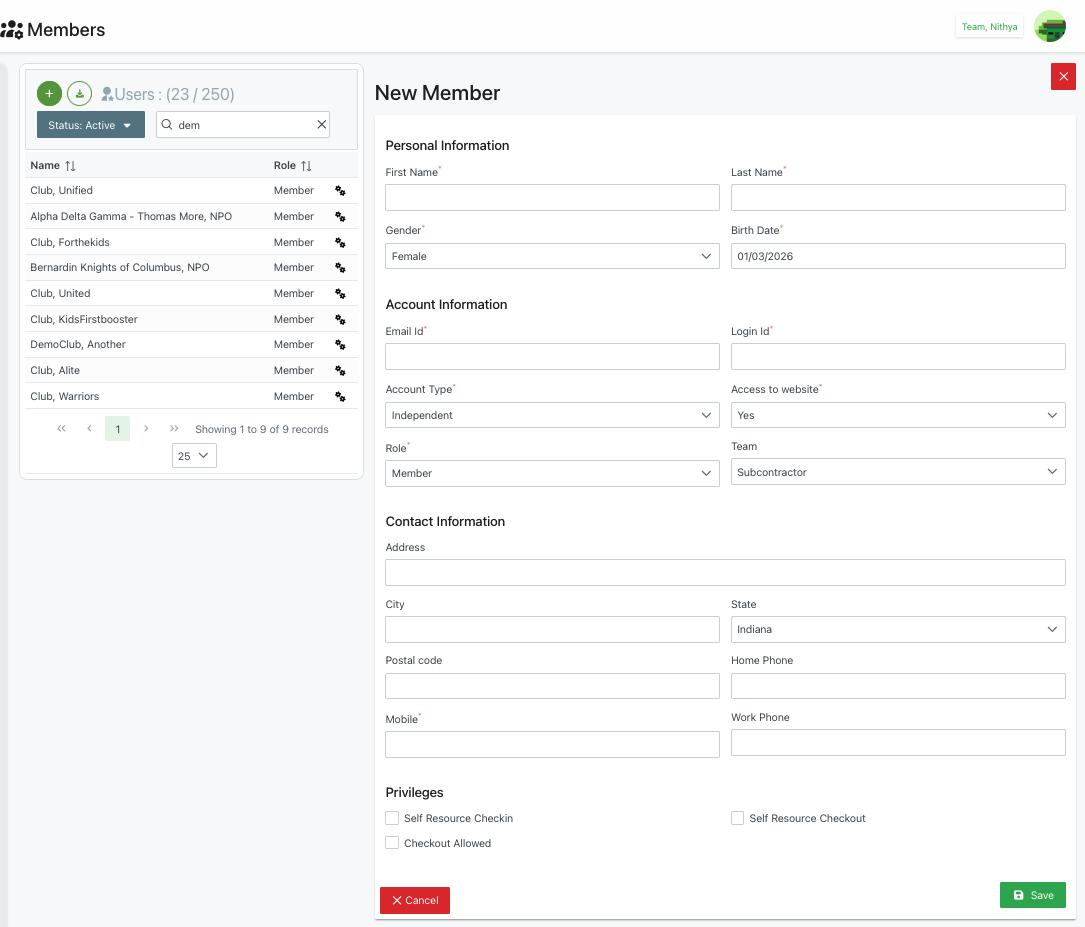
New Member Form
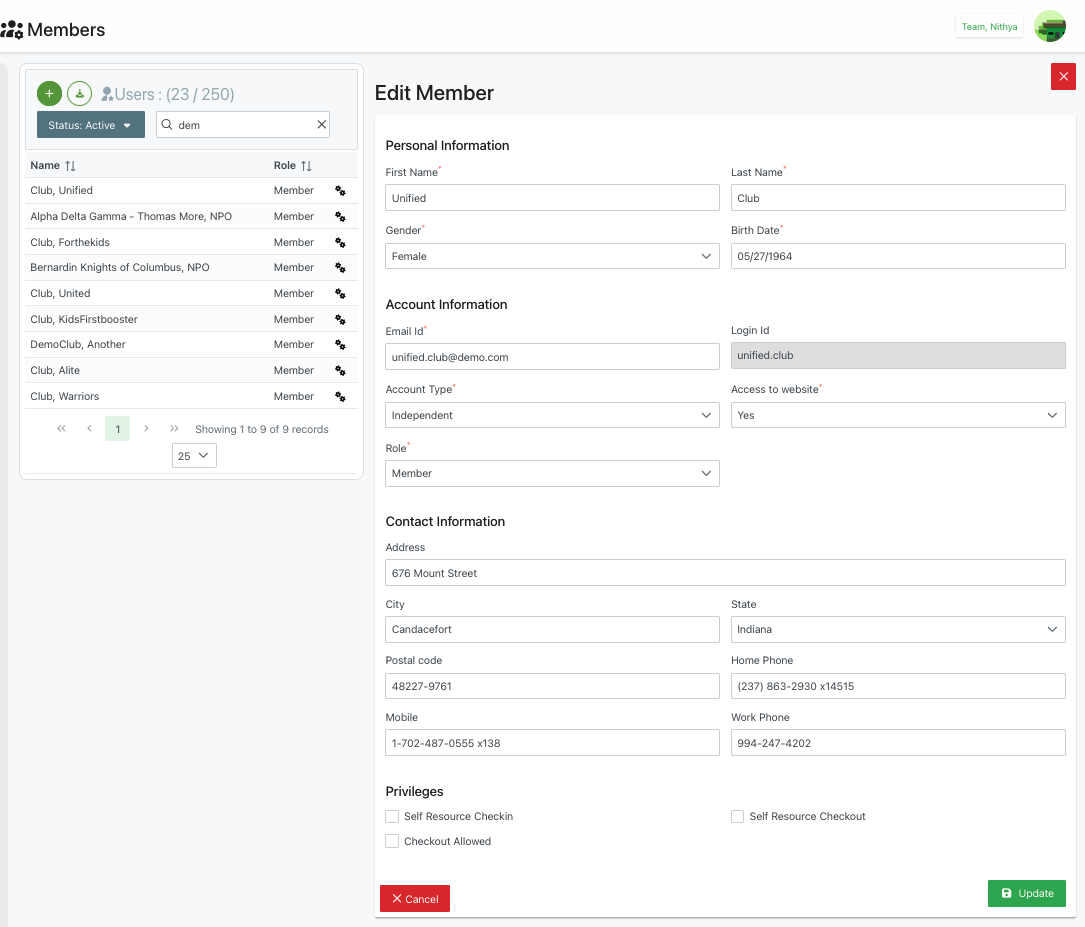
Edit Member Form
Description
The Create/Edit Member form provides a comprehensive interface for managing member account details. The form is divided into four main sections, each handling different aspects of the member profile.
Form Layout
The form appears as a modal or side panel overlay on the Members list page, with:
- Title: "New Member" or "Edit Member" at the top
- ✕ Close button: In the top-right corner to exit without saving
- Member list: Remains visible on the left side for reference
- Action buttons: Cancel and Save/Update at the bottom
Personal Information Section
This section captures basic demographic information about the member:
First Name*
- Text input field for member's first name
- Required field (indicated by asterisk)
- Example: "Unified"
Last Name*
- Text input field for member's last name
- Required field (indicated by asterisk)
- Example: "Club"
Gender*
- Dropdown selection field
- Required field (indicated by asterisk)
- Options typically include:
- Male
- Female
- Other
- Prefer not to say
- Example: "Female"
Birth Date*
- Date picker field
- Required field (indicated by asterisk)
- Format: MM/DD/YYYY
- Examples: "05/27/1964", "01/03/2026"
- Can be manually typed or selected from calendar
Account Information Section
This section manages authentication and access settings:
Email Id*
- Text input field for member's email address
- Required field (indicated by asterisk)
- Used for notifications and communications
- Must be unique in the system
- Example: "unified.club@demo.com"
Login Id*
- Text input field for username
- Required field (indicated by asterisk)
- Used for authentication
- Must be unique in the system
- When editing, this field appears read-only (grayed out)
- Example: "unified.club"
- Note: Use "Change LoginId" from context menu to modify in edit mode
Account Type*
- Dropdown selection field
- Required field (indicated by asterisk)
- Defines the organization type or membership category
- Example options: "Independent", "Club", "Team", "NPO"
- Default: "Independent"
Access to website*
- Dropdown selection field
- Required field (indicated by asterisk)
- Controls member's login permission
- Options:
- Yes: Member can log in to the platform
- No: Member cannot access the platform
- Default: "Yes"
Role*
- Two dropdown fields that work together
- Required field (indicated by asterisk)
- First dropdown: Selects role category
- Example: "Member", "Team"
- Second dropdown: Selects specific role or team assignment
- Example: "Subcontractor"
- Context-dependent based on first dropdown selection
- Defines member's permissions and responsibilities
Contact Information Section
This section collects location and communication details:
Address
- Single-line text input for street address
- Optional field
- Example: "675 Mount Street"
City
- Text input field for city name
- Optional field
- Example: "Candasetfort"
State
- Dropdown selection field
- Lists all states/provinces
- Optional field
- Example: "Indiana"
Postal code
- Text input field for ZIP/postal code
- Optional field
- Accepts various formats
- Example: "48227-9761"
Home Phone
- Text input field for home telephone number
- Optional field
- Supports various formats with extensions
- Example: "(237) 863-2930 x14515"
Mobile*
- Text input field for mobile phone number
- Required field in create mode (may vary by configuration)
- Optional in some implementations
- Example: "1-702-487-0555 x138"
Work Phone
- Text input field for work telephone number
- Optional field
- Example: "994-247-4202"
Privileges Section
This section defines special permissions and capabilities:
☐ Self Resource Checkin
- Checkbox option
- Allows member to check themselves in for events
- Enables self-service check-in functionality
- Useful for trusted members or team leaders
- Checked/unchecked based on permission level
☐ Self Resource Checkout
- Checkbox option
- Allows member to check themselves out from events
- Enables self-service check-out functionality
- Useful for independent workers or volunteers
- Checked/unchecked based on permission level
☐ Checkout Allowed
- Checkbox option
- Controls whether this club/member's resources appear in the schedule checkout screen
- When unchecked: Resources belonging to this club will NOT be listed in the checkout screen
- When checked: Resources are available for checkout operations
- Useful for volunteer clubs or organizations that don't require formal checkout tracking
- If checkout is not considered for certain clubs, leave this unchecked
- Checked/unchecked based on organizational requirements
Form Actions
At the bottom of the form:
✕ Cancel Button
- Red cancel button on the left
- Closes the form without saving changes
- Returns to Members list
- No confirmation prompt (changes are discarded)
💾 Save / Update Button
- Green action button on the right
- Label shows "Save" for new members or "Update" for editing
- Validates all required fields before submission
- Saves changes and closes the form
- Returns to updated Members list
Field Validation
The form includes validation rules:
- Required Fields: Marked with asterisk (*) and validated on submission
- Email Format: Email Id must be valid email format
- Unique Constraints: Login Id and Email Id must be unique
- Date Validation: Birth Date must be valid date
- Phone Format: Phone fields accept various international formats
Differences: Create vs Edit
Create Member Mode
- All fields are empty and editable
- Login Id field is fully editable
- Form title: "New Member"
- Submit button: "Save"
- Used for adding new members to the organization
Edit Member Mode
- Fields are pre-populated with existing data
- Login Id field is read-only (grayed out)
- Form title: "Edit Member"
- Submit button: "Update"
- Used for updating existing member information
- To change Login Id, use "Change LoginId" option from context menu
Use Cases
The Create/Edit Member form is used for:
- Onboarding: Add new members, clubs, teams, or NPOs to the system
- Profile Updates: Modify member information as details change
- Access Management: Control login permissions and website access
- Role Assignment: Set appropriate roles and permissions
- Contact Maintenance: Keep communication details current
- Privilege Configuration: Enable or disable special permissions
- Organizational Structure: Assign members to teams or subcontractor roles
Best Practices
- Complete Required Fields: Ensure all asterisked fields are filled before saving
- Verify Contact Info: Double-check email and phone numbers for accuracy
- Appropriate Roles: Assign roles that match member's responsibilities
- Privacy Consideration: Handle personal information (birth date, contact) with care
- Regular Updates: Keep member information current to ensure effective communication
- Login Id Consistency: Use consistent naming conventions for Login Ids
- Privilege Management: Only grant Self Checkin/Checkout privileges to trusted members
- Test Access: After creating, verify member can log in if access is enabled
Related Actions
After creating or editing a member, you may also need to:
- Assign Resources: Add team members or resources to the member's account
- Set Locations: Configure location preferences or assignments
- Add Notes: Document special circumstances via "Additional Notes"
- Configure Details: Access "Club Details" for organization-specific settings
- Manage Password: Use "Change Password" for credential management