Group/Club Details
Purpose
Configure and manage club or group-specific information, including NPO website integration credentials for seamless data synchronization.
When to Use:
- Integration Setup: For members who own a club site provided by your system and need two-way data synchronization
- Non-Integrated Groups: Members without club sites can skip integration and manage resources directly in the system
Access
From the Members list:
- Click the gear icon (⚙) next to a club or group member
- Select 🏢 Club Details from the context menu
Screenshot
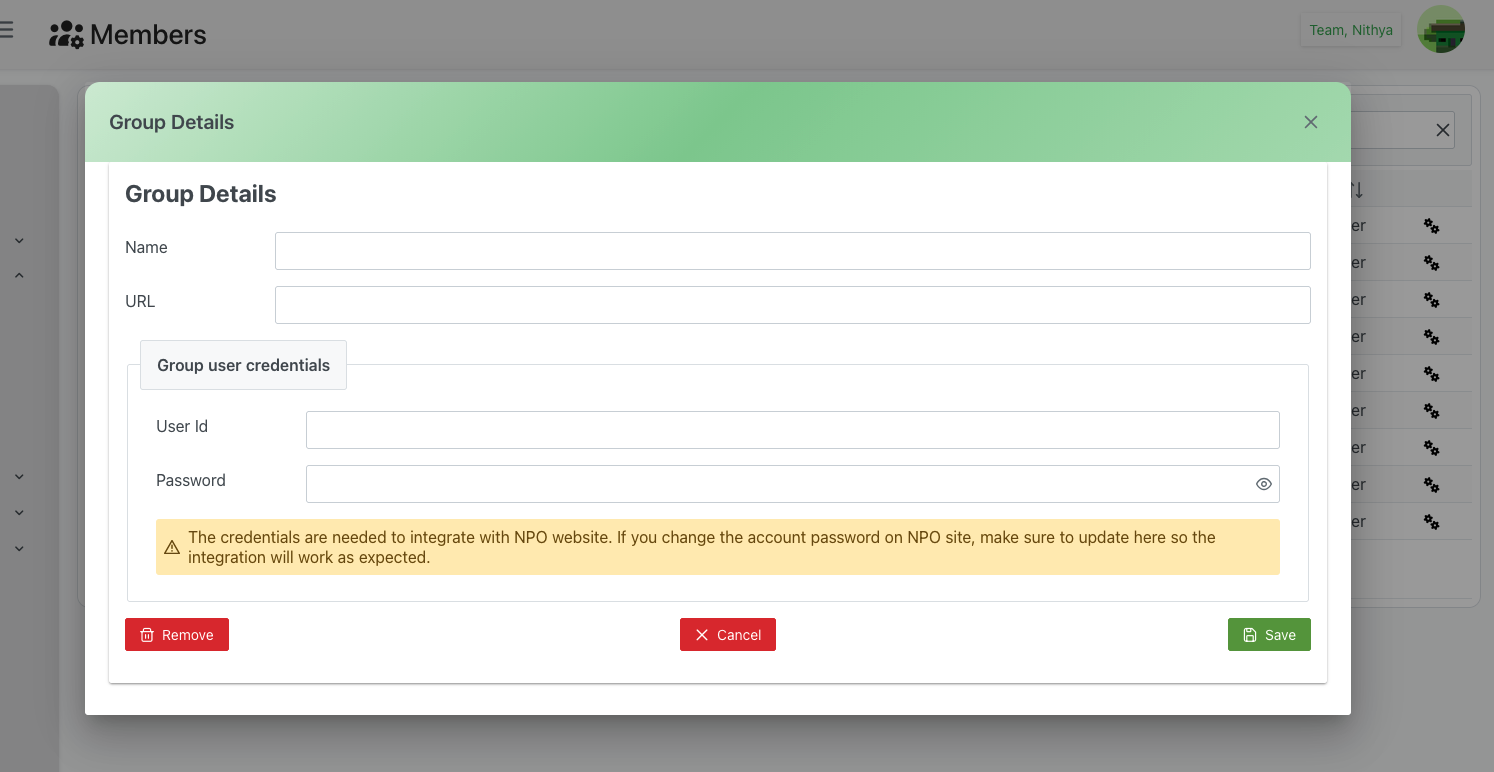
Description
The Group Details dialog provides a dedicated interface for managing club and group-specific information, particularly for organizations that need to integrate with external NPO (Non-Profit Organization) websites or systems.
Dialog Header
- Title: "Group Details"
- Close Button: X icon in the top-right corner to dismiss the dialog
- Purpose: Clear identification of the configuration interface
Form Sections
Basic Information
Name
- Type: Text input field
- Required: Yes
- Purpose: Official name of the group, club, or organization
- Format: Full legal or operational name
- Examples:
- "Alpha Delta Gamma"
- "Bernardin Knights of Columbus"
- "United Soccer Club"
- "Just4kids Community Center"
- Best Practices:
- Use the official registered name
- Include proper capitalization
- Avoid abbreviations unless part of official name
- Keep consistent across all systems
URL
- Type: Text input field (URL format)
- Required: Optional
- Purpose: Primary website or web presence for the group
- Format: Full URL including protocol (https://)
- Examples:
- Uses:
- Public website link
- Member reference
- External integration endpoint
- Communication and outreach
- Validation: Should be a valid URL format
Group User Credentials
This section configures credentials for NPO website integration, allowing automated data synchronization between your system and the organization's external website or platform.
User Id
- Type: Text input field
- Required: Yes (if integration is needed)
- Purpose: Username for authenticating with the NPO website
- Format: Depends on the external NPO system
- Examples:
- "admin@alphadelta.org"
- "api_user_12345"
- "integration_account"
- Security Notes:
- Should be a dedicated integration account
- Not a personal user account
- May have specific permissions on NPO site
- Keep credentials secure and limited access
Password
- Type: Password input field (hidden text)
- Required: Yes (if integration is needed)
- Visibility Toggle: 👁 icon to show/hide password
- Purpose: Password for authenticating with the NPO website
- Security Requirements:
- Strong password recommended
- Follow NPO site's password requirements
- Store securely in system
- Encrypted at rest
- Best Practices:
- Use strong, unique password
- Don't share across systems
- Regular rotation if required by policy
- Document password changes
Important Notice
Integration Warning Banner (Yellow background with ⚠️ icon):
"The credentials are needed to integrate with NPO website. If you change the account password on NPO site, make sure to update here so the integration will work as expected."
Key Points:
- Credentials must match those on the external NPO website
- Password changes on NPO site require updates here
- Failure to sync credentials will break integration
- Integration relies on valid, current credentials
- Regular validation recommended
Action Buttons
🗑️ Remove (Red)
- Position: Bottom-left
- Action: Remove the group details and integration configuration
- Warning: This is a destructive action
- Use Cases:
- Group no longer needs integration
- Switching to different integration method
- Removing obsolete configuration
- Confirmation: May prompt for confirmation before removing
- Result:
- Integration credentials are removed
- Integration will stop working
- Basic group information may be preserved
✕ Cancel (Red)
- Position: Bottom-center
- Action: Close dialog without saving any changes
- Result:
- All edits are discarded
- Returns to Members list
- No changes to group details or credentials
💾 Save (Green)
- Position: Bottom-right
- Action: Save all changes to group details and credentials
- Validation: Checks that required fields are completed
- Result:
- Group information is updated
- Integration credentials are saved securely
- Dialog closes
- Integration becomes active or updated
NPO Website Integration
What is NPO Integration?
NPO (Non-Profit Organization) integration allows your venue scheduling system to synchronize data with club sites provided by your system. This feature is specifically for members who own a club site through your platform.
Two-Way Synchronization Benefits:
- Bidirectional Sync: Changes made in either system automatically update the other
- Automatic Data Sync: Member lists, schedules, resources, and updates sync between both platforms
- Unified Management: Single source of truth accessible from both systems
- Reduced Manual Work: Automatic updates eliminate duplicate data entry
- Consistency: Same data across all platforms in real-time
- Flexibility: Manage resources from either the main system or the club site
- Document Control: Better control over mandatory documents that can be pulled in during check-in processes
- Define and enforce required documentation
- Automated compliance checking
- Track document status and expiration
For Non-Integrated Members: Groups without club sites can manage all resources directly in the main system and assign them to events without needing integration setup.
How Integration Works
- Authentication: System uses User Id and Password to log into NPO website
- Data Exchange: Automated API or web service calls transfer data
- Synchronization: Updates flow bidirectionally (or one-way, depending on setup)
- Validation: System validates data before applying changes
- Error Handling: Logs errors if credentials fail or connection issues occur
Integration Use Cases
Membership Synchronization
- Automatically import new members from club site
- Keep member information synchronized between systems
- Update member status changes across both platforms
- Remove members who leave the organization
Resource Management (Two-Way)
- Sync Resources: Resources created in either system appear in both
- Event Assignment: Assign resources to events from either platform
- Status Updates: Resource status changes sync automatically
- Availability Tracking: Real-time resource availability across both systems
- Unified Inventory: Single resource inventory accessible from both interfaces
Document Management and Compliance
- Mandatory Documents: Members who own clubs have better control over required documentation
- Check-In Integration: Mandatory documents can be pulled in during the check-in process
- Document Verification: Verify compliance with required documents at event check-in
- Compliance Tracking: Monitor which resources have up-to-date documentation
- Automated Alerts: Notify when documents are expiring or missing
- Document Types: May include:
- Background checks
- Certifications and licenses
- Liability waivers
- Medical forms
- Insurance documents
- Safety training certificates
Schedule Publishing
- Push schedules to NPO public website
- Keep event calendars in sync
- Update venue availability
- Publish changes automatically
Resource Management
- Share resource availability across systems
- Coordinate facility usage
- Prevent double-bookings
- Maintain consistent resource information
Reporting and Analytics
- Aggregate data from multiple sources
- Generate comprehensive reports
- Track usage across platforms
- Maintain audit trails
Setup Process
Initial Integration Setup
-
Obtain NPO Credentials
- Contact the NPO website administrator
- Request integration account credentials
- Verify account has necessary permissions
- Document any special requirements
-
Configure in System
- Open Group Details for the club
- Enter the group name and URL
- Input User Id from NPO site
- Enter Password securely
- Save the configuration
-
Test Integration
- Verify credentials work
- Test data synchronization
- Check for any error messages
- Validate data accuracy
-
Monitor Initially
- Watch for integration errors
- Verify regular sync occurs
- Check data consistency
- Address any issues promptly
Updating Integration Credentials
When NPO password changes:
- Change password on NPO website first
- Immediately open Group Details in your system
- Update the Password field with new password
- Save changes
- Verify integration still works
- Document the update
Best Practices
Credential Management
Security
- Dedicated Account: Use integration-specific account, not personal
- Strong Passwords: Follow security best practices
- Limited Access: Only authorized admins should see credentials
- Encryption: System should encrypt credentials at rest
- Regular Audits: Periodically review integration accounts
Maintenance
- Documentation: Keep record of integration setup
- Password Rotation: Update passwords on a regular schedule
- Sync Updates: When NPO password changes, update immediately
- Access Review: Regularly review who has NPO credentials
- Backup: Document credentials securely for disaster recovery
Integration Monitoring
Regular Checks
- Verify integration is working regularly
- Monitor sync logs for errors
- Check data consistency between systems
- Test after any system updates
- Review integration health dashboard (if available)
Troubleshooting
- Keep NPO administrator contact information handy
- Document common issues and solutions
- Have rollback plan if integration fails
- Test credentials periodically
- Monitor for authentication failures
Data Governance
Quality Control
- Validate data before and after sync
- Review synced data for accuracy
- Handle conflicts appropriately
- Maintain data integrity
- Document data mapping
Compliance
- Follow data privacy regulations (GDPR, etc.)
- Ensure NPO site is secure and compliant
- Document data sharing agreements
- Maintain audit logs
- Review data access permissions
Troubleshooting
Integration Not Working
Problem: Data not synchronizing with NPO website
Possible Causes:
- Incorrect credentials
- Password changed on NPO site
- NPO site is down or unreachable
- Network connectivity issues
- Integration account disabled
- Permissions changed on NPO site
Solutions:
- Verify credentials are correct
- Test credentials on NPO website directly
- Check if NPO website is accessible
- Review error logs for specific messages
- Contact NPO administrator
- Update credentials if password changed
Authentication Failures
Problem: "Authentication failed" or similar error
Solutions:
- Double-check User Id and Password
- Verify password is typed correctly (use show/hide toggle)
- Confirm account is active on NPO site
- Check if account is locked on NPO site
- Test login directly on NPO website
- Update credentials and save again
Data Inconsistencies
Problem: Data doesn't match between systems
Solutions:
- Verify integration is active
- Check sync frequency and last sync time
- Manually trigger sync if possible
- Compare data carefully for differences
- Check for sync conflict resolution rules
- Contact support for sync issues
Cannot Save Credentials
Problem: Unable to save group details
Solutions:
- Ensure all required fields are completed
- Verify you have appropriate admin permissions
- Check for validation errors
- Try refreshing the page
- Clear browser cache if needed
- Contact system administrator
Related Features
- Members Overview - Main members management page
- Create/Edit Member - Basic member information
- Additional Details - Internal notes
- Resources - Group resources management
Tips
- Test Regularly: Periodically test integration to ensure it's working
- Document Everything: Keep detailed notes about integration setup
- Communication: Maintain relationship with NPO website administrators
- Proactive Updates: Update credentials promptly when changed
- Monitor Logs: Regularly review integration logs for issues
- Backup Plan: Have manual process ready if integration fails
- Security First: Treat integration credentials as highly sensitive