Member Resources
Purpose
Manage and view resources associated with a member or club, including resource allocation, tracking, and availability management.
Resource Management Scenarios:
- For members without club sites: Maintain resources directly in this system and assign them to accepted/allocated events
- For members with integrated club sites: Resources sync automatically with their club site provided by the system (two-way synchronization)
Access
From the Members list:
- Click the gear icon (⚙) next to a member
- Select 👥 Resources from the context menu
Screenshot
Description
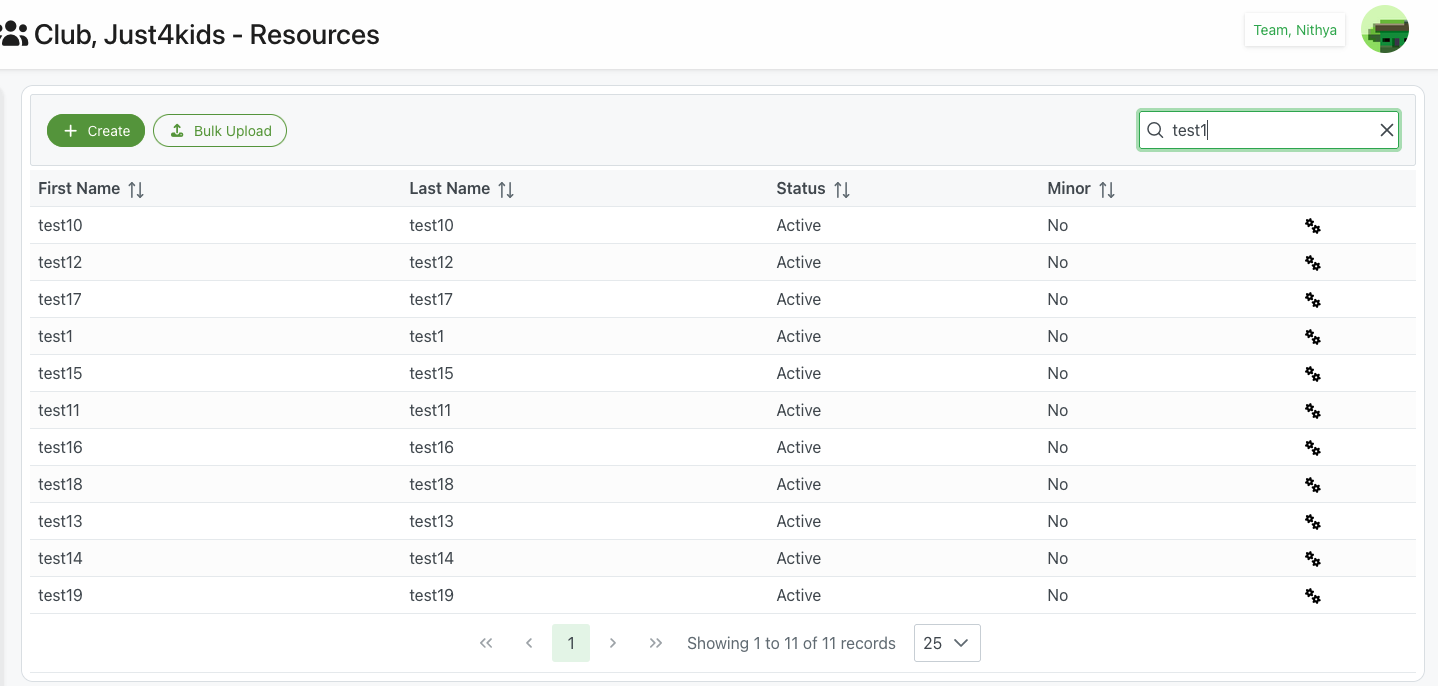
The Member Resources page provides a comprehensive view and management interface for all resources associated with a specific member or club. This dedicated interface helps administrators track what resources are allocated to each member organization.
Page Header
Title
- Format: "[Club Name] - Resources"
- Example: "Club, Just4kids - Resources"
- Icon: 👥 or club icon
- Purpose: Clear indication of whose resources are being viewed
User Context
- Display: Current administrator name in top-right
- Example: "Team, Nithya"
- Profile Icon: Access to user settings and logout
Action Buttons
+ Create (Green)
- Purpose: Add a new resource to this member's resource list
- Action: Opens resource creation form
- Use Cases:
- Allocating new equipment to member
- Assigning facility access
- Adding personnel resources
- Registering new assets
- Permissions: Requires appropriate admin access
⬆ Bulk Upload (Outlined)
- Purpose: Upload multiple resources at once via file import
- Format: Typically CSV or Excel file
- Use Cases:
- Initial resource setup
- Large-scale resource allocation
- Transferring resources from another system
- Annual resource renewals
- Benefits: Saves time when adding many resources
Search Functionality
- Position: Top-right corner
- Real-time Search: Filters results as you type
- Search Example: Searching for "test1" shows matching resources
- Searchable Fields:
- First Name
- Last Name
- Resource identifiers
- Status
- Other resource attributes
- Clear Button: ✕ icon to reset search
Resources Table
The table displays all resources associated with the member, organized in sortable columns.
Table Columns
First Name ↕
- Content: First name of the resource (if applicable)
- Examples: "test10", "test12", "test17", "test1"
- Sortable: Click header to sort alphabetically
- Use: Identify individual resource or resource holder
- Context: May represent:
- Person assigned to resource
- Resource name/identifier (first part)
- Key contact for resource
Last Name ↕
- Content: Last name of the resource (if applicable)
- Examples: "test10", "test12", "test17", "test1"
- Sortable: Click header to sort alphabetically
- Context: May represent:
- Full resource identifier (second part)
- Person's last name
- Resource category or type
Status ↕
- Content: Current status of the resource
- Common Values:
- "Active": Resource is currently in use and available
- "Inactive": Resource is not currently available
- "Maintenance": Resource is being serviced
- "Reserved": Resource is allocated but not yet in use
- Sortable: Click to group by status
- Visual Indicators: May have color coding (green for active, etc.)
- Filtering: Often used to filter by status
Minor ↕
- Content: Boolean indicator for special classification
- Values: "Yes" or "No"
- Purpose: May indicate:
- Resource is minor/small in scope
- Requires special handling for minors
- Secondary or backup resource
- Temporary or short-term resource
- Sortable: Click to group similar resources
- Use Case Dependent: Meaning varies by organization
Actions (⚙)
- Icon: Gear/settings icon
- Purpose: Access resource-specific actions
- Click: Opens context menu with available actions
- Common Actions May Include:
- Edit resource details
- Change resource status
- Remove resource
- View resource history
- Assign to different location
- Update availability
Pagination Controls
Navigation
- ⏮ First Page: Jump to first page
- ◀ Previous: Go to previous page
- Page Number: Current page (highlighted in green)
- ▶ Next: Go to next page
- ⏭ Last Page: Jump to last page
Information Display
- Record Count: "Showing 1 to 11 of 11 records"
- Format: "Showing [start] to [end] of [total] records"
- Purpose: Know where you are in the full list
Page Size Selector
- Default: Usually 25 records per page
- Options: Dropdown with choices (10, 25, 50, 100, All)
- Use: Adjust how many resources display per page
- Performance: Smaller page sizes load faster
Integration vs. Manual Management
Members Without Club Site Integration
For member groups that do not have a club site integrated with the system:
- Local Resource Maintenance: All resources are created and managed directly in this interface
- Event Assignment: Resources can be directly assigned to events that the member has accepted or been allocated
- Full Control: Complete control over resource information, status, and availability
- Manual Updates: All changes must be made manually through this interface
- Ideal For:
- Smaller organizations
- Groups without their own website
- Organizations preferring centralized management
- Members who don't need external system integration
Members With Club Site Integration
For members who own a club site provided by the system:
- Two-Way Synchronization: Resources automatically sync between this system and their club site
- Automatic Updates: Changes made in either system are reflected in both
- Unified Management: Manage resources from either interface
- Real-Time Sync: Updates propagate automatically across both platforms
- Event Assignment: Resources can be assigned to events from either system
- Document Control: Better control over mandatory documents that can be pulled in during the check-in process
- Define required documentation for resources
- Enforce document verification at check-in
- Track document compliance
- Manage expiration dates and renewals
- Ideal For:
- Larger organizations with their own club websites
- Members needing public-facing resource information
- Organizations with distributed management
- Groups requiring multi-platform access
- Organizations with strict compliance requirements
Configuration: Integration is configured via Group Details with NPO website credentials.
Resource Management Use Cases
Resource Allocation
Scenario: Assigning equipment to a club
Process:
- Open Resources for the specific club
- Click + Create to add new resource
- Fill in resource details (name, type, etc.)
- Set status to "Active"
- Save the resource
- Resource now appears in club's list
Resource Inventory Check
Scenario: Auditing what resources a member has
Process:
- Navigate to member's Resources page
- Review complete list of resources
- Check status of each resource
- Verify resource information is current
- Update any outdated information
- Document audit results
Bulk Resource Assignment
Scenario: Setting up resources for new season
Process:
- Prepare CSV file with all resources
- Format according to import template
- Click Bulk Upload button
- Select prepared file
- Review and confirm import
- Verify resources appear correctly
- Make any necessary adjustments
Resource Status Updates
Scenario: Marking resources as unavailable
Process:
- Locate resource in the list
- Click gear icon (⚙) for actions
- Select "Change Status" or "Edit"
- Update status (e.g., Active → Maintenance)
- Add notes about why status changed
- Save changes
- Status updates immediately
Resource Search and Filter
Scenario: Finding specific resources quickly
Process:
- Use search box to filter by name or identifier
- Or filter by status using status selector
- Sort by relevant column
- Review filtered results
- Take action on found resources
Resource Types
Common resource categories that might be managed:
Physical Resources
- Equipment: Sports equipment, tools, devices
- Facilities: Rooms, courts, fields
- Vehicles: Vans, buses, transportation
- Supplies: Consumables, materials
Personnel Resources
- Volunteers: Available volunteers
- Staff: Assigned personnel
- Coaches: Coaching staff
- Instructors: Teachers or trainers
Digital Resources
- Licenses: Software licenses
- Accounts: System access accounts
- Content: Digital materials, curricula
- Tools: Online tools and platforms
Financial Resources
- Budgets: Allocated funds
- Accounts: Financial accounts
- Grants: Funding sources
- Scholarships: Available scholarships
Best Practices
Organization
- Clear Naming: Use consistent, descriptive resource names
- Categorization: Group similar resources together
- Status Management: Keep status information current
- Regular Reviews: Periodically audit resource lists
- Documentation: Document special resource requirements
Maintenance
- Status Updates: Update status when resources change
- Remove Obsolete: Remove resources no longer relevant
- Accurate Information: Keep resource details accurate
- Activity Tracking: Monitor resource usage
- Renewal Tracking: Track when resources need renewal
Communication
- Notify Members: Inform members about their resources
- Access Information: Ensure members know how to access resources
- Change Notifications: Alert members when resources change
- Support: Provide assistance with resource usage
- Feedback: Gather feedback on resource adequacy
Compliance
- Inventory Accuracy: Maintain accurate inventory records
- Authorization: Ensure proper authorization for resource access
- Safety: Track safety-related resources and certifications
- Audit Trail: Maintain records of resource changes
- Reporting: Generate reports as needed for oversight
Related Features
- Members Overview - Main members management page
- Group Details - Club integration and settings
- Member Locations - Assign locations to members
- Organization Locations - Manage all locations
- Teams Management - Team resource allocation
- Schedules - Resource scheduling
Tips
- Bulk Operations: Use Bulk Upload for initial setup or large changes
- Regular Audits: Schedule periodic resource inventory reviews
- Status Tracking: Keep resource status information current
- Search Skills: Use search effectively to find resources quickly
- Export Data: Download resource lists for external analysis
- Member Communication: Keep members informed about their resources
- Standardization: Develop standard naming conventions for resources