Member Locations
Purpose
Assign and manage location access for members, controlling which venues or facilities a member can access and use for events.
Access
From the Members list:
- Click the gear icon (⚙) next to a member
- Select 📍 Locations from the context menu
Screenshot
Description
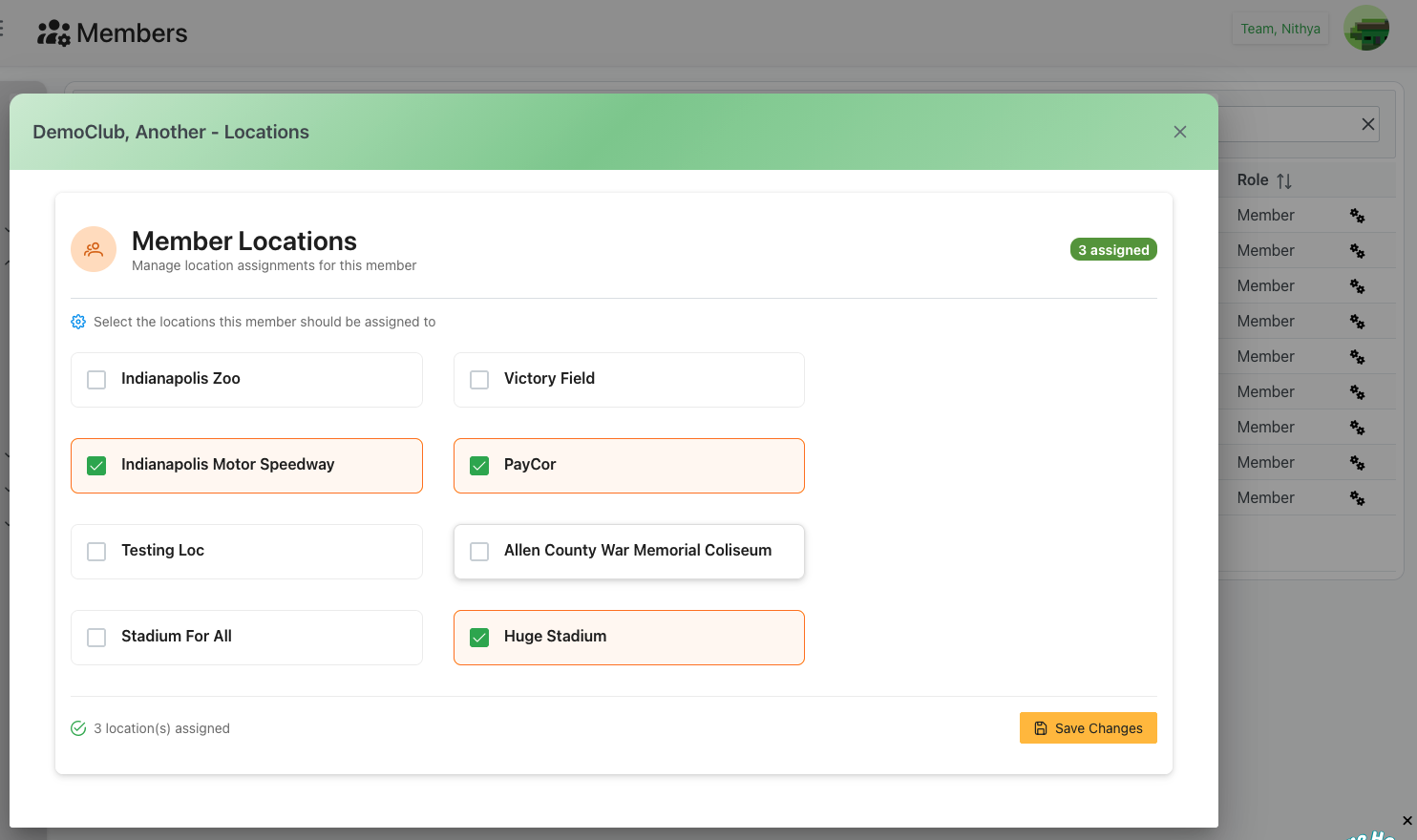
The Member Locations dialog provides an interface for administrators to assign specific locations to members. This controls where members can schedule events, access facilities, and operate within the organization's venues.
Dialog Header
- Title Format: "[Member Name] - Locations"
- Example: "DemoClub, Another - Locations"
- Close Button: X icon in the top-right corner to dismiss the dialog
Location Assignment Interface
Header Section
Member Locations Title
- Icon: 📍 Location pin icon
- Title: "Member Locations"
- Subtitle: "Manage location assignments for this member"
- Assignment Counter: Green badge showing "3 assigned" (or current count)
- Updates dynamically as locations are checked/unchecked
- Provides quick visual reference of total assigned locations
Instructions
Instructional Text: "Select the locations this member should be assigned to"
- Icon: ⚙️ Settings icon
- Purpose: Clear guidance on the interface's purpose
- Action: Check boxes to assign, uncheck to remove access
Location Selection Grid
Locations are displayed in a grid layout with checkboxes for easy selection.
Location Items
Each location is presented as a checkbox option with the following states:
Unassigned Locations (Unchecked)
- Visual: Empty checkbox with location name
- Border: Standard gray border
- Background: White/transparent
- Examples from screenshot:
- "Indianapolis Zoo"
- "Victory Field"
- "Testing Loc"
- "Allen County War Memorial Coliseum"
- "Stadium For All"
- Action: Click to assign this location to the member
Assigned Locations (Checked)
- Visual: Checkmark ✓ in checkbox
- Border: Orange/highlight color border
- Background: Slight highlight or accent color
- Examples from screenshot:
- "Indianapolis Motor Speedway"
- "PayCor"
- "Huge Stadium"
- Action: Click to unassign this location from the member
Grid Layout
- Columns: Two-column layout for efficient use of space
- Responsive: Adjusts to dialog width
- Spacing: Adequate padding between location options
- Organization: Locations listed alphabetically or by category
Status Indicator
Bottom-left Summary
- Format: "✓ [number] location(s) assigned"
- Example: "✓ 3 location(s) assigned"
- Color: Green text with checkmark icon
- Purpose:
- Quick reference of total assigned locations
- Confirmation before saving
- Matches the badge in the header
Action Buttons
💾 Save Changes (Yellow/Gold)
- Position: Bottom-right corner
- Icon: Save/disk icon
- Action: Save all location assignments
- Requirements: No validation required (can have 0 or more locations)
- Result:
- All checked locations are assigned to the member
- All unchecked locations are removed from member access
- Dialog closes
- Member can now access assigned locations
- Changes take effect immediately
Close Dialog
- Position: Top-right X button
- Action: Close without saving changes
- Result:
- All selections are discarded
- Returns to Members list
- Member's location assignments remain unchanged
Use Cases
Initial Location Setup
Scenario: Assigning locations to a newly created member
Process:
- Open Locations for the new member
- Review available locations
- Check all locations the member should access
- Verify the count matches expectations
- Click Save Changes
- Member can now schedule at assigned locations
Updating Location Access
Scenario: Member needs access to a new venue
Process:
- Open member's Locations dialog
- Review currently assigned locations (checked items)
- Check the new location(s) to add
- Verify the assignment count
- Click Save Changes
- Member immediately gains access to new location
Removing Location Access
Scenario: Member should no longer access certain venues
Process:
- Open member's Locations dialog
- Find the location(s) to remove (currently checked)
- Uncheck those locations
- Verify remaining assignments are correct
- Click Save Changes
- Member loses access to unchecked locations
Bulk Location Assignment
Scenario: Assigning multiple locations at once
Process:
- Open member's Locations dialog
- Check all relevant locations systematically
- Watch the counter update with each selection
- Verify final count matches intended assignments
- Click Save Changes
- Member gains access to all selected locations
Access Audit
Scenario: Reviewing what locations a member can access
Process:
- Open member's Locations dialog
- Review all checked locations (currently assigned)
- Compare against expected access
- Make adjustments if needed
- Either save changes or close if no changes needed
Location Types
Common location categories that might be assigned:
Venue Types
- Sports Facilities: Stadiums, fields, courts, tracks
- Indoor Venues: Gyms, arenas, community centers
- Outdoor Spaces: Parks, playgrounds, outdoor fields
- Specialty Venues: Pools, ice rinks, skate parks
- Multi-Purpose: Conference rooms, multipurpose halls
Access Implications
When a location is assigned to a member:
- Member can schedule events at that location
- Member appears in location-specific reports
- Location shows in member's available venue list
- Member may receive location-specific notifications
- Member resources can be allocated to that location
Best Practices
Location Assignment Strategy
By Organization Type
- Clubs/Teams: Assign primary practice and game locations
- Multi-Sport Organizations: Assign all relevant facility types
- Community Groups: Assign community center and public spaces
- Specialized Programs: Limit to specific facility types
By Member Role
- Primary Members: Full access to main facilities
- Visiting Members: Limited access or specific venues only
- Seasonal Members: Locations relevant to their season
- Trial Members: Limited initial access
Access Management
Security Considerations
- Principle of Least Privilege: Only assign necessary locations
- Regular Audits: Periodically review location assignments
- Remove Unused Access: Unassign locations no longer needed
- Document Reasons: Note why specific locations are assigned
- Time-Based Access: Consider seasonal or temporary assignments
Operational Efficiency
- Logical Grouping: Assign related locations together
- Geographic Considerations: Consider proximity to member
- Capacity Planning: Balance member access across venues
- Conflict Prevention: Avoid over-assigning high-demand locations
Communication
Member Notification
- Inform members when locations are assigned
- Provide venue information and directions
- Share facility rules and guidelines
- Explain scheduling procedures for each location
- Notify when access is added or removed
Documentation
- Keep records of location assignments
- Document special access arrangements
- Note any location-specific requirements
- Track when assignments change
- Maintain audit trail for compliance
Troubleshooting
Locations Not Appearing
Problem: Expected locations don't show in the list
Possible Causes:
- Locations not created in system yet
- Locations archived or inactive
- Permissions issue viewing certain locations
- Filter or search applied
Solutions:
- Verify locations exist in Organize > Locations
- Check if locations are marked as active
- Ensure you have permission to assign locations
- Clear any filters or search terms
- Contact administrator if locations are missing
Cannot Save Changes
Problem: Save Changes button doesn't work
Possible Causes:
- Insufficient permissions
- System error or connectivity issue
- Conflict with another user's changes
- Required validation not met
Solutions:
- Verify you have appropriate admin permissions
- Check internet connectivity
- Try refreshing the page
- Close and reopen the dialog
- Contact system administrator if problem persists
Changes Not Taking Effect
Problem: Saved changes don't reflect in member's access
Possible Causes:
- Cache or session issue
- Changes need time to propagate
- Member needs to log out and back in
- Conflict with other settings
Solutions:
- Have member refresh their browser
- Wait a few minutes for changes to sync
- Have member log out and log back in
- Verify changes were actually saved (reopen dialog)
- Check for conflicting permission settings
Wrong Locations Assigned
Problem: Member has incorrect location access
Solutions:
- Open member's Locations dialog immediately
- Review all checked locations carefully
- Uncheck any incorrect locations
- Check any missing required locations
- Save changes
- Verify with member that access is correct
Related Features
- Members Overview - Main members management page
- Create/Edit Member - Basic member information
- Resources - Member resources management
- Locations Management - Organization-wide location setup
- Schedules - Event scheduling at locations
Tips
- Plan Ahead: Assign locations based on member's expected usage patterns
- Regular Reviews: Audit location assignments quarterly or seasonally
- Bulk Updates: If multiple members need same locations, consider bulk operations
- Geographic Logic: Assign locations that make geographic sense for the member
- Seasonal Adjustments: Update location access as seasons change
- Communication: Always inform members about their location access
- Test Access: Have members verify they can see assigned locations
- Documentation: Keep notes about special location assignment arrangements