Change Login Id
Purpose
Modify a member's login username (Login Id) while maintaining all other account information, allowing administrators to update credentials when needed.
Access
From the Members list:
- Click the gear icon (⚙) next to a member
- Select 🔑 Change LoginId from the context menu
Screenshot
Description
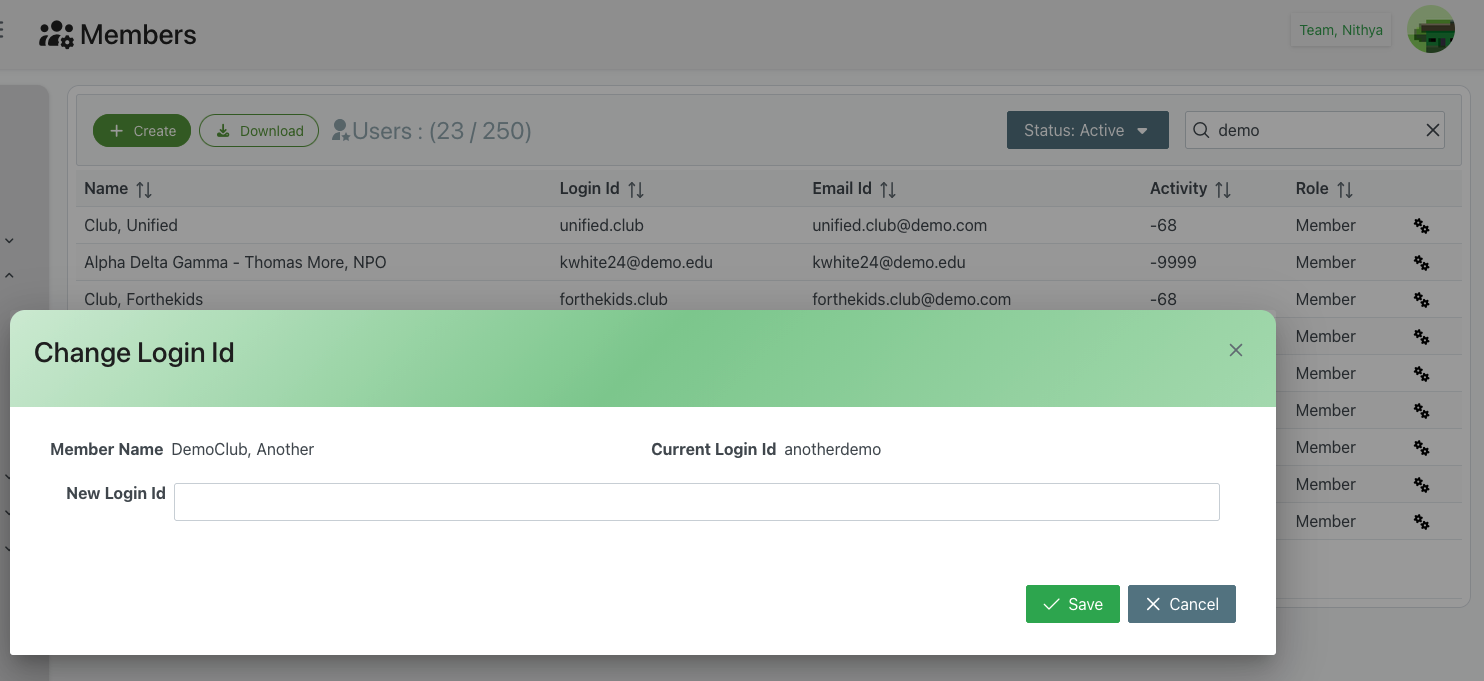
The Change Login Id dialog allows administrators to update a member's username that they use to log into the system. This is useful when members need to change their username for various reasons while preserving all their account data and history.
Dialog Header
- Title: "Change Login Id"
- Close Button: X icon in the top-right corner to dismiss without making changes
- Purpose: Clear indication of the credential update action
Member Information Display
Member Name
- Label: "Member Name"
- Display: Shows the full name of the member whose Login Id is being changed
- Example: "DemoClub, Another"
- Purpose: Confirmation that you're modifying the correct member's credentials
- Format: Read-only display field
Current Login Id
- Label: "Current Login Id"
- Display: Shows the existing username/login ID
- Example: "anotherdemo"
- Purpose: Reference to verify the account and see what's being changed
- Format: Read-only display field
- Note: This is the username the member currently uses to log in
Input Field
New Login Id
- Label: "New Login Id"
- Type: Text input field
- Required: Yes
- Placeholder: Empty field ready for input
- Validation Requirements:
- Must be unique (not already used by another member)
- Typically alphanumeric characters
- May allow certain special characters (., _, -)
- Usually case-insensitive
- Minimum and maximum length requirements
- Cannot be empty
- Format Guidelines:
- Use clear, memorable usernames
- Follow organizational naming conventions
- Avoid special characters that may cause issues
- Consider email format for consistency
Action Buttons
✓ Save (Green)
- Position: Bottom-right, right button
- Action: Apply the new Login Id to the member account
- Requirements:
- New Login Id field must be filled
- Must meet validation requirements
- Must not already exist in the system
- Result:
- Member's Login Id is immediately updated
- Dialog closes
- Member must use new Login Id for next login
- Previous Login Id becomes invalid
- All other account information remains unchanged
- Success notification may appear
✕ Cancel (Gray)
- Position: Bottom-right, left button
- Action: Close the dialog without making any changes
- Result:
- New Login Id entry is discarded
- Returns to Members list
- Member's current Login Id remains active
- No changes are made to the account
Use Cases
Username Typo Correction
Scenario: Login Id was created with a typo
Process:
- Open Change Login Id dialog for the member
- Review Current Login Id to verify the error
- Enter corrected Login Id in New Login Id field
- Verify spelling is correct
- Click Save
- Notify member of the corrected username
- Member logs in with corrected Login Id
Rebranding or Name Change
Scenario: Organization or member changed their official name
Process:
- Open Change Login Id for affected member(s)
- Note the current Login Id format
- Enter new Login Id reflecting new name
- Maintain consistency with naming conventions
- Click Save
- Communicate new Login Id to member
- Update any documentation or external references
Email Address Change
Scenario: Member's email changed and Login Id uses email format
Process:
- First update email in member profile
- Open Change Login Id dialog
- Enter new email-based Login Id
- Ensure it matches new email address
- Click Save
- Confirm member received notification
- Verify member can log in with new credentials
Standardization Initiative
Scenario: Organization implementing new username standards
Process:
- Document new Login Id format/standard
- Identify members needing updates
- For each member, open Change Login Id
- Apply new standardized format
- Save changes
- Track completed updates
- Notify all affected members with new credentials
Security Incident Response
Scenario: Login Id compromised or security concern
Process:
- Immediately change Login Id to prevent access
- Choose completely different new username
- Click Save
- Also change password for additional security
- Contact member through verified channel
- Provide new credentials securely
- Document incident in Additional Notes
Conflict Resolution
Scenario: Two members accidentally have similar Login Ids causing confusion
Process:
- Identify which member's Login Id should change
- Open Change Login Id dialog
- Enter clearly distinguishable new Login Id
- Verify new Login Id doesn't create new conflicts
- Click Save
- Notify member of change and reason
- Update internal documentation
Validation and Requirements
Login Id Format Requirements
Allowed Characters
- Letters: A-Z, a-z (typically case-insensitive)
- Numbers: 0-9
- Special Characters: Usually limited to . (period), _ (underscore), - (hyphen)
- Spaces: Typically NOT allowed
- Email Format: Often allowed (username@domain.com)
Length Requirements
- Minimum: Usually 3-5 characters
- Maximum: Often 50-100 characters
- Optimal: 8-20 characters for usability
Uniqueness
- System-Wide: Must be unique across entire system
- Case-Insensitive: "demo" and "Demo" treated as same
- Validation: System checks uniqueness before saving
- Error Handling: Clear error message if duplicate detected
Best Practices for Login Ids
Naming Conventions
- Consistency: Use same format for all members
- Clarity: Make usernames easily identifiable
- Professional: Avoid informal or inappropriate usernames
- Memorable: Easy for members to remember
- Searchable: Easy to find in system searches
Examples of Good Login Ids
- Email format:
john.smith@organization.org - Name-based:
jsmith,smith.john,johnsmith - Organization-based:
alphadelta.club,lions.team - ID number-based:
member12345,user-1234
Avoid
- Complex special characters:
j@#n$mith - Ambiguous characters: Avoid O/0, l/1 confusion
- Very long usernames:
johnsmithjuniorthe3rd - Generic names:
user1,member,test - Personal information: Social security numbers, birthdates
Important Considerations
Impact of Login Id Change
What Changes
- Login Username: The username used to log into the system
- System Display: May affect how name displays in some views
- Search Results: Member searchable by new Login Id
What Stays the Same
- Member Name: Full name remains unchanged
- Email Address: Email stays the same (unless also updated separately)
- Password: Password remains unchanged (member uses same password)
- Account History: All past activity and data preserved
- Permissions: Roles and access rights unchanged
- Resources: All assigned resources and locations maintained
- Events: All event assignments and history preserved
Communication is Critical
Before Changing
- Notify Member: Inform member that Login Id will change
- Explain Why: Provide reason for the change
- Set Timeline: Let member know when change takes effect
- Document Old Id: Record previous Login Id for reference
After Changing
- Provide New Credentials: Clearly communicate new Login Id
- Test Access: Verify member can log in successfully
- Update Documentation: Update any places old Login Id was documented
- Support: Be available for questions or login issues
- Confirmation: Get confirmation member received new credentials
Security Best Practices
Access Control
- Verify Identity: Confirm member's identity before changing Login Id
- Authorization: Ensure request is legitimate and authorized
- Documentation: Record who changed Login Id and why
- Audit Trail: Changes should be logged for security review
Secure Communication
- Private Channel: Communicate new Login Id through secure method
- Verification: Confirm member received new credentials
- No Public Posting: Never post Login Ids publicly
- Temporary Passwords: Consider requiring password change after Login Id change
Change Management
- Track Changes: Maintain record of Login Id changes
- Review Patterns: Monitor for unusual change patterns
- Limit Frequency: Discourage frequent Login Id changes
- Approval Process: May require additional approval for changes
Troubleshooting
Login Id Already Exists
Problem: Error message that Login Id is already in use
Solutions:
- Try a different Login Id
- Add numbers or organization identifier to make unique
- Check if similar username exists with slight variation
- Search members list to find who has that Login Id
- Consider using email format to ensure uniqueness
Cannot Save New Login Id
Problem: Save button doesn't work or shows validation error
Possible Causes:
- Login Id doesn't meet format requirements
- Contains invalid characters
- Too short or too long
- Already exists in system
Solutions:
- Review validation requirements
- Remove any special characters
- Adjust length as needed
- Try completely different Login Id
- Check error message for specific guidance
Member Cannot Log In After Change
Problem: Member reports unable to log in with new Login Id
Solutions:
- Verify new Login Id was saved correctly
- Check if member is using correct Login Id (common confusion)
- Verify member is using old password (password didn't change)
- Check if account is still Active status
- Try changing Login Id again
- Reset password as additional troubleshooting step
Old Login Id Still Works
Problem: Member can still log in with old Login Id
Possible Causes:
- Active session not expired
- Cache issue
- Change didn't fully save
- System sync delay
Solutions:
- Verify change was actually saved (reopen dialog)
- Force logout all member sessions
- Wait for system to fully propagate changes
- Try changing Login Id again if not saved
- Contact system administrator if issue persists
Related Features
- Members Overview - Main members management page
- Create/Edit Member - Basic member information
- Change Password - Password management
- Unlock Account - Account access issues
- Additional Details - Document Login Id changes
Tips
- Document Changes: Always note Login Id changes in Additional Notes with date and reason
- Clear Communication: Provide new Login Id clearly to avoid confusion
- Test Immediately: Verify member can log in with new Login Id right away
- Naming Standards: Develop and follow organizational naming conventions
- Keep It Simple: Use clear, memorable Login Ids
- Security First: Treat Login Ids as sensitive credentials
- Update Records: Update any external documentation that references Login Ids
- Support Ready: Be prepared to help members having login issues after change