Change Password
Purpose
Reset or change a member's login password as an administrator, providing immediate password management without requiring the member's current password.
Access
From the Members list:
- Click the gear icon (⚙) next to a member
- Select 🔑 Change Password from the context menu
Screenshot
Description
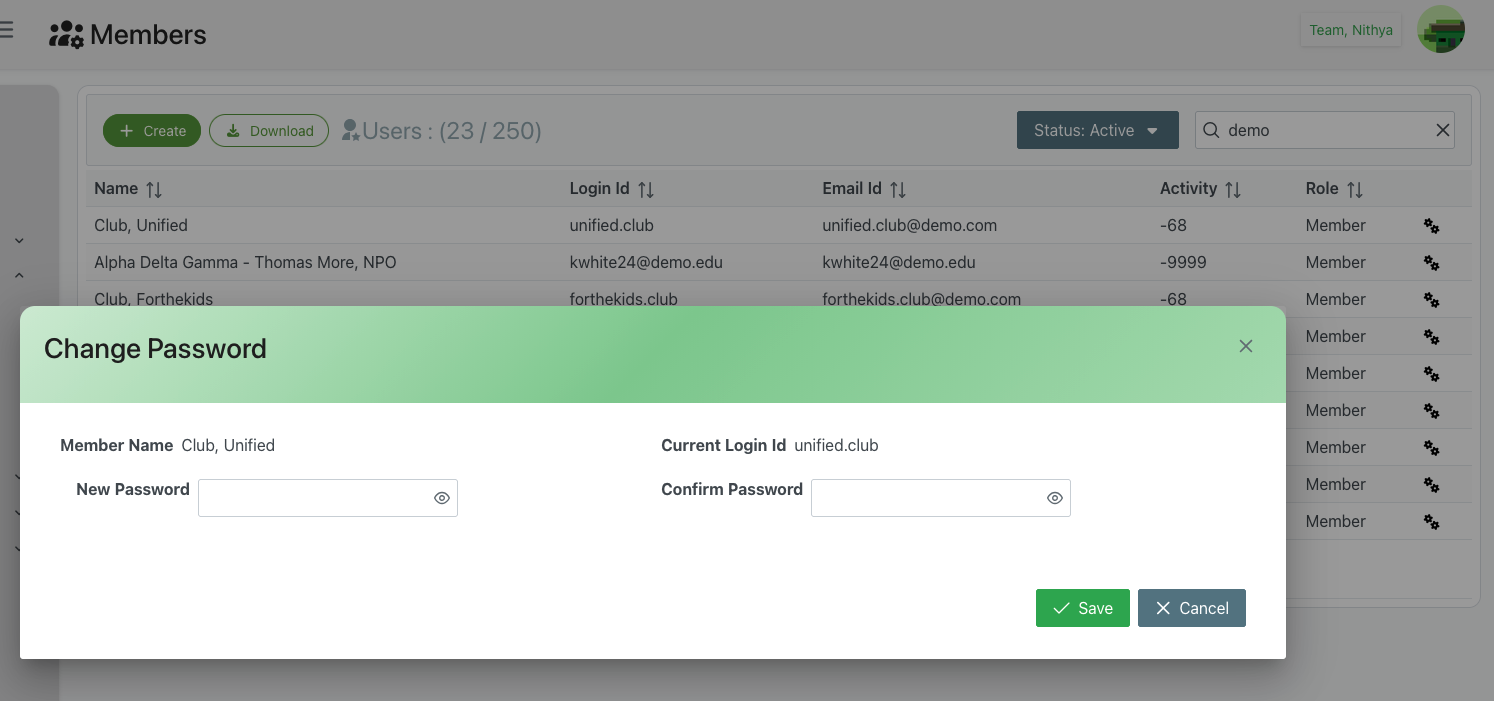
The Change Password dialog allows administrators to set a new password for any member account. This is useful for password resets, account recovery, or when a member has forgotten their credentials.
Dialog Header
- Title: "Change Password"
- Close Button: X icon in the top-right corner to dismiss without making changes
Member Information Display
Member Name
- Label: Member Name
- Display: Shows the full name of the member whose password is being changed
- Example: "Club, Unified"
- Purpose: Confirmation that you're changing the correct member's password
Current Login Id
- Label: Current Login Id
- Display: Shows the current username/login ID
- Example: "unified.club"
- Purpose: Additional verification of the member account
- Note: This field is display-only and cannot be changed here
Password Fields
New Password
- Type: Password input field (text is hidden)
- Required: Yes
- Visibility Toggle: 👁 icon to show/hide password text
- Validation:
- Must meet minimum password requirements
- Typically requires minimum length (e.g., 8 characters)
- May require complexity (uppercase, lowercase, numbers, special characters)
- Best Practices:
- Use strong, unique passwords
- Avoid common words or patterns
- Include a mix of character types
- Consider using a password generator
Confirm Password
- Type: Password input field (text is hidden)
- Required: Yes
- Visibility Toggle: 👁 icon to show/hide password text
- Validation: Must exactly match the "New Password" field
- Error Handling: Will show error if passwords don't match
- Purpose: Prevent typing errors when setting the new password
Action Buttons
✓ Save (Green)
- Action: Apply the new password to the member account
- Requirements:
- Both password fields must be filled
- Passwords must match
- Must meet password policy requirements
- Result:
- Member's password is immediately changed
- Dialog closes
- Member must use the new password for next login
- Previous password is invalidated
✕ Cancel (Gray)
- Action: Close the dialog without changing the password
- Result:
- No changes are made to the account
- Returns to Members list
- Member's current password remains active
Use Cases
Forgotten Password Recovery
When a member cannot remember their password:
- Open the Change Password dialog for the member
- Create a secure temporary password
- Click Save
- Communicate the new password to the member securely
- Instruct the member to change it after first login
Account Security Incident
If an account may have been compromised:
- Immediately change the member's password
- Choose a strong, unique password
- Click Save
- Contact the member to notify them of the change
- Provide the new password through a secure channel
- Document the incident in Additional Notes
New Member Setup
When setting up a new member account:
- Create the member account with initial credentials
- Use Change Password to set a secure password
- Provide credentials to the member securely
- Recommend they change the password after first login
Administrative Password Reset
Regular password rotation for security:
- Select the member account
- Generate a new strong password
- Save the changes
- Notify the member via email or secure channel
- Provide instructions for updating their personal records
Security Best Practices
Password Requirements
- Minimum Length: Use at least 8-12 characters
- Complexity: Include:
- Uppercase letters (A-Z)
- Lowercase letters (a-z)
- Numbers (0-9)
- Special characters (!@#$%^&*)
- Avoid:
- Common words or phrases
- Sequential numbers (123456)
- Repeated characters (aaaaaa)
- Personal information (names, birthdates)
Secure Password Communication
- Never send passwords via unencrypted email
- Use secure communication channels:
- Phone call to verified number
- Encrypted messaging
- Password-protected document
- In-person delivery
- Temporary Passwords: Consider requiring change on first login
- Documentation: Don't store passwords in notes or unsecured locations
Administrative Responsibilities
- Verification: Confirm identity before resetting passwords
- Logging: Changes should be logged for audit purposes
- Notification: Always notify the member when their password is changed
- Follow-Up: Verify the member can successfully log in with new password
- Privacy: Treat all passwords as sensitive confidential information
Organizational Policies
- Password Expiration: Follow organizational policies on password age
- Reuse Prevention: Ensure new passwords aren't recently used passwords
- Strength Requirements: Enforce organizational password complexity rules
- Emergency Access: Maintain secure procedures for emergency password resets
- Compliance: Follow relevant regulations (GDPR, HIPAA, etc.) as applicable
Troubleshooting
Password Doesn't Match Error
Problem: "Passwords don't match" error appears Solution:
- Carefully retype both passwords
- Use the visibility toggle (👁) to verify both entries
- Check for extra spaces or typos
- Ensure Caps Lock is not accidentally on
Password Doesn't Meet Requirements
Problem: "Password doesn't meet complexity requirements" error Solution:
- Add uppercase letters
- Include numbers and special characters
- Increase password length
- Review organization's specific requirements
Member Can't Log In After Reset
Problem: Member reports they can't log in with new password Solution:
- Verify you communicated the password correctly
- Check for capitalization or special character issues
- Confirm the Login Id is correct
- Try resetting the password again
- Check if account is locked or inactive
Unable to Save New Password
Problem: Save button doesn't work or shows an error Solution:
- Ensure all required fields are completed
- Verify passwords match exactly
- Check your admin permissions
- Try refreshing the page and attempting again
- Contact system administrator if problem persists
Related Features
- Members Overview - Main members management page
- Create/Edit Member - Basic member information
- Unlock Account - Unlock locked accounts
- Change Login Id - Change member username
- Toggle Active Status - Activate/deactivate accounts
- Additional Details - Document member information
Tips
- Password Generator: Consider using a password generator for strong passwords
- Document Changes: Note password resets in Additional Notes with dates
- Batch Resets: If multiple accounts need resets, create a secure process
- Member Education: Provide password best practices to members
- Regular Reviews: Periodically remind members to update their passwords
- Emergency Contacts: Keep emergency contact information for password issues