Overview
Purpose
Manage all members within your organization, including clubs, teams, and NPOs. View member information, manage their access, edit details, and perform various administrative actions.
Route
/manage/members
Screenshot
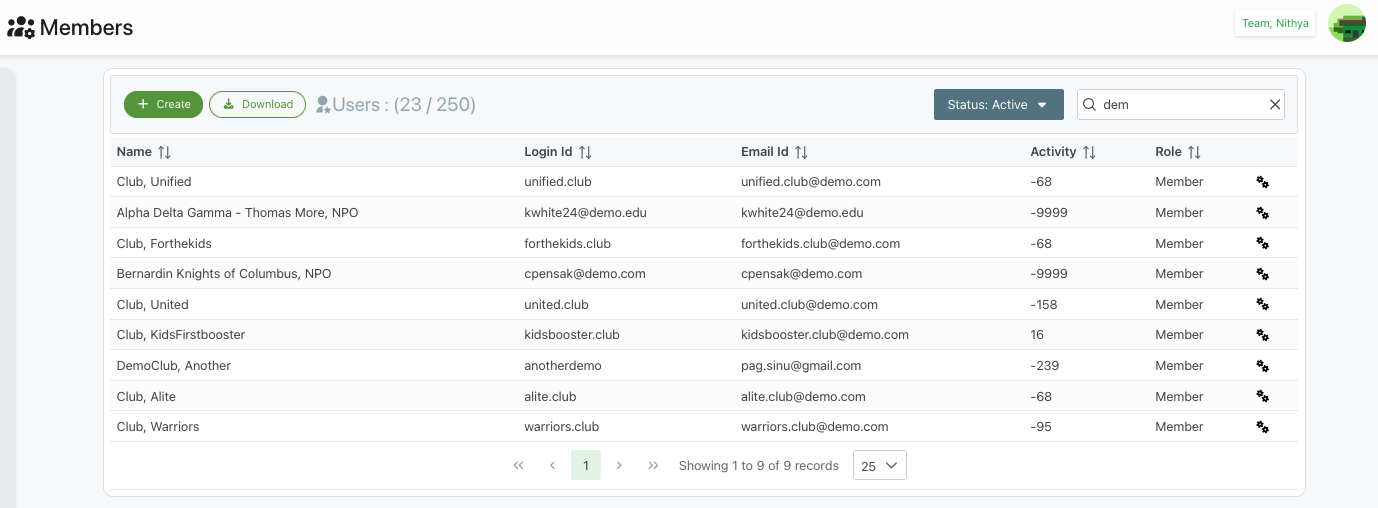
Members list view showing member information with name, login, email, activity, and role columns
Description
The Members page provides a comprehensive interface for managing all members across your organization. This centralized view allows administrators to oversee member accounts, monitor activity, and perform various management actions.
Page Header
The header displays:
- 👥 Members: Page title with icon
- User count: Shows total active users vs total users (e.g., "Users : (23 / 250)")
- Logged-in user: Displayed in the top-right corner (e.g., "Team, Nithya")
- Profile icon: Access to user profile and account settings
Action Buttons
Create Button
- Green + Create button to add new members to the organization
- Opens the member creation form
- Allows adding new clubs, teams, NPOs, or individual members
Download Button
- ⬇ Download button to export member data
- Download member list in various formats (CSV, Excel, etc.)
- Useful for reporting and external analysis
Status Filter
- Status: Active dropdown filter
- Filter members by their current status:
- Active: Currently active members
- Inactive: Deactivated or suspended members
- All: Show all members regardless of status
- Helps focus on specific member groups
Search Functionality
- Search box in the top-right corner
- Real-time search across member information
- Can search by name, login ID, email, or other attributes
- Example search: "dem" shows matching results
- ✕ button to clear search
Members Table
The table displays member information with the following sortable columns:
Name ↕
- Member's name or organization name
- Examples include:
- Individual members: "Alpha Delta Gamma - Thomas More, NPO"
- Clubs: "Club, Unified", "Club, Forthekids", "Club, KidsFirstbooster"
- Organizations: "Bernardin Knights of Columbus, NPO", "DemoClub, Another"
- Click column header to sort alphabetically
Login Id ↕
- Unique username for member login
- Format varies by organization type (e.g., "unified.club", "kwhite24@demo.edu", "forthekids.club")
- Used for authentication
- Click column header to sort
Email Id ↕
- Member's email address
- Used for notifications and communications
- Examples: "unified.club@demo.com", "kwhite24@demo.edu", "forthekids.club@demo.com"
- Click column header to sort
Activity ↕
- Numerical indicator of member activity level
- Negative numbers may indicate days since last activity (e.g., "-68", "-9999", "-158")
- Positive numbers may indicate recent engagement (e.g., "16")
- Helps identify active vs. inactive members
- Click column header to sort
Role ↕
- Member's role within the organization
- Common role: "Member"
- May include other roles like Admin, Manager, Coordinator, etc.
- Click column header to sort by role
Actions (⚙)
- Gear icon in the last column
- Click to open context menu with member-specific actions
- Provides quick access to various management functions
Member Context Menu
Clicking the gear icon (⚙) opens a menu with the following actions:
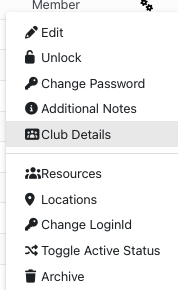
Member context menu showing available actions for managing individual members
✏️ Edit
- Modify member's basic information
- Update name, contact details, and other profile information
- Opens edit form with current member data
🔓 Unlock
- Unlock a locked member account
- Useful when a member is locked out due to failed login attempts
- Restores account access
🔑 Change Password
- Reset or change the member's password
- Administrative password management
- May send new password to member's email
📝 Additional Notes
- Add or edit notes about the member
- Internal notes for administrators
- Track special circumstances or requirements
🏢 Club Details
- View or edit club-specific information
- Access extended club profile data
- Manage club-specific settings and configurations
👥 Resources
- Manage member resources
- View and assign resources associated with the member
- Track resource allocation and availability
📍 Locations
- Manage locations associated with the member
- Set preferred or assigned locations
- Useful for geographic or venue-based organizations
🔑 Change LoginId
- Modify the member's login username
- Updates authentication credentials
- Requires careful handling to avoid access issues
⚡ Toggle Active Status
- Switch member status between Active and Inactive
- Temporarily disable access without deleting the account
- Can be reversed easily
📦 Archive
- Archive the member account
- Removes from active view but preserves data
- Used for members who have left the organization
Pagination
At the bottom of the table:
- Navigation controls: First page (⏮), Previous (◀), Next (▶), Last page (⏭)
- Current page indicator (highlighted in green)
- Record count: "Showing 1 to 9 of 9 records"
- Page size selector: Dropdown to adjust records per page (default: 25)
Use Cases
The Members page is essential for:
- User Management: Centralized control over all member accounts
- Access Control: Manage login credentials and account status
- Activity Monitoring: Track member engagement and participation
- Bulk Operations: Download data for reporting or analysis
- Organization Structure: View all clubs, teams, and NPOs in one place
- Troubleshooting: Unlock accounts, reset passwords, and resolve access issues
- Record Keeping: Maintain comprehensive member records with notes
- Resource Allocation: Assign and track resources across members
Best Practices
- Regular Audits: Periodically review member list for inactive accounts
- Status Management: Keep member statuses up to date (Active/Inactive)
- Documentation: Use Additional Notes to track important member information
- Search Efficiency: Use filters and search to quickly locate specific members
- Data Exports: Regularly download member data for backup and reporting
- Access Control: Use appropriate actions (Unlock, Toggle Status) rather than deletion when possible