Adjustments Tab
Purpose
The Adjustments tab allows organizers to manage last-minute staffing changes by creating backfill assignments. It provides a drag-and-drop interface for assigning available signed-in resources to unfilled positions, helping fill gaps caused by no-shows or additional needs.
Route
/manage/schedules/{schedule-id}/adjustments
Screenshot
Description
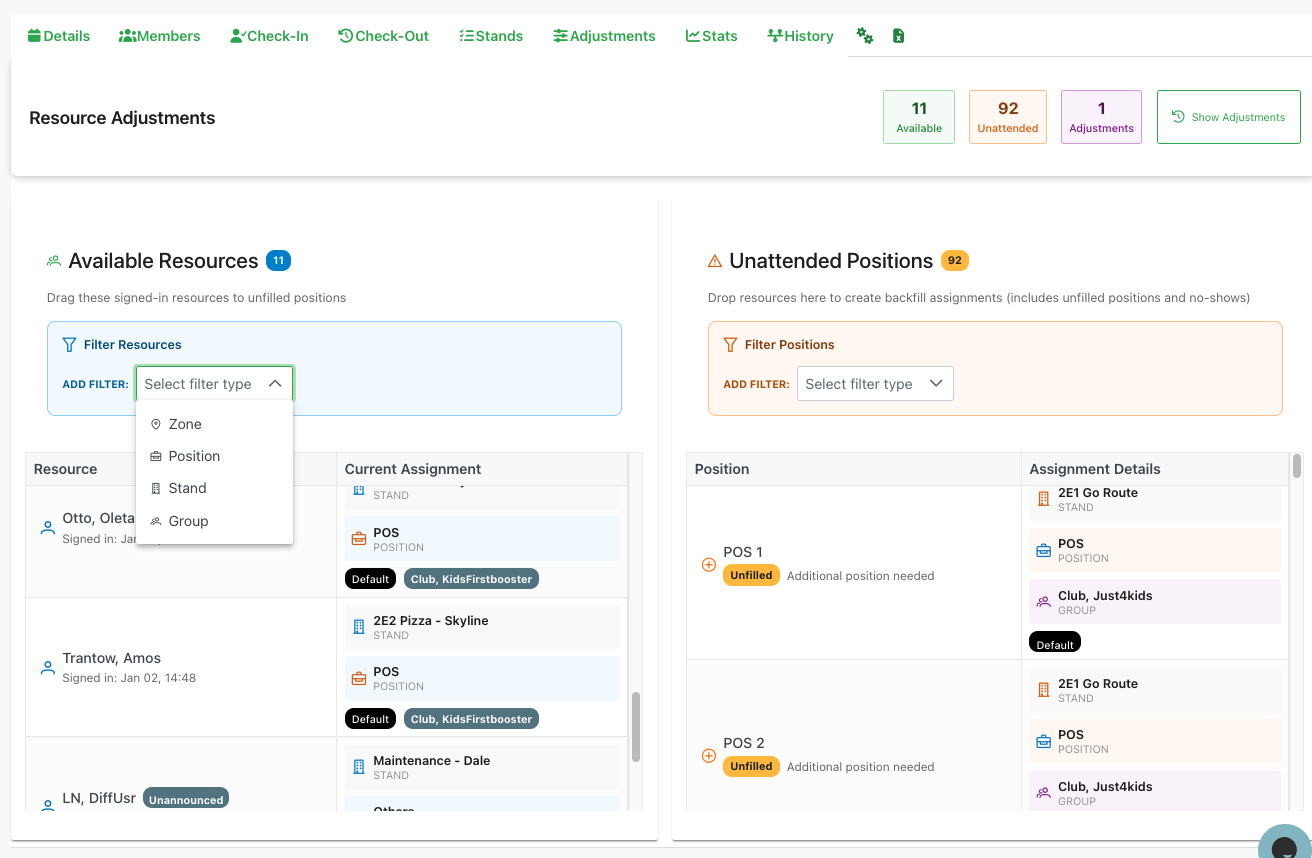
The Adjustments tab provides a visual interface for managing real-time staffing adjustments during an event.
Header Summary
At the top of the page, three key metrics are displayed:
- 11 Available: Number of signed-in resources available for reassignment (in green)
- 92 Unattended: Number of unfilled positions that need coverage (in orange)
- 1 Adjustments: Number of active backfill assignments made during this session (in purple)
Action Button
- ↻ Show Adjustments: Opens a modal displaying all active adjustments made during the current session
Main Interface
The interface is divided into two main columns for drag-and-drop operations:
Available Resources (Left Column)
Header
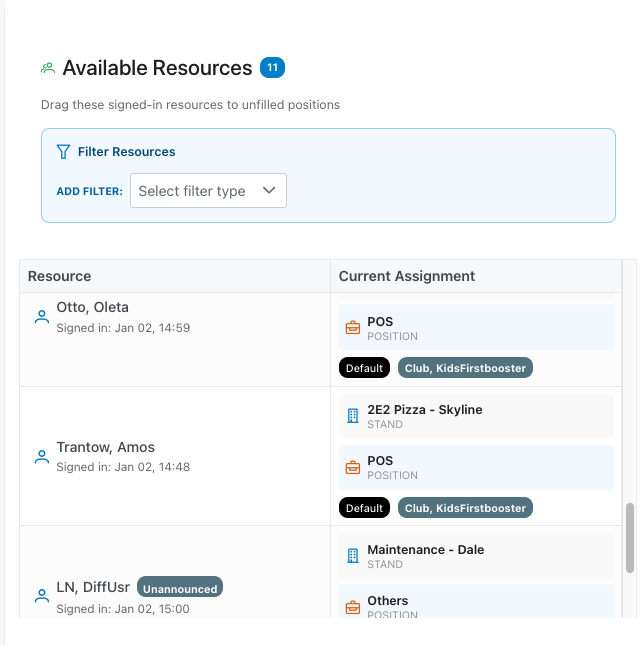
- "🧑 Available Resources": Section title with count badge (e.g., "11")
- Subtitle: "Drag these signed-in resources to unfilled positions"
Filter Resources
- 🔽 Filter Resources: Dropdown with filtering options
- ADD FILTER: Button to add filters
- Select filter type: Dropdown with options:
- 📍 Zone: Filter by zone assignment
- 📋 Position: Filter by position type
- 🏢 Stand: Filter by stand location
- 👥 Group: Filter by club/team
Resource List
Each resource card displays:
- Avatar: Circular icon with member's initials
- Name: Resource name (e.g., "Otto, Oleta", "Trantow, Amos")
- Sign-in Status:
- "Signed in: [date/time]" for checked-in resources
- "Unannounced" badge for walk-up volunteers
- Current Assignment Section: Shows existing assignments
- Stand: Current stand location with icon
- Example: "🏢 POS - POSITION"
- Zone badges: "Default", "Club, KidsFirstbooster"
- Additional stands listed below
- Example: "🏢 2E2 Pizza - Skyline - STAND"
- "🏢 Maintenance - Dale - STAND"
- Stand: Current stand location with icon
Draggable Functionality
- Resources can be dragged from this column to the Unattended Positions column
- Resources maintain their current assignments while being available for backfill
Unattended Positions (Right Column)
Header
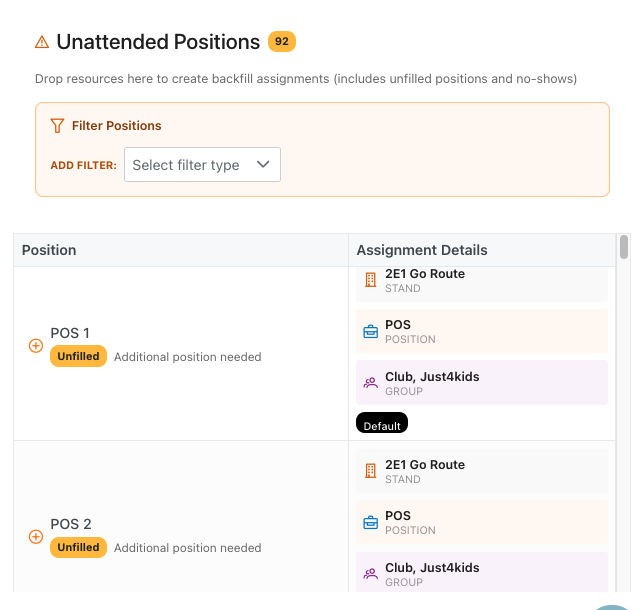
- "⚠️ Unattended Positions": Section title with count badge (e.g., "92")
- Subtitle: "Drop resources here to create backfill assignments (includes unfilled positions and no-shows)"
Filter Positions
- 🔽 Filter Positions: Dropdown with filtering options
- ADD FILTER: Button to add filters
- Select filter type: Dropdown (same options as Available Resources)
Position List
Each unfilled position displays:
- ⊕ Icon: Plus icon indicating open position
- Position Name: Role name (e.g., "POS 1", "POS 2")
- Status Badge:
- "Unfilled" (yellow) - Position was never filled
- "No-show" - Assigned resource didn't arrive
- Additional Info: "Additional position needed" or similar notes
- Assignment Details:
- Position Type: Icon and name (e.g., "📋 POS - POSITION")
- Group: Club/team (e.g., "👥 Club, Just4kids - GROUP")
- Zone Badge: "Default" or other zone classification
- Stand: Location (e.g., "🏢 2E1 Go Route - STAND")
Drop Zones
- Each position card serves as a drop target
- Dropping a resource creates a backfill assignment
- Visual feedback when dragging over valid targets
Active Adjustments Modal
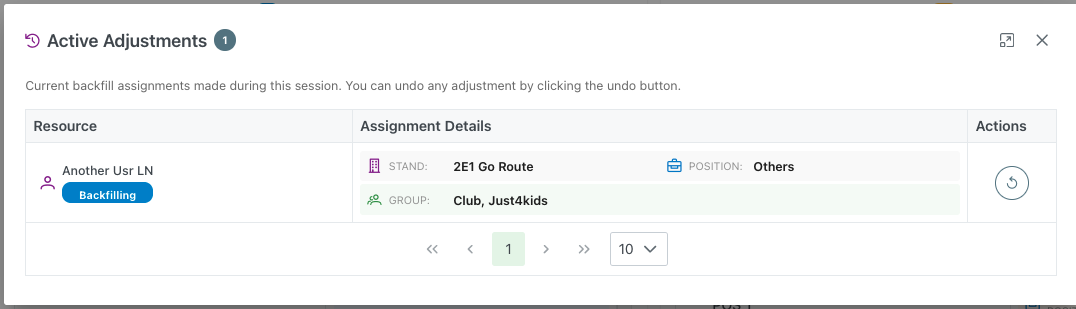
When clicking "Show Adjustments", a modal displays all adjustments made during the session:
Modal Header
- Title: "↻ Active Adjustments" with count badge (e.g., "1")
- Subtitle: "Current backfill assignments made during this session. You can undo any adjustment by clicking the undo button."
- Close button (✕): Top right corner
- Expand button (⤢): Maximize modal
Adjustments Table
Table Columns
- Resource: Shows the resource with adjustment details
- Assignment Details: Current assignment information
- Actions: Undo button
Resource Entry
- Avatar: Member's initials in colored circle
- Name: Resource name (e.g., "Another Usr LN")
- Status Badge: "Backfilling" (blue) indicates this is a backfill assignment
Assignment Details
- 🏢 STAND: Stand location (e.g., "2E1 Go Route")
- 👥 GROUP: Club/team (e.g., "Club, Just4kids")
- 📋 POSITION: Role (e.g., "Others")
Actions
- ↻ Undo Button: Circular arrow icon to reverse the adjustment
- Removes the backfill assignment
- Returns the resource to available pool
- Position returns to unattended list
Pagination
- Navigation controls at the bottom for multiple adjustments
- Items per page dropdown (default: 10)
Workflow
Creating a Backfill Assignment
- Review the Available Resources column for signed-in resources
- Identify unfilled positions in the Unattended Positions column
- Apply filters if needed to narrow down options
- Click and drag a resource from the left column
- Drop onto an unfilled position in the right column
- The assignment is created immediately
- Resource shows "Backfilling" status
- Adjustment counter increments
Filtering Resources or Positions
- Click the filter dropdown in either column
- Select filter type (Zone, Position, Stand, or Group)
- Choose specific criteria to narrow the list
- Add multiple filters as needed
- Clear filters to see all options again
Reviewing Active Adjustments
- Click "Show Adjustments" button in the header
- Review all backfill assignments made this session
- Check assignment details for each adjustment
- Verify resources are in correct positions
Undoing an Adjustment
- Open the Active Adjustments modal
- Locate the adjustment to reverse
- Click the ↻ undo button next to the resource
- Confirm if prompted
- Resource returns to Available Resources
- Position returns to Unattended Positions
- Adjustment counter decrements
Key Features
Drag and Drop Interface
- Intuitive visual assignment process
- No complex forms to fill out
- Immediate feedback on assignments
- Reduces errors and speeds up adjustments
Real-Time Tracking
- Live count of available resources
- Dynamic unattended positions list
- Instant updates when assignments change
- Clear visibility of adjustment status
Flexible Filtering
- Filter by multiple criteria simultaneously
- Quick access to specific resources or positions
- Reduces scrolling through long lists
- Helps find the right match quickly
Session Management
- All adjustments tracked in current session
- Easy undo for recent changes
- Clear audit trail of modifications
- Prevents permanent assignment errors
Use Cases
No-Show Coverage
- Assigned resource doesn't arrive
- Position appears in Unattended Positions
- Drag available resource to fill the gap
- Event continues without staffing shortage
Additional Positions
- Event needs more coverage than planned
- Extra positions marked as "Unfilled"
- Assign available signed-in resources
- Flexible scaling for unexpected demand
Last-Minute Changes
- Resource needs to switch positions
- Create backfill for vacated position
- Assign another resource to cover
- Maintain proper staffing levels
Walk-Up Volunteers
- Unannounced resources sign in
- Appear in Available Resources with "Unannounced" badge
- Assign to unfilled positions
- Maximize volunteer utilization
Best Practices
- Act Quickly: Address no-shows as soon as they're identified
- Verify Qualifications: Check that resources match position requirements (LL, skills, etc.)
- Use Filters: Narrow options to find the best fit efficiently
- Monitor Adjustments: Regularly review active adjustments for accuracy
- Communicate Changes: Inform reassigned resources of their new positions
- Keep Notes: Document reasons for adjustments elsewhere if needed
- Undo Carefully: Only reverse adjustments if truly in error
The Adjustments tab is essential for maintaining proper event staffing when the original plan encounters real-world changes.