Check-out Tab
Purpose
The Check-Out tab allows organizers to track and record member departures from the event. It provides tools for checking out resources, viewing their duration on-site, and managing undo operations for accidental check-outs.
Route
/manage/schedules/{schedule-id}/check-out
Screenshot
Description
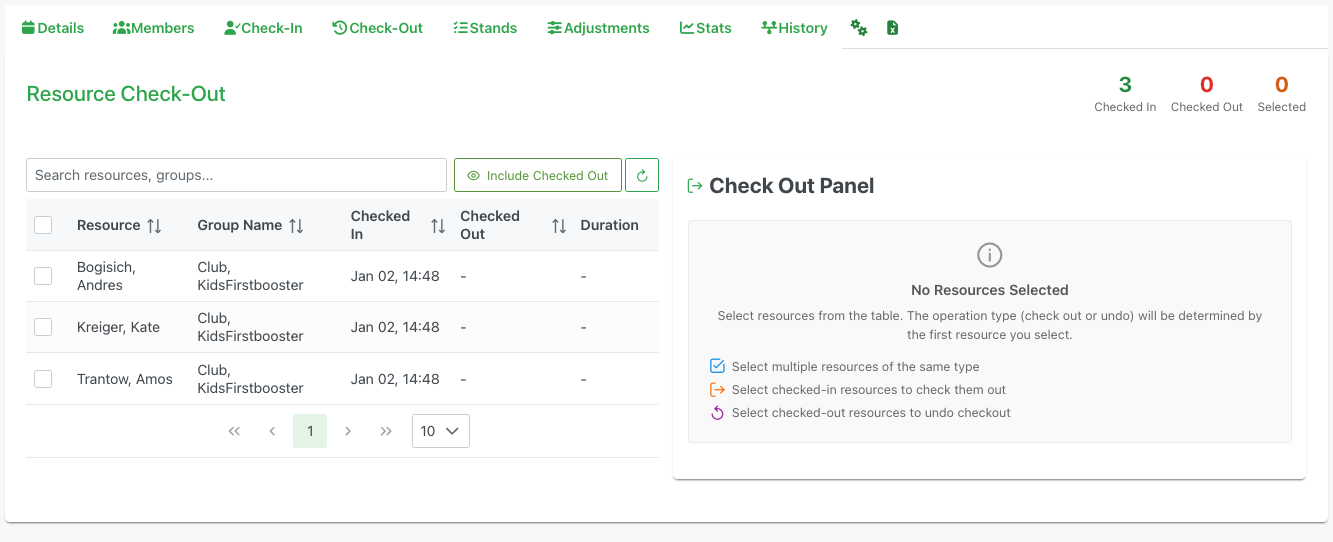
The Check-Out tab provides a comprehensive interface for managing event departures and tracking attendance duration.
Header Summary
At the top of the page, three key metrics are displayed:
- 3 Checked In: Number of resources currently on-site (in green)
- 0 Checked Out: Number of resources who have completed their shift (in red)
- 2 Selected: Number of resources currently selected for batch operations (in orange)
Action Buttons
- Search Bar: Search for specific resources or groups
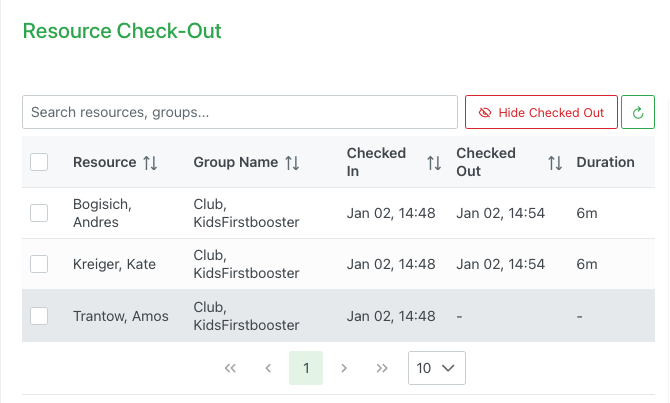
- 👁 Include Checked Out: Toggle to show/hide resources who have already been checked out
- When enabled (green), displays all resources including completed check-outs
- When disabled (showing "Hide Checked Out"), only shows active/checked-in resources
- 🔄 Refresh: Refresh the resource list to get latest status
Resource List
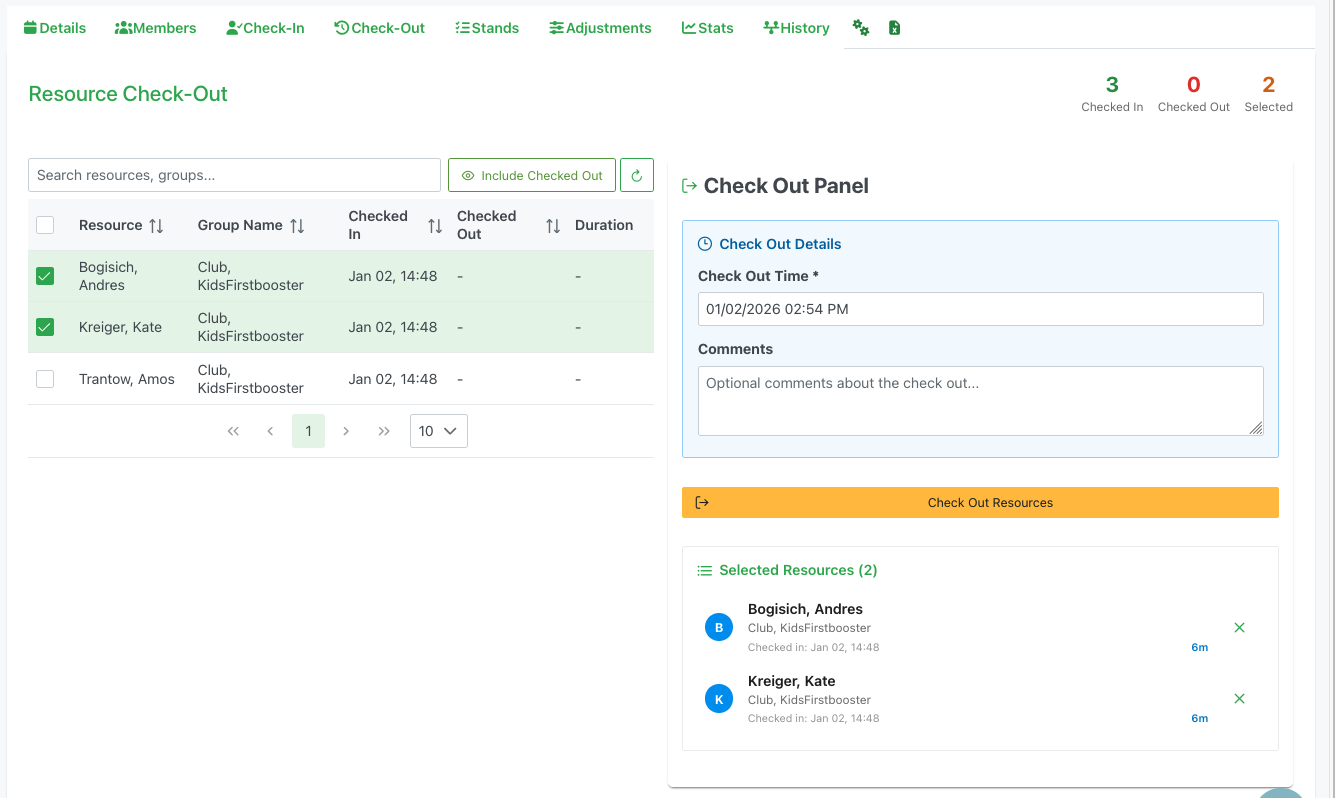
The main table displays all resources with their attendance information:
Table Columns
- Checkbox: Select resources for batch check-out operations
- Resource: Name of the member/volunteer (sortable)
- Group Name: The club or team the resource belongs to (sortable)
- Checked In: Timestamp when the resource arrived (sortable)
- Format: "Jan 02, 14:48"
- Checked Out: Timestamp when the resource departed (sortable)
- Shows "-" if not yet checked out
- Shows time if completed
- Duration: Total time on-site (sortable)
- Automatically calculated from check-in to check-out
- Format: "6m" (minutes), "2h" (hours), etc.
- Shows "-" if not yet checked out
Row States
- White background: Resources not yet checked out
- Green background: Resources currently selected for check-out
- Gray background (when "Include Checked Out" is enabled): Resources already checked out
Pagination
- Navigation controls at the bottom for browsing large lists
- Dropdown to adjust items per page (default: 10)
Check Out Panel
The right-side panel provides tools for processing check-outs:
No Resources Selected State
When no resources are selected, the panel displays:
Information Icon
- Large info icon (ℹ️) with "No Resources Selected" message
Instructions "Select resources from the table. The operation type (check out or undo) will be determined by the first resource you select."
Selection Options
- ☑️ Select multiple resources of the same type: Check the boxes for multiple resources in the same state
- ➡️ Select checked-in resources to check them out: Choose resources that are currently on-site
- ↻ Select checked-out resources to undo checkout: Choose completed check-outs to reverse
Active Check-Out State
When resources are selected for check-out, the panel displays:
Check Out Details Section
Check Out Time*
- DateTime picker to record departure time
- Default: Current date and time
- Format: "01/02/2026 02:54 PM"
- Calendar icon button to open picker
- Required field
Comments
- Text area for optional notes about the check-out
- Placeholder: "Optional comments about the check out..."
- Useful for documenting:
- Early/late departures
- Equipment issues or returns
- Performance notes
- Reasons for early departure
Check Out Resources Button
- Orange button with arrow icon (➡️)
- Processes the check-out for all selected resources
- Applies the same timestamp and comments to all
Selected Resources Section
Displays a list of resources ready to be checked out:
Header
- "📋 Selected Resources (2)" - Shows count of selected items
Resource Cards Each selected resource displays:
- Avatar: Circular icon with member's initials
- Name: Full name of the resource (e.g., "Bogisich, Andres")
- Club/Team: Organization affiliation (e.g., "Club, KidsFirstbooster")
- Checked In: Original check-in timestamp (e.g., "Checked in: Jan 02, 14:48")
- Duration Badge: Estimated total time on-site (e.g., "6m" in blue)
- Remove Icon (✗): Green X button to remove from selection
Card Actions
- Click the green X to remove individual resources from the batch operation
- Duration updates dynamically based on the check-out time selected
Workflow
Standard Check-Out Process
- Locate resources to check out in the table
- Check the boxes next to each resource to select them
- Verify the check-out time is correct (adjust if needed)
- Add optional comments about the departure
- Review the selected resources list
- Click "Check Out Resources" to process
Filtering Completed Check-Outs
- Use the "Include Checked Out" toggle to show/hide completed check-outs
- Review duration data for completed shifts
- Verify all resources have been properly checked out
Undo Check-Out Process
- Enable "Include Checked Out" to view completed check-outs
- Select the resources that were checked out in error
- The panel will detect they are already checked out
- Click the undo option to reverse the check-out
- Resources return to "Checked In" status
Bulk Check-Out
- Use checkboxes to select multiple resources at once
- All selected resources must be in the same state (checked in or checked out)
- Enter a single check-out time applied to all
- Add comments that apply to the group
- Process all selections together
Best Practices
- Accurate Timing: Ensure check-out times reflect actual departures
- Documentation: Use comments to note unusual circumstances
- Review Duration: Check that calculated durations make sense before finalizing
- Batch Wisely: Only batch resources that actually left at the same time
- Verify Before Undo: Double-check before reversing a check-out
- Include Comments: Add notes for early departures or issues
The check-out data helps track actual hours worked, manage staffing levels, and provides an audit trail for compensation and scheduling purposes.