History Tab
Purpose
Track and audit all subscription and participation activities for a schedule. The History tab provides a chronological record of member subscriptions, status changes, and related actions.
Route
/auth/calendar/eventView?id={schedule-id}&tab=history
Screenshot
Description
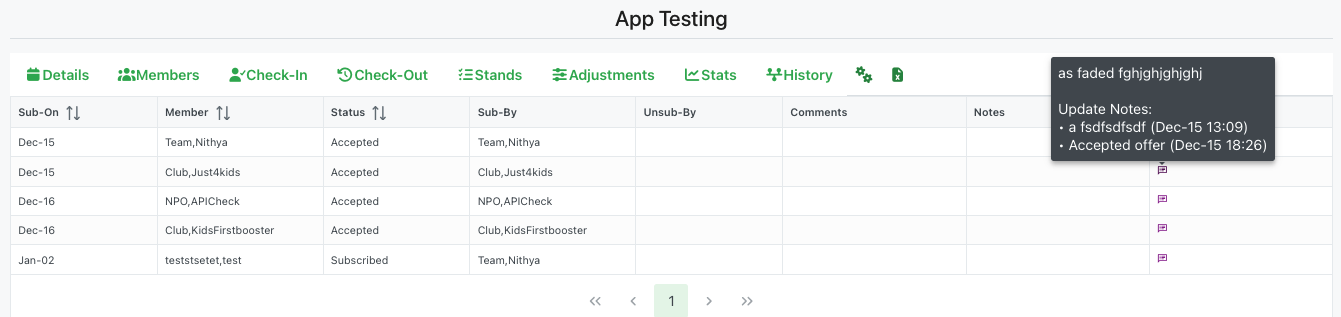
The History tab maintains a comprehensive audit trail of all member participation activities for the event. This tab is particularly useful for organizers who need to track subscription patterns, verify member commitments, and review the timeline of participation changes.
Navigation Tabs
Access the History tab from the event view navigation bar, alongside other tabs:
- Details: Event overview and information
- Members: Team member management
- Check-In: Member check-in tracking
- Check-Out: Member check-out recording
- Stands: Position and stand assignments
- Adjustments: Assignment modifications
- Stats: Event statistics and analytics
- History: Subscription and participation audit trail (current tab)
- Additional action icons for notifications and security settings
History Table
The history table displays subscription records with the following columns:
Sub-On
- The date and time when the subscription or action occurred
- Displayed in a sortable format (e.g., "Dec-15", "Dec-16", "Jan-02")
- Click the column header to sort records chronologically
- Helps track the timeline of member participation
Member
- The name of the member who participated or was affected by the action
- Displays member's organization or team affiliation (e.g., "Team,Nithya", "Club,Just4kids", "NPO,APICheck")
- Click the column header to sort alphabetically by member name
Status
- Current participation status of the member
- Common statuses include:
- Accepted: Member has accepted the organizer's offer and confirmed spots
- Subscribed: Member has expressed interest and committed resources
- Offered: Organizer has assigned positions (not shown but possible status)
- Declined: Member has declined participation (not shown but possible status)
- Click the column header to sort by status
Sub-By
- Shows who initiated the subscription or action
- Typically displays the member's name or organization
- Helps identify self-subscriptions vs. organizer-initiated actions
- Examples: "Team,Nithya", "Club,Just4kids", "NPO,APICheck"
Unsub-By
- Records who unsubscribed or cancelled participation
- Empty if the subscription is still active
- Provides accountability for cancellations
- Helps track withdrawal patterns
Comments
- General comments or notes related to the subscription
- May contain additional context about the participation
- Can be added by members or organizers
Notes
- Displays a purple icon (💬) when update notes are available
- Click the icon to view detailed update history in a tooltip
- The tooltip shows chronological updates with timestamps
- Example notes include:
- Acceptance confirmations: "Accepted offer (Dec-15 18:26)"
- Subscription details: "a fsdfsdfdsdf (Dec-15 13:09)"
- Status change history and reasons
Notes Tooltip
When you hover over or click the notes icon (💬), a dark tooltip appears showing:
- Update Notes header
- Chronological list of all changes and updates
- Each entry includes:
- Action description (e.g., "Accepted offer", subscription details)
- Timestamp in format "(Dec-15 18:26)"
- Provides detailed audit trail for individual member participation
Pagination
At the bottom of the history table:
- Navigation controls: First page (⏮), Previous (◀), Next (▶), Last page (⏭)
- Current page indicator (highlighted in green)
- Easy navigation through multiple pages of history records
Use Cases
The History tab is valuable for:
- Audit Trail: Review complete history of member subscriptions and status changes
- Accountability: Track who subscribed, who accepted, and who made changes
- Timeline Analysis: Understand when members committed to the event
- Issue Resolution: Investigate discrepancies or disputes about participation
- Reporting: Generate reports on subscription patterns and member engagement
- Compliance: Maintain records for organizational or legal requirements
Sortable Columns
Most columns support sorting (indicated by ↕ icon in headers):
- Click once to sort ascending
- Click again to sort descending
- Use sorting to organize data by date, member name, or status
This comprehensive history helps organizers maintain transparency and accountability throughout the event planning and execution process.