Stands Tab
Purpose
The Stands tab allows organizers to manage and monitor all stand locations for the event. It provides an overview of stand status, resource allocation progress, and tools for opening and closing stands as the event progresses.
Route
/manage/schedules/{schedule-id}/stands
Screenshot
Description
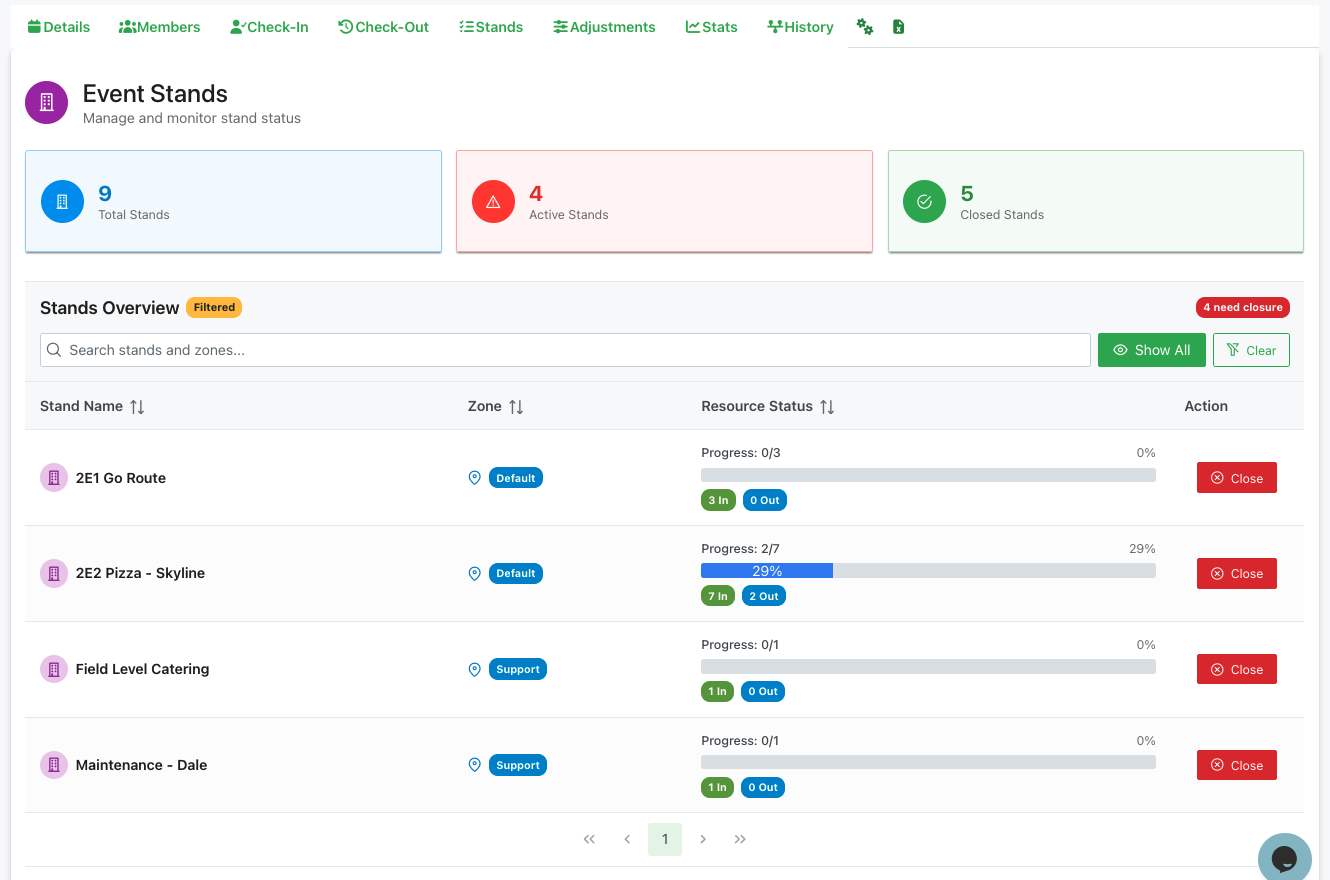
The Stands tab provides comprehensive stand management tools for tracking and controlling event locations.
Header Section
Title and Subtitle
- Event Stands: Main section title
- Manage and monitor stand status: Subtitle explaining the purpose
Summary Cards
Three key metrics displayed at the top:
Total Stands (Blue Card)
- Icon: Building/stand icon
- Count: Total number of stands configured for the event
- Example: "9 Total Stands"
- Shows the complete inventory of stand locations
Active Stands (Red Card)
- Icon: Alert/active icon
- Count: Number of stands currently open and operational
- Example: "4 Active Stands"
- Indicates stands where resources should be working
Closed Stands (Green Card)
- Icon: Checkmark icon
- Count: Number of stands that have been closed
- Example: "5 Closed Stands"
- Shows stands that have completed operations
Stands Overview Section
Section Header
- Title: "Stands Overview"
- Filtered Badge: Yellow badge indicating filters are active
- Closure Alert: "4 need closure" badge (orange/red) shows stands requiring action
Search and Filter
- Search Bar: "Search stands and zones..." placeholder
- Allows filtering by stand name or zone
- Real-time search as you type
- 👁 Show All: Green button to display all stands (removes filters)
- 🔽 Clear: Button to clear current filters
Stands Table
A sortable table displaying all stands with their current status:
Table Columns
Stand Name (sortable)
- Stand location identifier
- Examples: "2E1 Go Route", "2E2 Pizza - Skyline", "Field Level Catering", "Maintenance - Dale"
- Purple building icon prefix
- Click column header to sort alphabetically
Zone (sortable)
- Zone classification badge
- Types:
- Default (blue badge): Primary zone
- Support (blue badge): Support zone
- Backfill: Additional coverage zone
- Location icon (📍) prefix
- Click column header to sort by zone
Resource Status (sortable)
- Visual progress bar showing resource allocation
- Progress Text: "Progress: X/Y" where X = filled, Y = total
- Percentage: Shows completion percentage (e.g., "0%", "29%")
- Progress Bar: Visual representation
- Blue bar indicates filled positions
- Gray background shows unfilled positions
- Resource Badges:
- Green badge: "X In" - Resources checked in (e.g., "3 In", "7 In", "1 In")
- Blue badge: "Y Out" - Resources checked out (e.g., "0 Out", "2 Out")
- Click column header to sort by progress
Action
- ⊗ Close Button: Red button to close the stand
- Available for open/active stands
- Clicking initiates the stand closure process
- Marks the stand as completed
Stand Status Indicators
Progress Visualization
Each stand shows:
- Fraction: Current filled / Total needed (e.g., "0/3", "2/7", "0/1")
- Percentage: Visual percentage of completion
- Color-coded bar:
- Blue portion: Filled positions
- Gray portion: Unfilled positions
- Length proportional to completion
Resource Count Badges
Two badges show check-in/out status:
- Green "X In": Number of resources currently checked in at this stand
- Blue "Y Out": Number of resources who have checked out from this stand
Stand States
Based on the data:
- Fully Staffed: Progress bar at 100%, all positions filled
- Partially Staffed: Progress bar partially filled (e.g., 29%)
- Unstaffed: Progress bar at 0%, no resources assigned/present
- Active: Stand is open and accepting resources
- Closed: Stand has completed operations (shown with checkmark)
Pagination
- Navigation controls: At the bottom of the table
- Current page indicator: Shows active page (e.g., "1")
- Previous/Next: Arrow buttons to navigate pages
- First/Last: Double arrow buttons to jump to first or last page
Workflow
Opening a Stand
- Stand appears in the table with 0% progress
- Resources are assigned and check in
- Progress bar fills as resources arrive
- Resource badges update to show "In" count
Monitoring Stand Progress
- Review the Resource Status column
- Check percentage and fraction for completion
- Identify understaffed stands (low percentage)
- Verify resources are checking in (green badge count)
Closing a Stand
- Verify all resources have checked in
- Check that resources have checked out (blue badge)
- Confirm stand operations are complete
- Click the red "⊗ Close" button
- Stand status changes to "Closed"
- Stand moves to the Closed Stands count
Filtering Stands
- Use the search bar to find specific stands
- Filter by zone type if needed
- "Filtered" badge appears when filters are active
- Click "Show All" to remove filters
- Click "Clear" to reset search/filters
Managing Closures
- Note the "X need closure" badge count
- Review stands that should be closed
- Verify all operations are complete
- Close stands systematically
- Monitor the count decrease as stands close
Use Cases
Event Setup
- Review all stands before event starts
- Verify zones are correctly assigned
- Ensure resource counts match expectations
- Confirm all necessary stands are listed
During Event
- Monitor which stands are actively staffed
- Identify stands with staffing shortages
- Track check-in/check-out patterns
- Respond to stands needing attention
Event Teardown
- Close stands as they complete operations
- Track which stands still need closure
- Verify all resources have checked out
- Ensure systematic event shutdown
Staffing Analysis
- Compare progress across stands
- Identify consistently understaffed locations
- See which zones have better coverage
- Plan future events based on patterns
Features
Real-Time Updates
- Resource counts update as check-ins/outs occur
- Progress bars reflect current status
- Badge counts increment automatically
- Stand states change based on activity
Sortable Columns
- Click any column header to sort
- Sort by name for alphabetical order
- Sort by zone to group locations
- Sort by progress to find problem areas
Visual Indicators
- Color-coded zones for quick identification
- Progress bars provide instant status
- Badge colors distinguish check-in from check-out
- Closure button prominence for action items
Search and Filter
- Quick text search for specific stands
- Zone filtering for geographic grouping
- Filter state clearly indicated
- Easy filter clearing
Best Practices
Pre-Event
- Review all stands are configured correctly
- Verify resource allocations match needs
- Confirm zone assignments are accurate
- Check total counts match event plan
During Event
- Monitor the "need closure" count
- Address stands with 0% progress quickly
- Watch for stands with all resources checked out
- Close stands promptly when operations complete
Resource Management
- Use low-progress stands to guide check-in efforts
- Reference when making adjustments
- Cross-check with Members tab assignments
- Coordinate closures with check-out timing
Systematic Closure
- Close stands in logical order
- Verify no resources still checked in
- Document any issues before closing
- Track the closure count for reporting
Performance Tracking
- Note which stands fill quickly vs. slowly
- Identify zone patterns in staffing
- Track check-out timing across stands
- Use data for future event planning
Integration with Other Tabs
With Members Tab
- Members tab shows individual assignments
- Stands tab shows aggregate by location
- Use together to diagnose staffing issues
With Check-In Tab
- Check-in updates the "In" badge counts
- Stand progress increases with check-ins
- Monitor here, process there
With Check-Out Tab
- Check-out updates the "Out" badge counts
- Stand ready for closure when all checked out
- Coordinate timing between tabs
With Adjustments Tab
- Adjustments affect stand staffing levels
- Stand progress reflects backfill success
- Use stands view to identify adjustment needs
With Stats Tab
- Stats provides detailed breakdowns
- Stands provides action-oriented view
- Both show same data, different purposes
The Stands tab is essential for managing the physical locations of your event, ensuring proper coverage, and systematically closing operations as the event concludes.